
What’s New in WordPress 7.0? (Features & Screenshots)

WordPress 7.0 is finally here 🥳, and we’ve been testing it since the early beta.
It’s the first major release of 2026, and it’s a big one, with a brand-new AI Connectors screen, responsive block controls, and a refreshed admin experience that makes the dashboard feel like a modern web app.
Whether you run a small blog or a large multi-author site, WordPress 7.0 brings changes that will affect the way you create and manage content.
Here’s everything that’s new in WordPress 7.0:
📌 Note: Real-time collaboration (RTC) was originally planned for WordPress 7.0, and we covered it in our What’s Coming in WordPress 7.0 post. It was pulled before release because the core team wasn’t confident the current approach was robust enough, citing concerns around race conditions, server load, and memory efficiency.
The feature is still in active development and can be tested via the Gutenberg plugin. We’ll cover it properly when it ships.
Connect WordPress to AI with the New Connectors Screen 🤖
WordPress 7.0 now gives you a central place to connect your site to AI services with no third-party plugin required.
A new Settings » Connectors screen lets you install and configure AI provider packages directly from your WordPress dashboard.
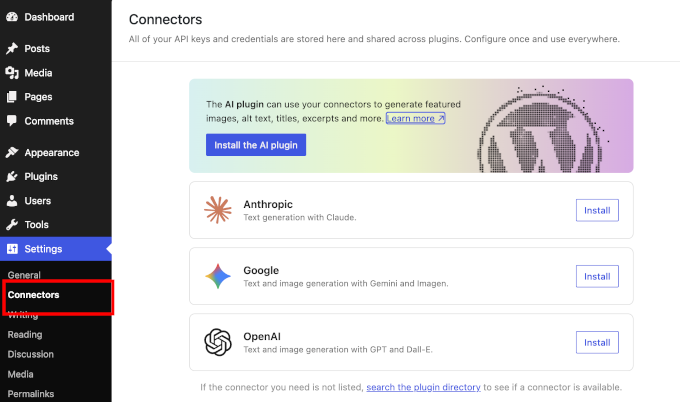
Think of it like a plugin directory, but specifically for AI. You choose your provider, enter your credentials once, and every plugin or theme that supports the AI API can tap into that connection automatically.
At launch, three providers are available: OpenAI (ChatGPT), Google (Gemini), and Anthropic (Claude). Once a connector is installed and authenticated, any plugin that uses the WordPress AI API will work with your chosen provider, without you needing to configure API keys in multiple places.
There are a ton of WordPress AI plugins that can now use your selected AI platform to provide AI features. Until now many companies were either asking you to enter your API keys or purchase credits from them.
The connectors store credentials securely and handle communication between WordPress and the AI provider in a standardized way.
Pro Tip: If you’d prefer to disable all AI features entirely — for privacy reasons or to keep things simple — you can add define( ‘WP_AI_SUPPORT’, false ); to your wp-config.php file. This turns off all LLM-related features across the site.
A Refreshed Admin Experience ✨
The WordPress admin area has a new look in 7.0, including updated color schemes, cleaner typography, and smoother transitions between screens.
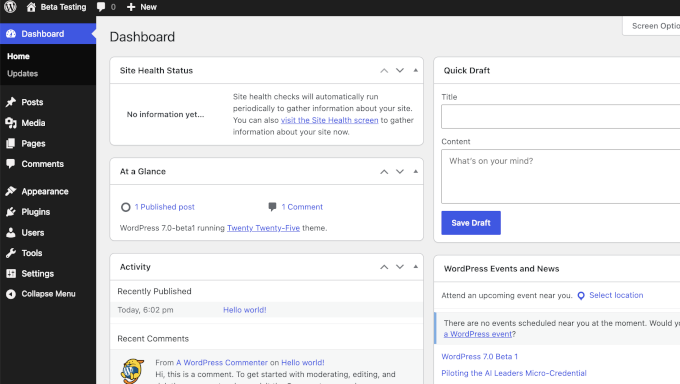
It’s not a complete redesign, but in practice this means less waiting as you move between screens. For example, clicking from Posts to Settings to the editor no longer triggers a full page reload each time.
The cleaner layout and higher-contrast typography also make it easier to find what you’re looking for, which adds up when you’re publishing frequently or jumping between settings.

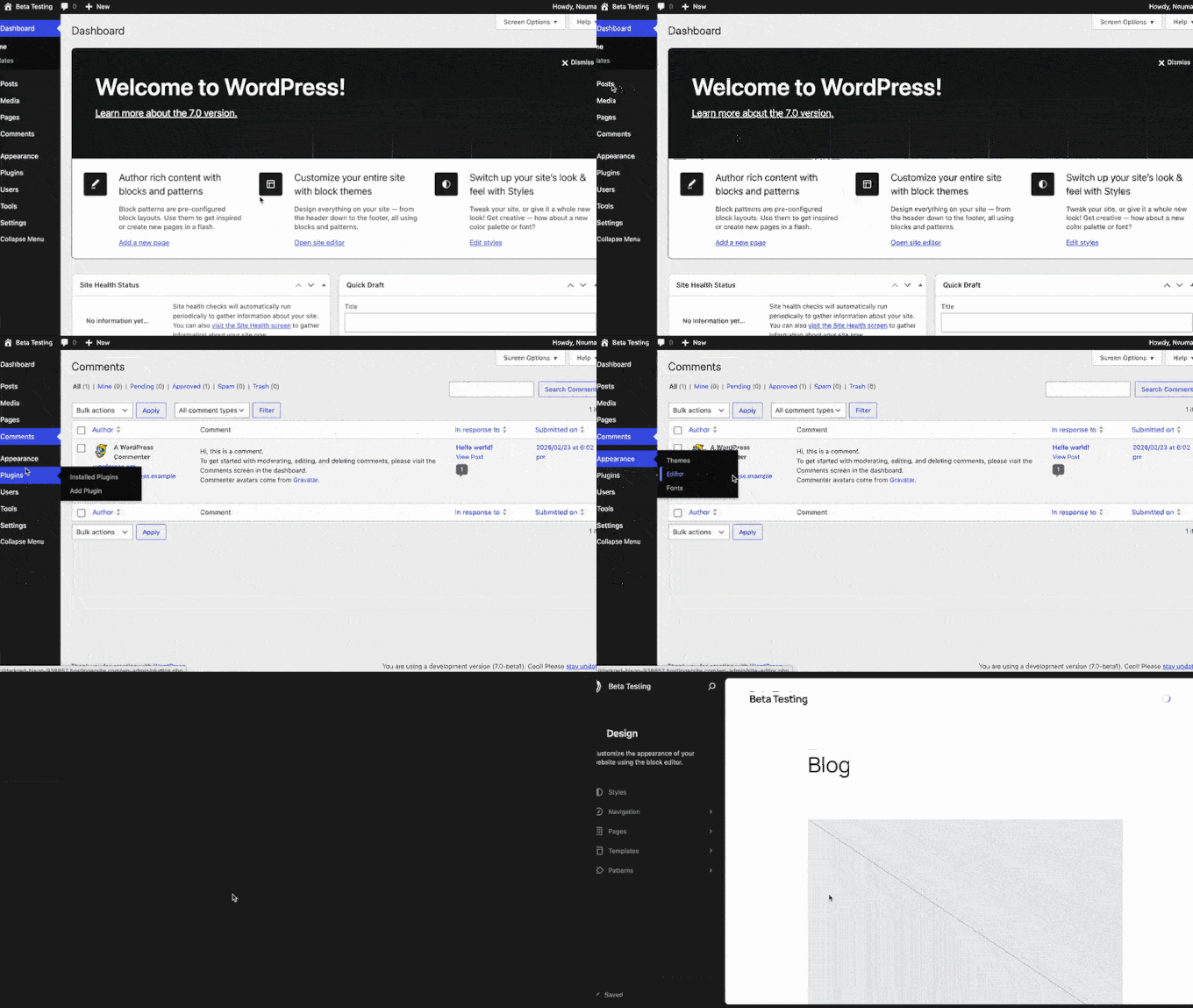
Related: See the evolution of the WordPress user interface.
Command Palette Is Now Available Everywhere
One of the most useful additions is that the Command Palette, which was previously only available inside the block editor, is now accessible from anywhere in the admin.
Just press ⌘K on Mac or Ctrl+K on Windows/Linux to open it from any screen.
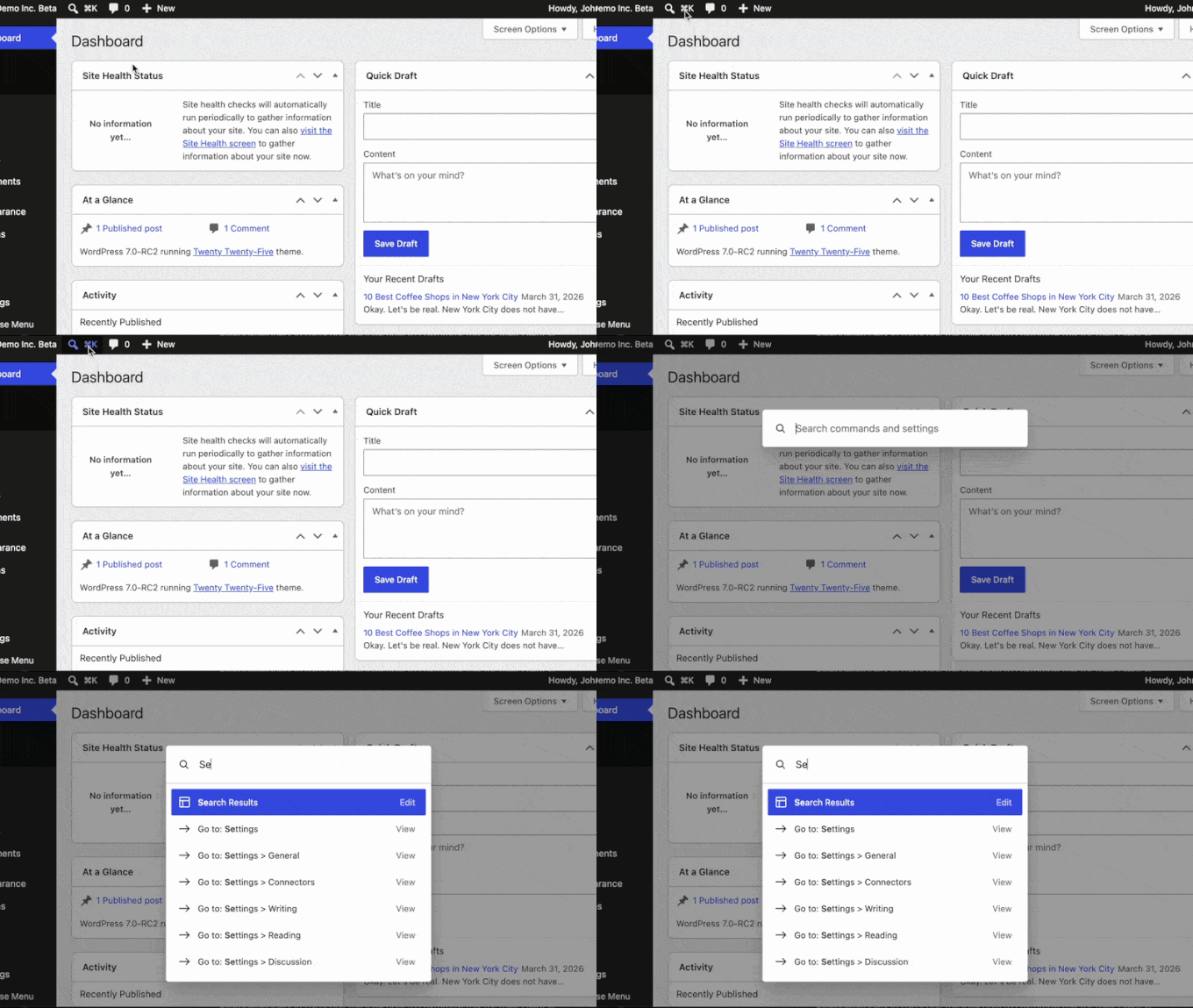
From there, you can quickly navigate to any page, open settings, search posts, or run common actions without touching the mouse. If you’ve ever used the command palette in VS Code or Figma, then this will feel immediately familiar.
Note: This is entirely optional. If keyboard shortcuts aren’t your thing, you don’t need to learn this because all the same actions are still available through the normal menus. It’s a power-user shortcut for people who want to move faster.
Responsive Block Visibility by Device 📱
WordPress 7.0 introduces a feature that page builder plugins have offered for years, now built right into the core block editor: the ability to show or hide any block depending on whether a visitor is on a phone, tablet, or desktop.
Whether you want to display a larger image on desktop and swap it for a compact version on mobile, or hide a sidebar element entirely on smaller screens, you can now do all of this without touching a line of CSS.
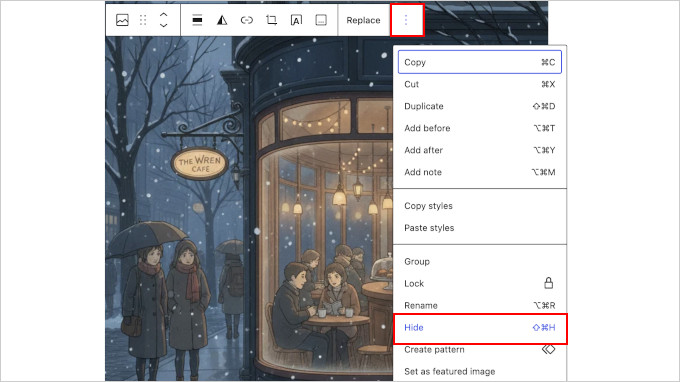
To use it, select any block and look for the new visibility options in the block toolbar or the block inspector sidebar.
A visibility modal lets you choose which device types — desktop, tablet, or mobile — to hide the block on. Any changes you make only affect the viewports you choose, and other screen sizes are untouched.
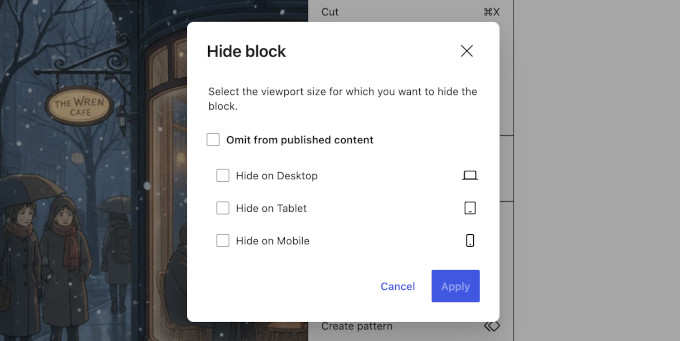
Here are some more details:
- Blocks with active visibility rules show a small device icon in List View, so you can see at a glance which blocks have restrictions applied.
- Visibility controls are also available from the Command Palette.
- You can apply different styles per breakpoint. For example, different font sizes or spacing on mobile, and even customize where breakpoints are defined.
For more details, see the block visibility dev note.
Smarter Visual Revisions 🕓
WordPress has had a revisions system for years, but 7.0 makes it much easier to see what actually changed between versions.
You can now compare two revisions side by side in the editor, with color-coded overlays highlighting every difference.
Here’s a summary of the color-coding system:
- Green outlines = blocks that were added
- Red outlines = blocks that were removed
- Yellow outlines = blocks with modified settings
- For text, green with underline = added text, red with strikethrough = removed text
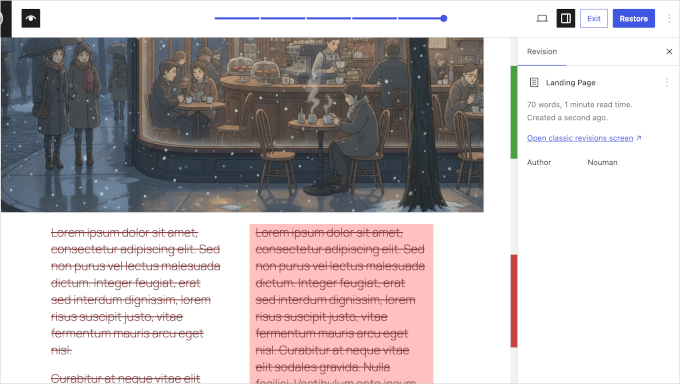
The sidebar now also shows changed block attributes alongside the visual diff, so you can see exactly what settings were changed, not just where.
This is a major improvement for anyone who manages a multi-author site or wants to review content changes before publishing.
But it’s just as useful if you’re the only person editing. It makes it much easier to spot what you accidentally deleted or changed when you want to roll back to an earlier version.
Custom CSS for Individual Blocks ✏️
Before WordPress 7.0, making a small one-off style tweak to a single block required a workaround, usually involving the Additional CSS panel, Global Styles, or manually adding a custom CSS class.
WordPress 7.0 changes that with a new Custom CSS field built directly into the block inspector.
Just select any block, open the Advanced panel in the inspector sidebar, and you’ll find a new Custom CSS field.
Whatever you type there applies only to that specific block instance, so nothing else on the page or site is affected. Changes also render live in the editor so you can see exactly what you’re doing before saving.
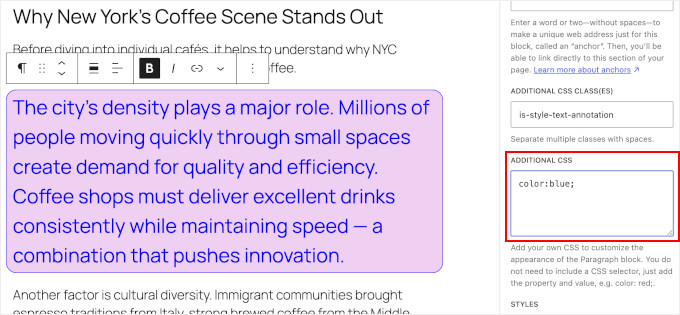
A few things worth knowing:
- Only user roles with the edit_css capability — typically Administrators and Editors — will see this field.
- The CSS is stored inside the block itself, so it travels with the block if you duplicate or move it.
- Block developers can opt out of this feature in their block.json if needed.
If you’ve ever wanted to make one button a different color, or add a bit of extra spacing around a single image without affecting anything else on the page, this is now the easiest way to do it.
See the custom CSS for individual block instances dev note for full details.
New Blocks: Icons, Breadcrumbs, and Headings
WordPress 7.0 adds three new native blocks that previously required a plugin. All are available immediately from the block inserter.
Icons Block
You can now insert SVG icons directly into your content without needing a separate plugin.
The Icons block comes pre-loaded with the full WordPress icon library, and you can search for icons by name.
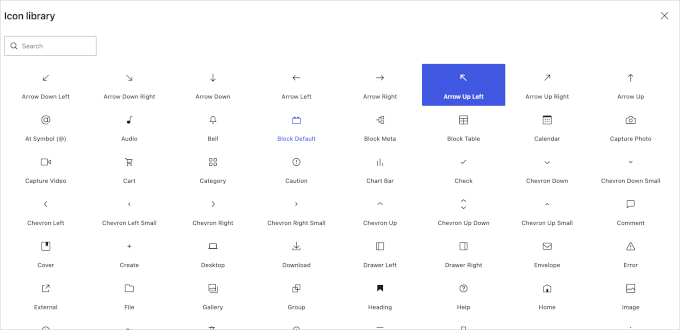
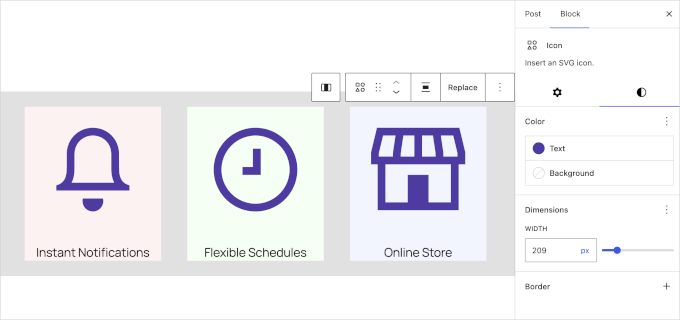
You can also resize, recolor, and adjust spacing on each icon.
This makes it easy to add visual cues next to feature lists, service cards, or pricing tables without uploading image files or installing a separate plugin.
Pro Tip: Third-party icon libraries (like Font Awesome or Heroicons) aren’t included in 7.0, but official support for registering custom icon sets is coming in WordPress 7.1.
Breadcrumbs Block
The Breadcrumbs block adds a fully functional breadcrumb trail to any post, page, or custom post type template, with no plugin required. It automatically generates the trail based on your site structure.
Breadcrumbs help visitors navigate back up through your site hierarchy — for example, jumping from a blog post to its category page — and they’re a well-known SEO signal. Google uses them in search result snippets, which can improve how your pages appear in search results.
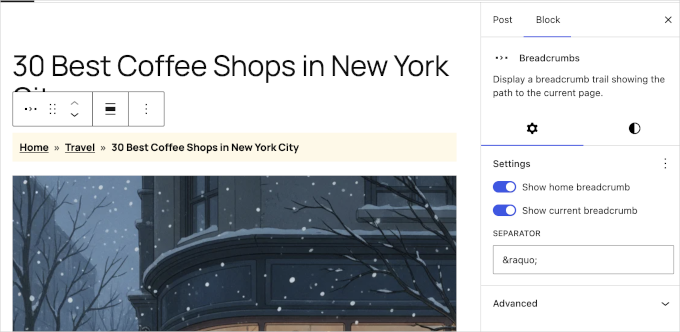
Developers can also customize the breadcrumb items and taxonomy preferences using two new PHP filters that ship with the block.
Headings Block
WordPress 7.0 adds a dedicated Headings block that consolidates all six heading levels (H1–H6) into a single block with built-in level variations.
You can switch between heading levels directly from the sidebar inspector without needing to transform the block, and all levels are searchable and accessible from the slash inserter.
This replaces the previous approach of inserting a Heading block and then adjusting the level separately, making heading hierarchy more intentional and easier to manage.
Proper heading structure also matters beyond just looks because screen readers use it to help visually impaired users navigate your content. Plus, search engines use it to understand what a page is about, which can influence your SEO rankings.
Customizable Navigation Overlays
Mobile menu overlays in the Navigation block are no longer experimental. You now have full control over how your mobile menu appears and behaves without needing a page builder plugin or custom code.
A new “Create overlay” button in the Navigation block walks you through the setup with a guided flow and pre-built design pattern options to choose from.
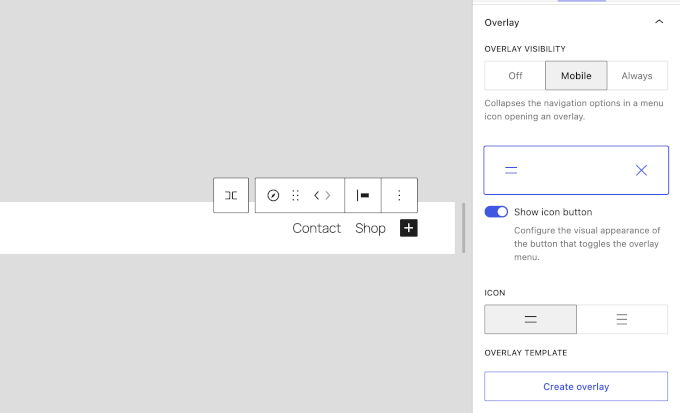
Theme developers can also register a new navigation-overlay template part area to give users even more control from the site editor.
Pattern Editing Gets Smarter
In WordPress 7.0, block patterns now default to content-only editing mode. When you click into a pattern, you’ll see a simplified view with block icons and grouped controls in flyout menus, rather than the full block toolbar and settings for every element.
This makes editing patterns much less overwhelming, especially for content creators who don’t need to adjust design settings, just swap out text and images.
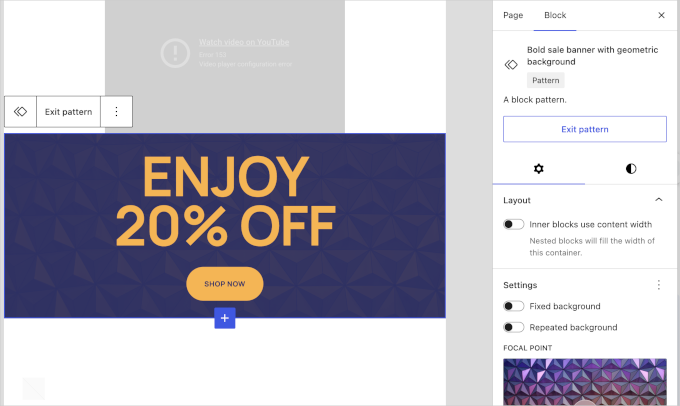
Pro Tip: If you’re a developer or advanced user who prefers full access to pattern internals, you can disable content-only mode by adding a filter to your theme or plugin:
$settings[‘disableContentOnlyForUnsyncedPatterns’] = true;
return $settings;
} );
Gallery Lightbox Gets Navigation 🖼️
If you use the Gallery block with the lightbox feature enabled, WordPress 7.0 adds back/next navigation buttons.
This allows visitors to browse through your images without closing the lightbox.
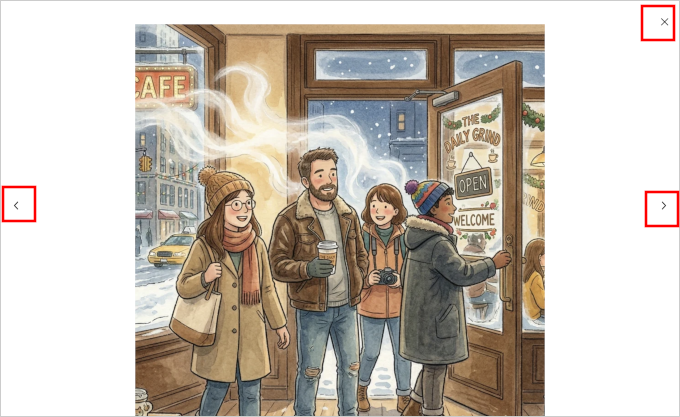
Arrow key navigation also works, so visitors can press the left and right arrow keys to move between images. Any images with the lightbox individually disabled are automatically skipped in the sequence.
Under the Hood Changes in WordPress 7.0 🔧
If you build WordPress themes or plugins, 7.0 includes several developer-focused additions worth knowing about.
Pseudo-Element Support in theme.json
Theme developers can now style :hover, :focus, :focus-visible, and :active states directly in theme.json , with no custom CSS file needed. This works for blocks and style variations, giving you cleaner, more maintainable theme code.
See the dev note on pseudo-element support for blocks and their variations in theme.json for full details.
PHP-Only Block Registration
You can now register a fully functional block using only PHP, with no JavaScript required for basic functionality. This is useful for server-side blocks and reduces the overhead for simple use cases.
Full details are in the PHP-only block registration dev note.
Block Selectors API
Blocks can now declare a selectors.css entry in block.json to tell WordPress exactly which CSS selector to use when applying Global Styles. This gives theme and plugin developers precise control over how styles are scoped, which is useful when a block’s default CSS selector doesn’t match the element you need to target.
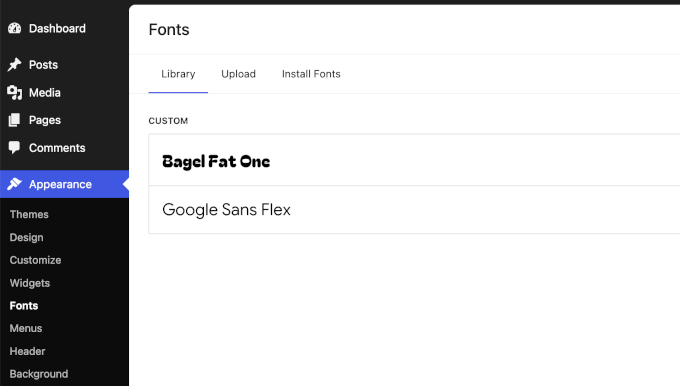
Font Library Gets a Dedicated Page
The Font Library has two significant upgrades in 7.0.
It now has a dedicated font management page in the dashboard. This is a single place where you and your team can manage, upload, and install fonts regardless of which theme type you’re using.
And it now works across all theme types: block themes, hybrid themes, and classic themes alike. Previously it was limited to block themes with Full Site Editor support (#73971, #73876).
WP-CLI 3.0
WP-CLI 3.0 is releasing alongside WordPress 7.0, adding two new command sets: wp block for read-only block entity access, and the new wp ability commands for working with the AI Abilities API.
You can follow the latest on the Make WordPress CLI blog.
wp-env: phpMyAdmin on Playground Runtime
The wp-env local development tool now supports phpMyAdmin on the Playground runtime, reaching feature parity with the Docker runtime. Enable it by adding “phpmyadmin”: true to your .wp-env.json file.
More details are in the What’s new for developers? (March 2026) post.
OPCache in Site Health
Site Health now includes OPCache information under Tools » Site Health » Info » Server (#63697), making it easier to diagnose performance issues related to PHP opcode caching.
Iframed Editor
The post editor now automatically switches to an iframed layout when all blocks in a post are using Block API version 3 or higher. This improves editor stability and performance.
If a post contains older blocks that use an earlier API version, the iframe is skipped to preserve backward compatibility. Plugin and theme developers should verify their blocks’ API version declarations if they notice unexpected editor behavior after updating.
Full details are in the iframed editor changes dev note.
More Secure User Registration Defaults
The Administrator and Editor roles have been removed from the new user default role selector under Settings » General. This prevents sites from accidentally assigning high-privilege roles to new accounts by default.
Site Health will display an alert if your site had one of those roles set as the default before updating. Developers can also use the new default_role_dropdown_excluded_roles filter to customize which roles are excluded.
PHP Requirements
WordPress 7.0 sets the minimum PHP version at 7.4, though the core team strongly recommends PHP 8.3 or 8.4 for performance and security.
Miscellaneous Enhancements in WordPress 7.0
Here are a few smaller improvements also included in this release:
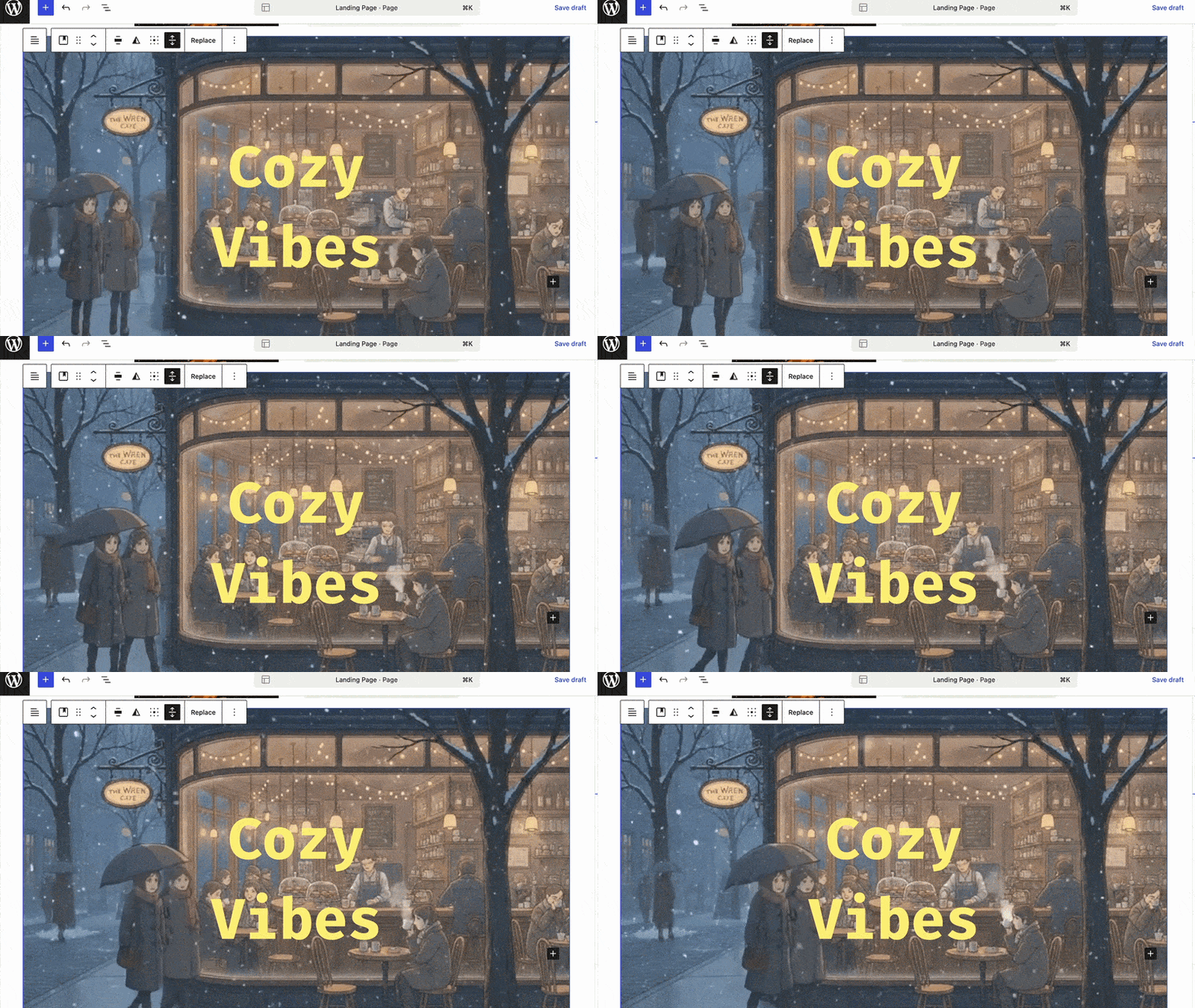
- Cover blocks now support video embeds via URL, so you no longer need to upload the video file to use it as a cover background.

- Text alignment has been standardized across 8 additional blocks: Post Author Biography, Post Author Name, Post Comments Count, Post Comments Form, Post Comments Link, Post Terms, Post Time to Read, and Term Description.
- Interactivity API adds a new watch() function for cleaner side-effect patterns in interactive blocks.
- DataViews and DataForm packages received significant updates including new layouts, validation rules, and grouping improvements. Plugin developers using @wordpress/dataviews should review the breaking changes.
Note: Client-Side Media Processing, which was previewed during the beta cycle, was moved to a standalone plugin before the 7.0 release and is not included in core. It will continue to be developed and may return in a future release.
Final Thoughts on WordPress 7.0
We’ve been following WordPress 7.0 development from planning to release, and it’s genuinely exciting to see so many long-awaited features finally ship.
The new AI Connectors screen sets a strong foundation for how WordPress will integrate with AI going forward, and the editor improvements, including responsive block visibility and per-block custom CSS, give site builders and content creators the tools they’ve been wanting for a long time.
If you haven’t updated yet, we recommend backing up your WordPress site first, then updating.
And if you’re on a busy or mission-critical site, consider testing on a staging environment before pushing to production. Once you’re in, set aside a few minutes to explore the new features, especially the Connectors screen and the revisions improvements. They’re easy to miss but genuinely useful.
If you liked this article, then please subscribe to our YouTube Channel for WordPress video tutorials. You can also find us on Twitter and Facebook.

