
How to Use AI for Small Business


Ever feel like you’re drowning in everyday tasks? You’re not alone.
Most small business owners spend the majority of their time swimming through “busywork,” such as manual data entry, rather than diving into something more valuable — like strategy, for example.
Here’s the good news: artificial intelligence can help keep you afloat. You might even be able to paddle faster than ever before.
How do small business owners use AI?
Small business owners use AI to automate repetitive admin, answer customer questions with chatbots, draft marketing content and images, analyze customer data, and summarize reports and meetings. Most tasks need only an affordable, general-purpose tool like ChatGPT or Claude, plus a clear prompt — no technical skills required.
If you understand generative AI basics, you can automate admin, enhance your creativity, and personalize your marketing in a fraction of the time. It’s like having the world’s most capable sidekick.
Want to know more? Well, you’ve come to the right place.
In this guide, we will be exploring the use cases of AI, tracking down the best tools, and helping you get the most out of this exciting technology. Let’s get started!
The hype train: Is AI really that great?
You have probably seen predictions that AI will soon replace humans in the workforce. Every week, one of the tech giants launches a new AI product. And billions of dollars are being invested in AI development.
The AI hype train is thundering along at top speed. So, where is the revolution?
AI may well change the world…eventually. But, as The Economist argued in August 2024, it probably won’t happen overnight.
The disconnect between the hype and the current reality has led many business owners to write off AI as a gimmick.
The truth is more nuanced.
Sure, there are many silly ways to use artificial intelligence — from generating images of jetsetting otters, to comparing your vocal talents with those of Freddie Mercury.
But other AI tools are incredibly powerful in a business context. They can genuinely improve your productivity and assist your staff.
The key is to focus on areas where the technology provides real value.
Why you should be using AI
New technology tends to benefit the giant corporations before trickling down to the small folks.
Artificial intelligence is different.
The most powerful AI tools are affordable even for sole traders, and they’re pretty easy to use.
Here are some of the potential benefits of adopting the technology for your small business:
AI can save time
The biggest benefit of AI is the amount of wasted time you can save.
Think about all those repetitive tasks eating up your day. AI can handle many of them, freeing you up to focus on what really matters — growing your business.
- Customer service: AI chatbots can handle basic queries 24/7. And they don’t even need coffee.
- Data entry: AI can automate that tedious administrative work. Just remember to spot-check the results.
- Scheduling: AI assistants can shuffle your calendar to make the most of your available time.
AI can enhance your creativity
Feeling stuck on ideas for your next marketing campaign?
AI’s got you covered. It can:
- Generate content ideas tailored to your audience.
- Write rough drafts of blog posts.
- Create images and videos, with no graphic design skills required!

You’re still the brains behind the operation, but AI works as your creative assistant.
AI can help you make better decisions
AI can do more than check tasks off your list; it can also help you work smarter.
For small business owners, that means being better informed when making key decisions. You can use AI applications to:
- Crunch the numbers and spot trends you might miss, such as sales patterns.
- Predict customer behavior to help you make better choices, like following up with leads.
- Optimize your pricing strategy for maximum profit, using data from other businesses as a reference point.
It’s like having a super-smart business advisor — minus the exorbitant fees.
For most small businesses, the best AI tools are ChatGPT, Claude, Gemini, and Perplexity. Between them, these four general-purpose assistants cover writing, data analysis, image generation, and research — and each one has a free tier you can start with today.
Here’s a quick look at the most popular AI tools in 2026:
In addition to the tools above, we’ll also look at some more specialized ones later.
14 smart ways to use AI in your small business
You may be wondering, “If AI is so great, why isn’t everyone using it?”
Good question. In part, it’s because the technology is still emerging.
Before we dive in, four terms worth knowing (in plain English):
- Generative AI: AI that creates new content (text, images, code) instead of just analyzing existing data.
- LLM (large language model): the engine behind tools like ChatGPT and Claude, trained on huge amounts of text.
- Natural language processing (NLP): the tech that lets software understand everyday human language.
- Hallucination: when an AI confidently states something false.
Generative AI is still young — ChatGPT only debuted in late 2022 — and many businesses simply haven’t figured out the best use cases.
If you’d like to get ahead of the curve, here are some tried-and-tested examples of how AI can power your business.
1. Generate compelling email subject lines in seconds
Email marketing can be a really effective tool for drumming up business. The key is to write catchy subject lines that make people want to click.
With the help of AI, anyone can draft a batch of strong subject line options in minutes.
For this task, we would recommend using Claude (free with limited access). It’s probably the most talented writer among the multi-purpose AI products.
Here’s a step-by-step walkthrough:
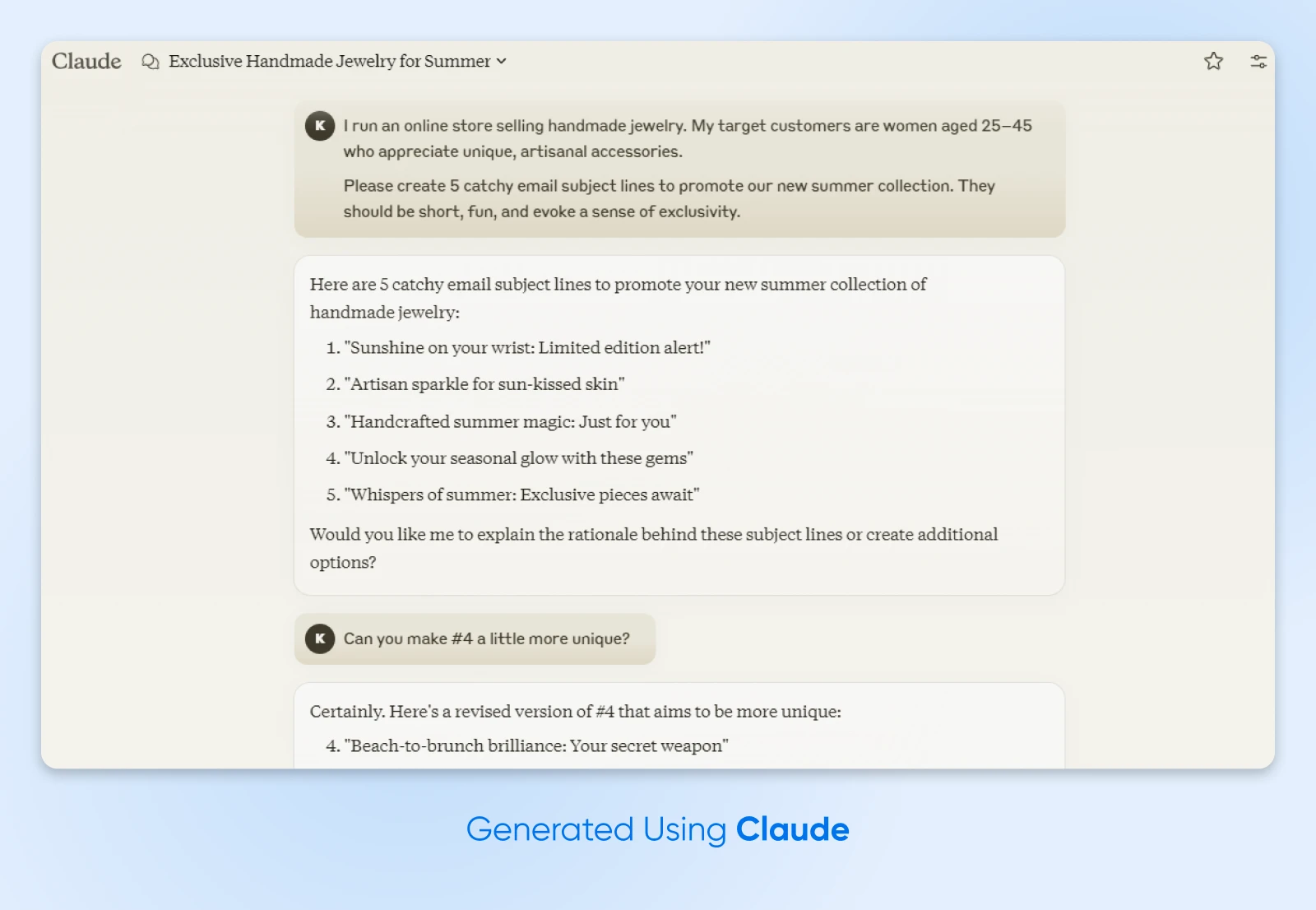
1. Provide some context: Claude isn’t a mind reader, so you need to provide some information about your business and target audience. Let’s say:
“I run an online store selling handmade jewelry. My target customers are women aged 25–45 who appreciate unique, artisanal accessories.”
2. Ask Claude to generate email subject lines: Be specific about the goal and tone.
“Please create 5 catchy email subject lines to promote our new summer collection. They should be short, fun, and evoke a sense of exclusivity.”
3. Provide some inspiration: If you have some example subject lines that worked well in the past, paste them in.
“Here are some subject lines that previously worked well with our audience…”
4. Press Enter: Set Claude on the job!
Review Claude’s suggestions and ask for revisions if needed. You can request adjustments like:
“Can you make #4 a little more unique?”
5. Pick out your favorites and test them in your marketing campaigns: Take note of which subject lines perform well. You can use these to train Claude next time.
Pro Tip: Check the promotional emails in your inbox for inspiration on great subject lines. Save these in a note, and give them to Claude as inspiration during Step 3.
2. Analyze customer data to deliver targeted marketing
Per McKinsey’s Next in Personalization report (2021), companies that grow faster drive 40% more of their revenue from personalization than their slower-growing peers. That’s too big a number to ignore.
By analyzing customer data using artificial intelligence, you can segment your audience and create content that resonates with each customer persona.
For this task, we’re going to use ChatGPT. The paid version has some awesome data analysis features.
Here’s the walkthrough:
1. Collect the data you want to analyze: This could be customer data from your CRM, website data via Google Analytics, audience information from your email marketing software, or something else.
2. Upload your data files to ChatGPT: You can do this by dragging them into the chat box or clicking on the paper clip icon.
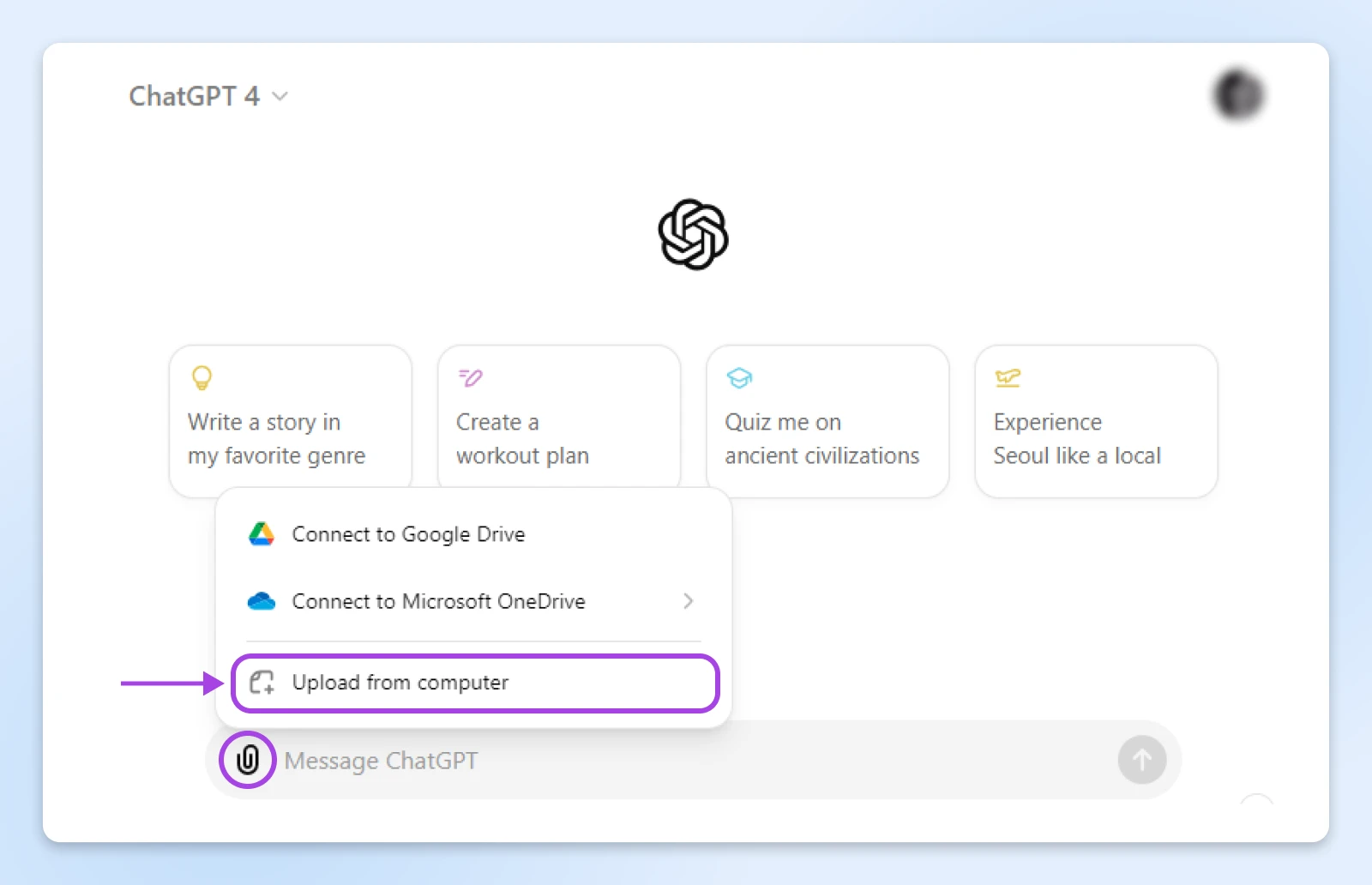
3. Ask ChatGPT to analyze the data: Now, you can ask specific questions or instruct the AI to find trends in the data. For example:
“Which age groups in my customer base most often make repeat purchases?”
4. Build your campaign: Based on the analysis, you might decide to create a targeted email campaign. Ask ChatGPT to generate email messages that are likely to resonate with the customers highlighted in your data analysis:
“Create a promotional email for customers aged 30–45 who purchased at least twice, highlighting our new line of biodegradable dresses.”
Remember, you can ask ChatGPT to adjust the output.
Pro Tip: Want to compile a complete marketing strategy based on your customer analysis? DreamHost’s Business Advisor tool can help. It even has built-in prompts that you can use with one click, such as:
“Act as an expert digital marketer: Question me to understand my business, products, and brand, then define five visionary, actionable marketing goals after receiving my answers.”
3. Generate eye-catching images for your social media posts
Visual content always tends to perform better on social media. But where do you find all those images?
The easiest option is ChatGPT itself: OpenAI made GPT-4o image generation ChatGPT’s default image generator in March 2025 (replacing DALL-E), and it’s available on every tier, including the free plan. Specialized models like FLUX can also produce polished, detailed images based on your text inputs. You can generate anything from impressionist art to photo-realistic scenes.
The workflow is the same whether you type prompts into ChatGPT or a specialized tool like FLUX (that’s FLUX in the screenshot below):
1. Describe the image you want: You can type this into the chat box, just like any other prompt. Be as specific as possible, including details of the scene, the style of the image, the color scheme, and more. Imagine you were trying to describe what you want to a human artist.
Let’s say you’re promoting a new coffee blend…
“I want you to create a cozy, inviting image of a person enjoying a morning cup in a sunlit room.”
2. Generate the first draft: Once you have written your description, hit Enter. Review the output and decide if it works for what you need.

3. Keep revising: Remember that your AI apprentice won’t run out of steam. Feel free to keep revising the original draft with new text prompts, such as:
“This is good, but can you make it darker?”
Pro Tip: As with text outputs, ChatGPT can learn from images you upload. If you find something similar to what you want, save a copy and upload it to the chat. Text-to-video tools are emerging quickly, too, but they’re newer and less predictable; for most small businesses, images are the practical starting point.
4. Build a beautiful website without code or design skills
Every business needs a strong website. And there are some great tools that make it easy to design your online presence.
It still takes time, though.
You can speed up the process massively, using specialized AI website builders like ZipWP or Extendify. (DreamHost’s own AI website builder, Remixer, takes the same prompt-driven approach.)
Here’s how it works, using ZipWP as the example:
1. Create a free ZipWP account: ZipWP is a web platform rather than a plugin. Its AI generates a complete WordPress site (pages, copy, layout, and images) hosted on ZipWP, and you can export the finished site and move it to any WordPress host you prefer.
2. Describe your ideal website: The platform works like other AI tools, allowing you to input text prompts. An example:
“I need a professional website for my design business. It should have a clean, modern design with a gallery to showcase my work.”
You can then sit back and watch as ZipWP generates a complete website based on your description. The AI picks layouts and color schemes to match your description. It can even suggest relevant content.
3. Fine-tune the results: While ZipWP does most of the heavy lifting, you can still customize the design to your liking. The platform offers an intuitive interface for tweaking designs, fonts, and colors.
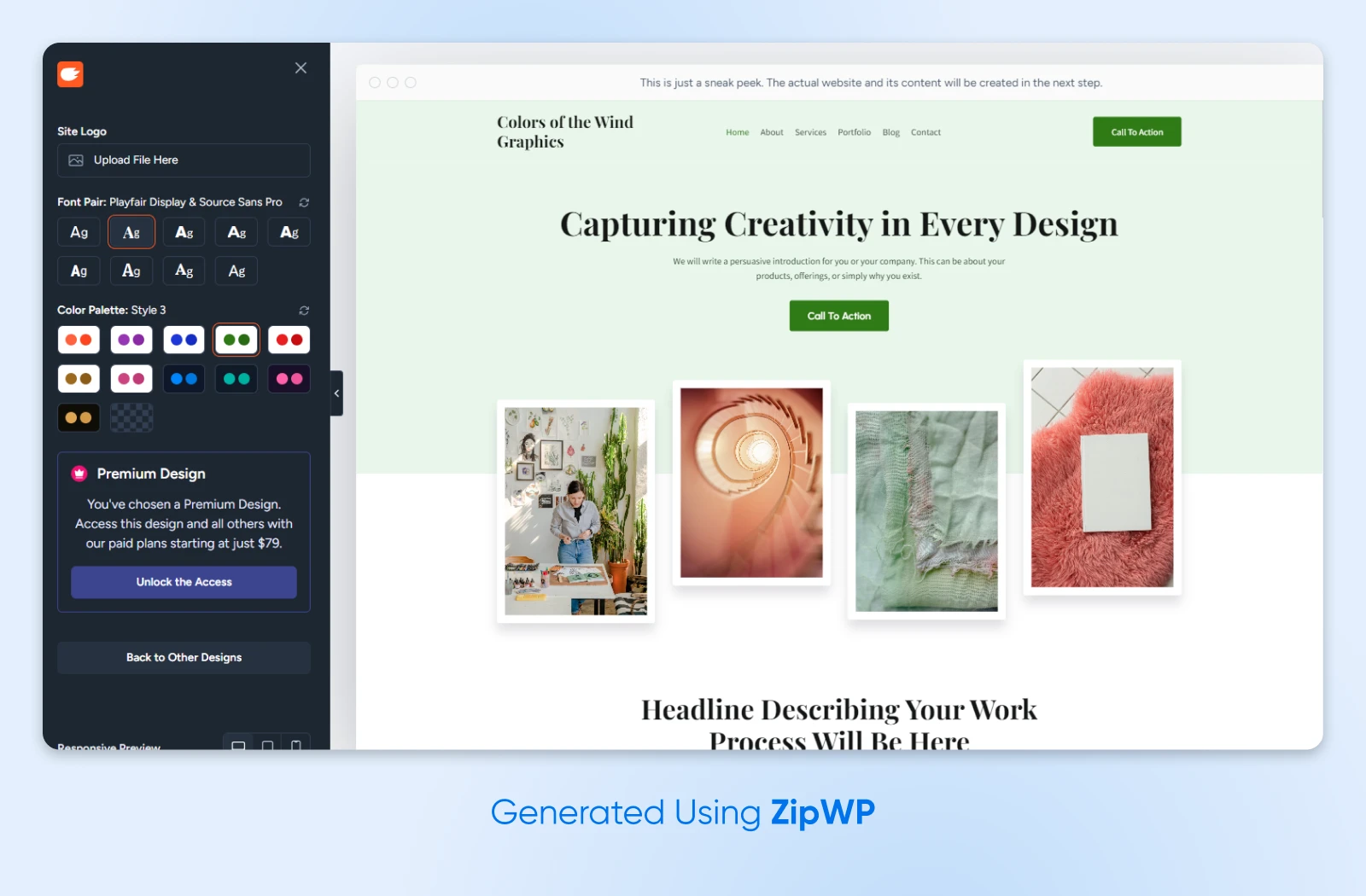
4. Add your content: ZipWP generates placeholder text and images so you know how content will appear. But you’ll want to add your own content before publishing.
Pro Tip: As with generating images, it’s important to be specific with your description. Make sure to include details of your brand, including colors and vibe. You could also mention specific elements you want, and layouts.
5. Quickly build blog posts that enhance your SEO
Content creation is one of the best use cases for the current generation of AI tools.
Pretty much any multi-purpose AI model can handle this task. However, we’re going to focus on a specialized writing tool called Jasper, which can really speed things up.
(Jasper is a fully paid tool, but you can follow the steps below with a free trial.)
Here’s the process:
1. Set up your new post: In the Jasper dashboard, start a new blog post from the dashboard. (Jasper updates its interface regularly, so the exact menu names may vary.)
2. Build your brief: Jasper needs a few key details before it can start writing. These include:
- Blog topic
- Tone of voice
- Intended audience
- Number of outputs
- Output language
Make your choices, and try to be as specific as possible with your instructions.
3. Generate the first draft: Hit the Generate content button, and Jasper will quickly whip up an entire article from scratch.
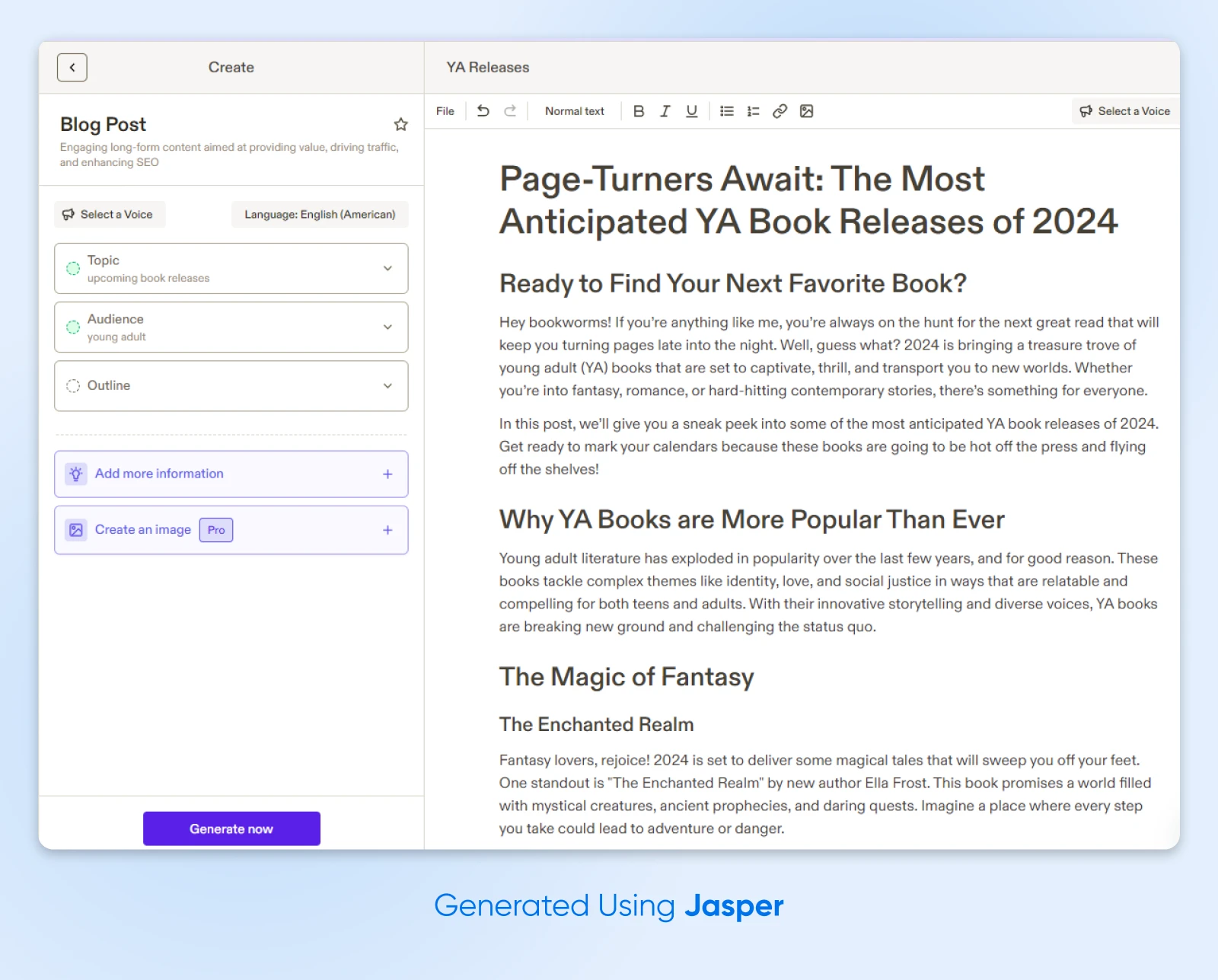
4. Edit and adjust: The initial output won’t always be perfect, may seem off-brand, and could be shorter than what you expected. You can fix all of this by returning to the briefing area and making some changes. Or you can open the draft in Jasper’s built-in editor and make changes yourself. The important thing is that you’re not starting from scratch each time.
Pro Tip: You can grab that initial draft, paste it into a multi-purpose tool like Claude, and ask the AI to extend the article. In your prompt, instruct the model to follow the same tone, style, and voice. You can include the details from your initial brief, as well.
6. Find out what your customers are talking about online
Back in the bad old days, brands had to run surveys and focus groups to find out what their customers were thinking.
Today, it’s a whole lot easier. Your customers express their thoughts all day, every day, on social media. And thanks to natural language processing, AI models can understand what they’re saying.
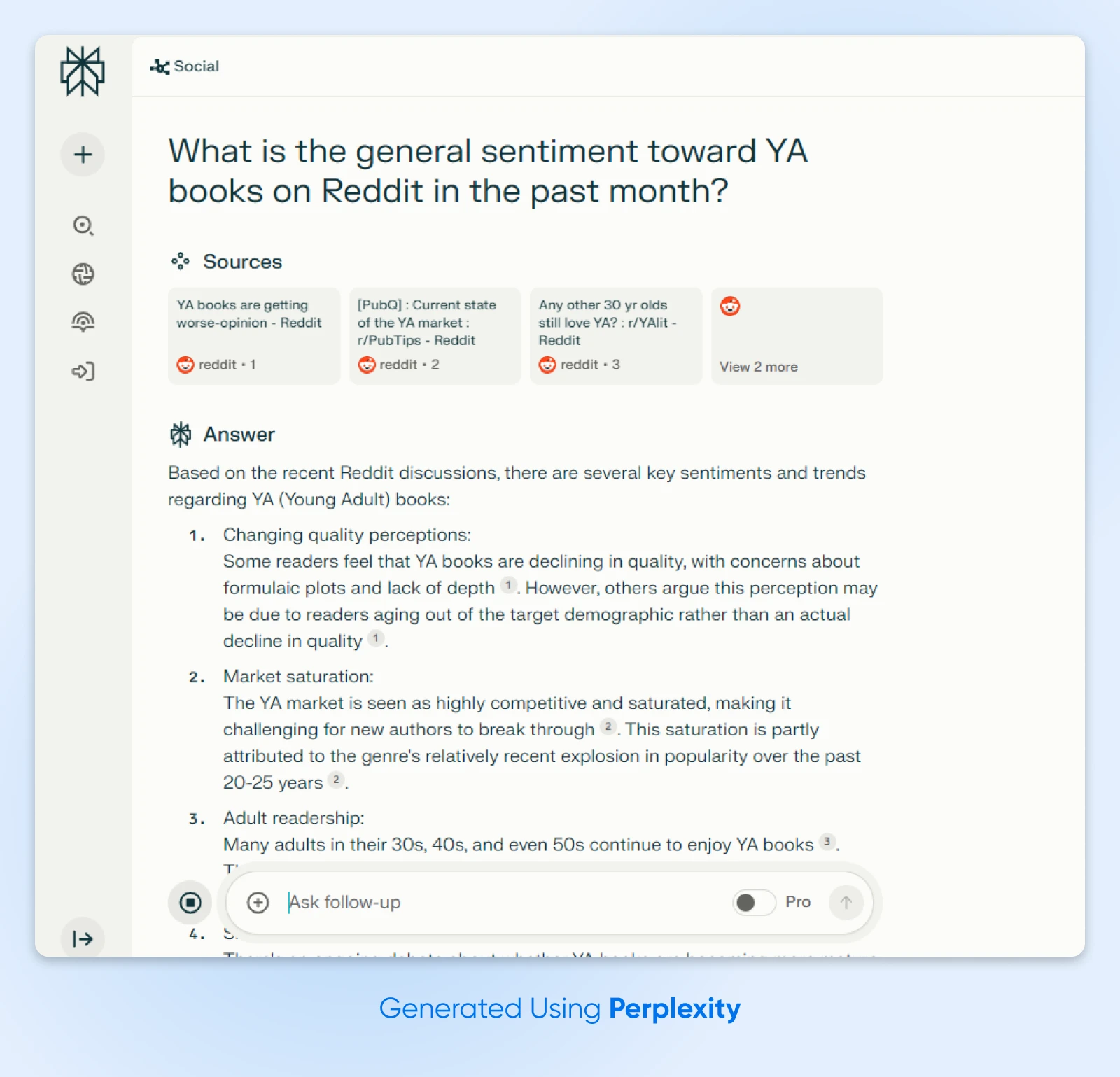
We suggest using Perplexity for this one, because it returns linked sources alongside its answers.
Here’s how to run a quick, qualitative scan of what customers are saying in public discussions (a lightweight cousin of full sentiment analysis):
1. Check your sources: Perplexity has replaced its old Focus modes with a source selector (per Perplexity’s help center), so make sure Web is selected in the search box. Then point the search at social discussions in the prompt itself by naming the platform you care about, as in the Reddit example below.
2. Craft your query: Write some clear, specific instructions for Perplexity. For example:
“What is the general sentiment toward [your product] on Reddit in the past month?”
3. Review the output: It may include:
- A summary of the overall mood.
- Key topics and themes in discussions.
- Sources used for the analysis.
Two habits keep this honest: click into the linked sources and read the actual threads, and remember that a handful of Reddit posts is not a representative sample of your customer base. Treat the results as leads to investigate, not proof.
4. Explore some related questions: Below the main output, Perplexity serves up related questions. It also provides the option to ask for follow-ups. Use these features to dive deeper into specific aspects of customer sentiment.
Pro Tip: While you can use Perplexity for free, it’s worth upgrading to the Pro version ($20/month, per Perplexity’s pricing page) during your research process for access to additional models. This subscription also raises file-upload limits (the free plan caps daily uploads), so if you want to actually quantify sentiment, upload a defined dataset (like a CSV export of your product reviews) and ask the AI to classify each entry as positive, negative, or neutral and tally the results.
7. Provide 24/7 customer service with AI chatbots
Customer service can play a major role in the success of your business — but it’s also a major expense. That’s why many companies no longer offer live support.
Instead of cutting back, you can make your resources stretch further using AI chatbots. These smart assistants can interact with customers on your website, handle basic queries, and route queries to human agents.
To set up a chatbot, you need a dedicated AI tool. Zapier Chatbots is one of the more affordable and easy-to-use solutions.
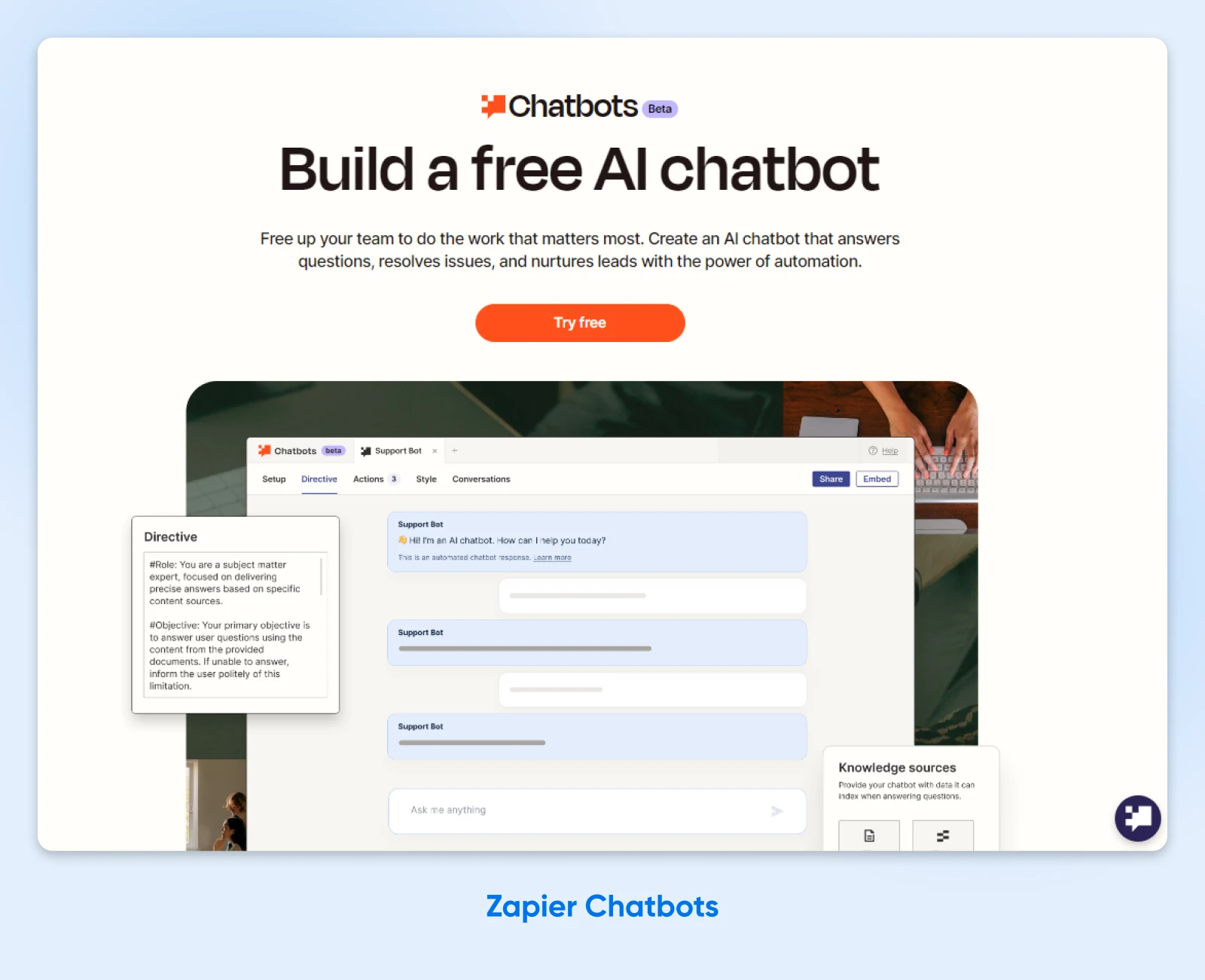
The process involves many steps, so we won’t cover them all here.
We won’t leave you hanging either, so here’s a quick overview:
1. Define the purpose of your chatbot: That could mean answering FAQs, guiding customers through purchases, or providing product recommendations. This will help you tailor the chatbot’s responses and functionality.
2. Set up the basic settings: Within the Zapier Chatbots interface, you can customize the greeting, the user input placeholder, and other settings to match your brand and customer needs.
3. Write your instructions: Next, you need to define the chatbot’s role, and the specific steps it should follow. The more detailed your instructions, the more effective and natural the chatbot’s responses will be.
4. Integrate your knowledge source: Just like a human agent, your chatbot needs access to information. You can upload relevant company documents, FAQs, product information, and other resources.
5. Personalize and deploy: Finally, you can customize the appearance of your chatbot and set it to work on your website or within an app.
Pro Tip: Zapier has a complete walkthrough for the Chatbots feature right here.
8. Get an instant summary of lengthy reports
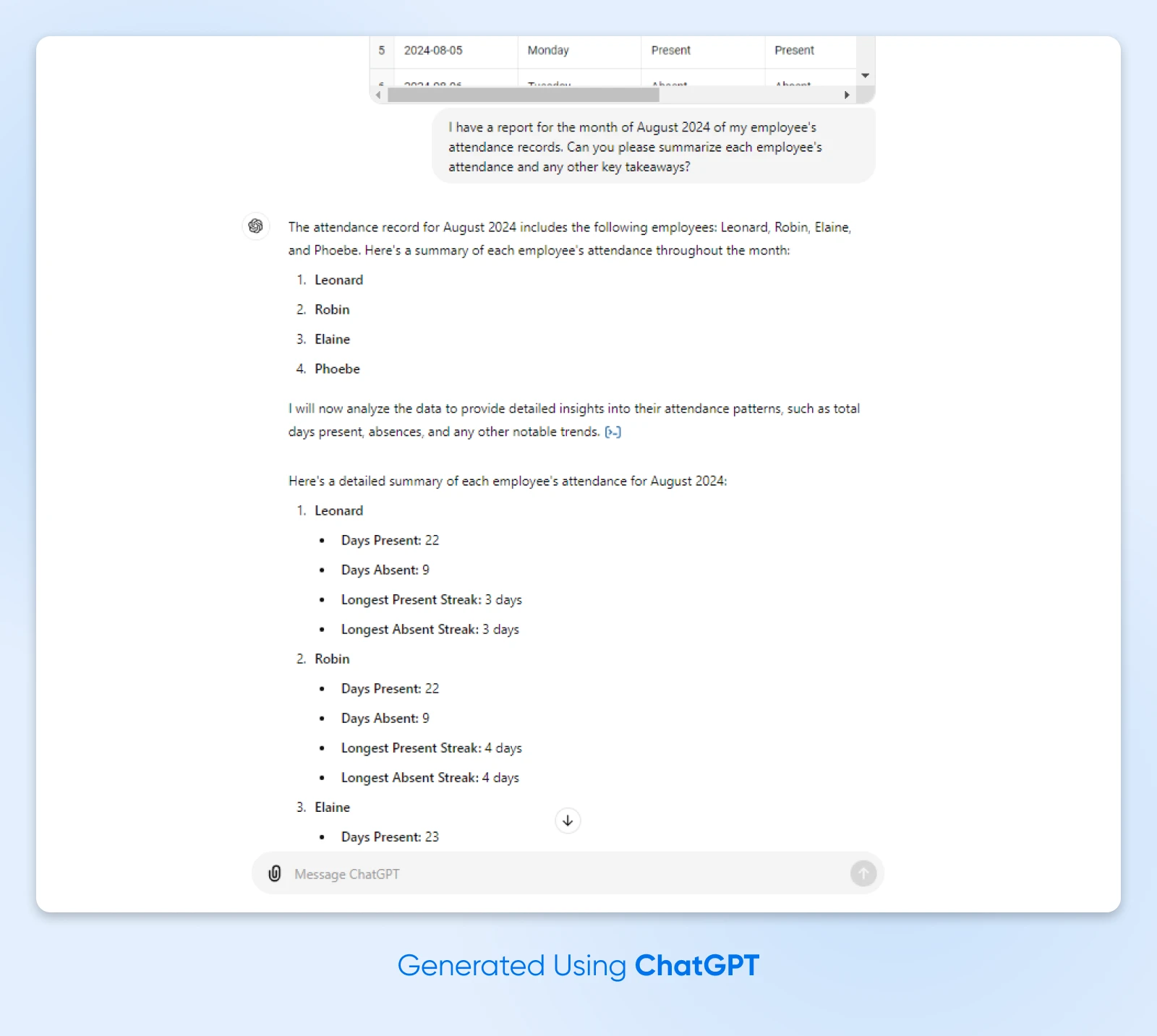
Sifting through lengthy reports to find the hidden gold can be time-consuming. With ChatGPT, you can generate concise summaries that capture the essential information in a fraction of the time.
Here’s how to use ChatGPT to quickly summarize lengthy documents:
1. Upload the document to ChatGPT: We’d recommend using PDF or Word formats.
2. Write your instructions: In the chat window, explain what you need. For example:
“I have a report that I need summarized. Can you provide a concise 1–2 paragraph summary that highlights the key points?”
And that’s it! In seconds, you’ll have the key takeaways you asked for.
Pro Tip: For longer or more complex reports, you can also ask ChatGPT to highlight the main findings and recommendations rather than generate a single-paragraph summary. The same trick works on financial documents: upload a P&L or sales spreadsheet and ask for the three biggest trends before your next planning session.
9. Generate notes from any online meeting
Automating the task of taking meeting notes can free up your team to focus on the discussion (or something else more useful, like making sales).
For this, we’ll use Otter.ai. This AI tool syncs with your preferred video conferencing apps and turns the recordings into minutes.
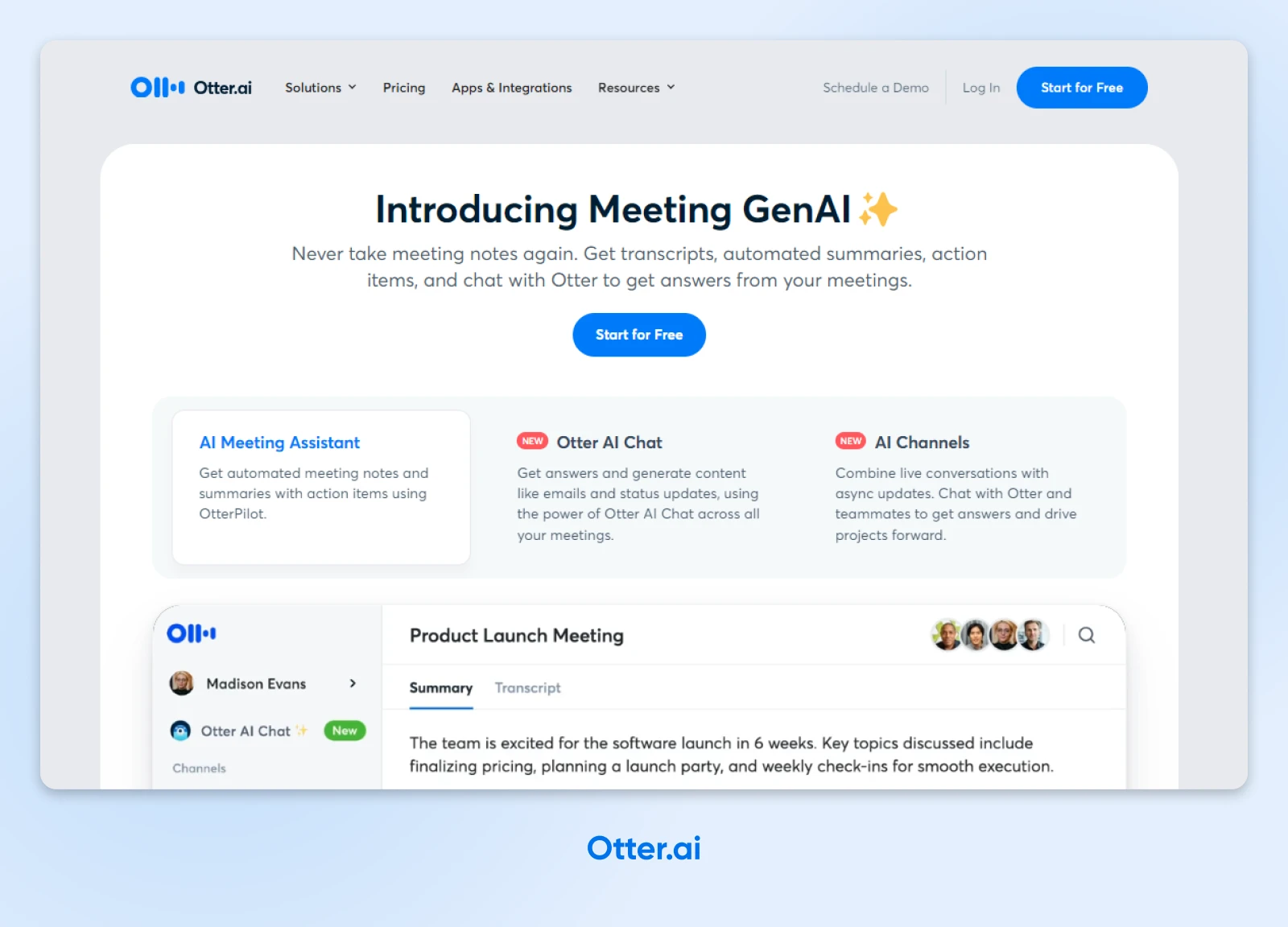
Here’s how to set it up:
1. Sign up for an account at Otter.ai: You can try the key features on the free plan.
2. Install the Otter Chrome extension: It’s available for Google Chrome (and installs in Chromium-based browsers like Edge); in other browsers, use the Otter web app.
3. Host your meeting as normal: Otter.ai works in the background, taking notes like a virtual secretary.
4. After the meeting, check the full transcript: You can access this via the Otter.ai dashboard. Here, you can check for errors and make any necessary edits or corrections.
Pro Tip: Otter.ai has a live captioning feature that allows everyone to follow along more easily, especially those who are hearing impaired.
10. Build apps faster with a smart coding assistant
For small businesses in the digital space, AI tools can free up a significant chunk of the working week by assisting developers with writing and maintaining code.
ChatGPT, Claude, and Gemini are all capable of writing code. However, it’s probably worth investing in a dedicated tool, such as GitHub Copilot.

This AI coding assistant can help developers with:
- Generating code snippets and functions for common programming tasks.
- Writing code faster with intelligent code completions and suggestions.
- Automating repetitive coding patterns and boilerplate.
- Refactoring existing code, thanks to Copilot’s contextual understanding.
Pro Tip: Experiment with different prompts and modifiers in Copilot to get the most out of this tool. Try prompts like “explain this code,” “refactor this function,” or “generate unit tests for this module.”
11. Draft reply emails faster
Replying to business emails in a professional and timely manner is important. With the help of AI, you can shortcut the process and spend less of your morning in the inbox.
While Gmail and Outlook have basic AI autocomplete, dedicated tools like superReply can help you save more time.
Here’s how to get started:
1. Install the Chrome extension: superReply integrates directly into Gmail and Outlook, allowing you to craft replies from your inbox.
2. Activate the AI Response feature in the compose window: Click the superReply icon, and the app will analyze the content of your emails. It then suggests contextually relevant replies.
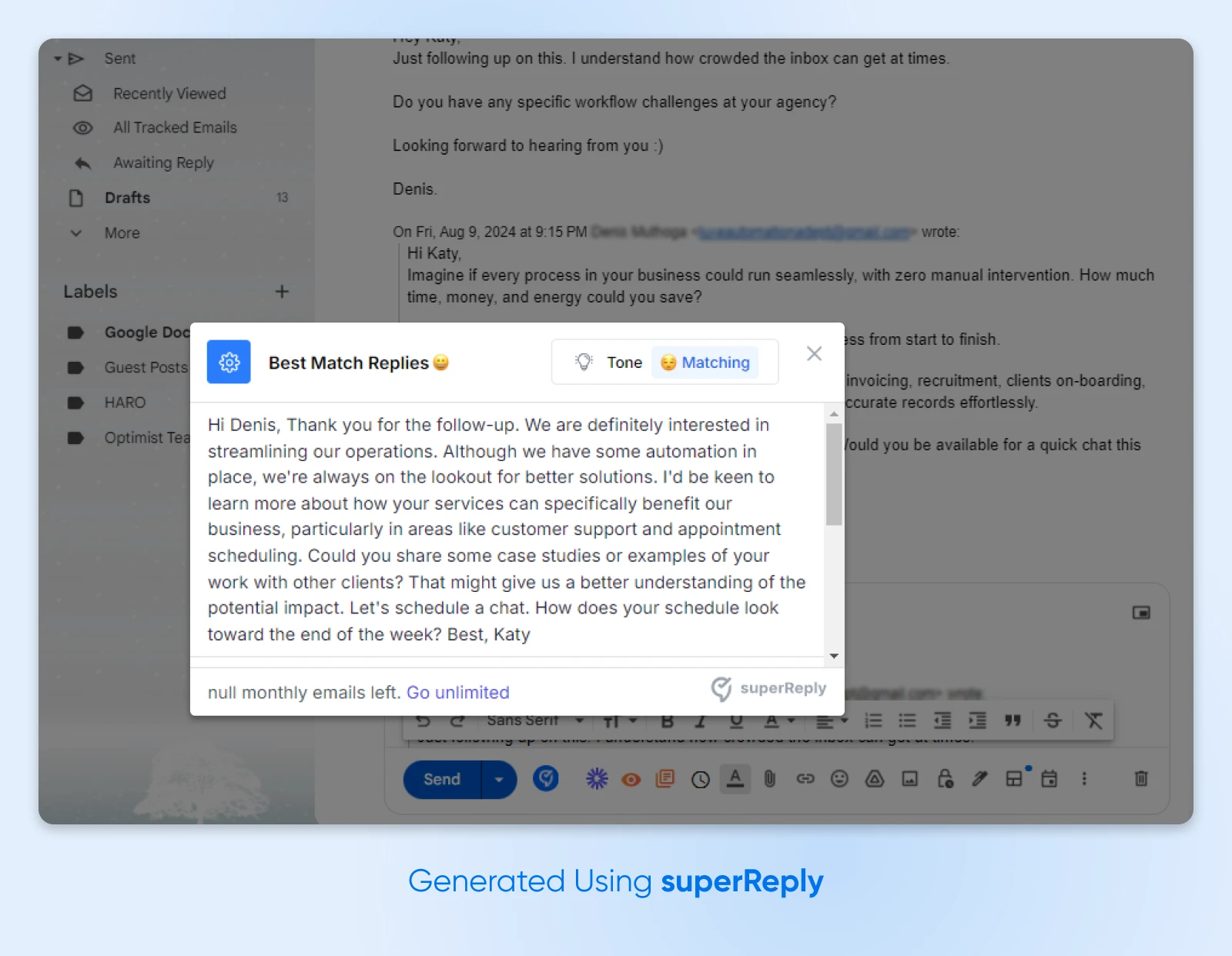
3. Select the tone you want: Whether you want to sound formal or casual, superReply lets you set the mood music for your email draft.
4. Choose your favorite draft: The app quickly whips up some AI-generated responses, and you can choose your favorite with a click. You can then edit the draft as usual and hit send.
Pro Tip: Constantly receiving pitches for services you don’t need? The “decline politely” option lets you register your indifference without burning bridges!
12. Register expenses with a photo and automate verification
Artificial intelligence can even help you in the finance department.
Instead of keeping track of expenses and verifying every payment by hand, you can get a tool like Ramp (its AI layer is branded Ramp Intelligence) to automate the process for you:
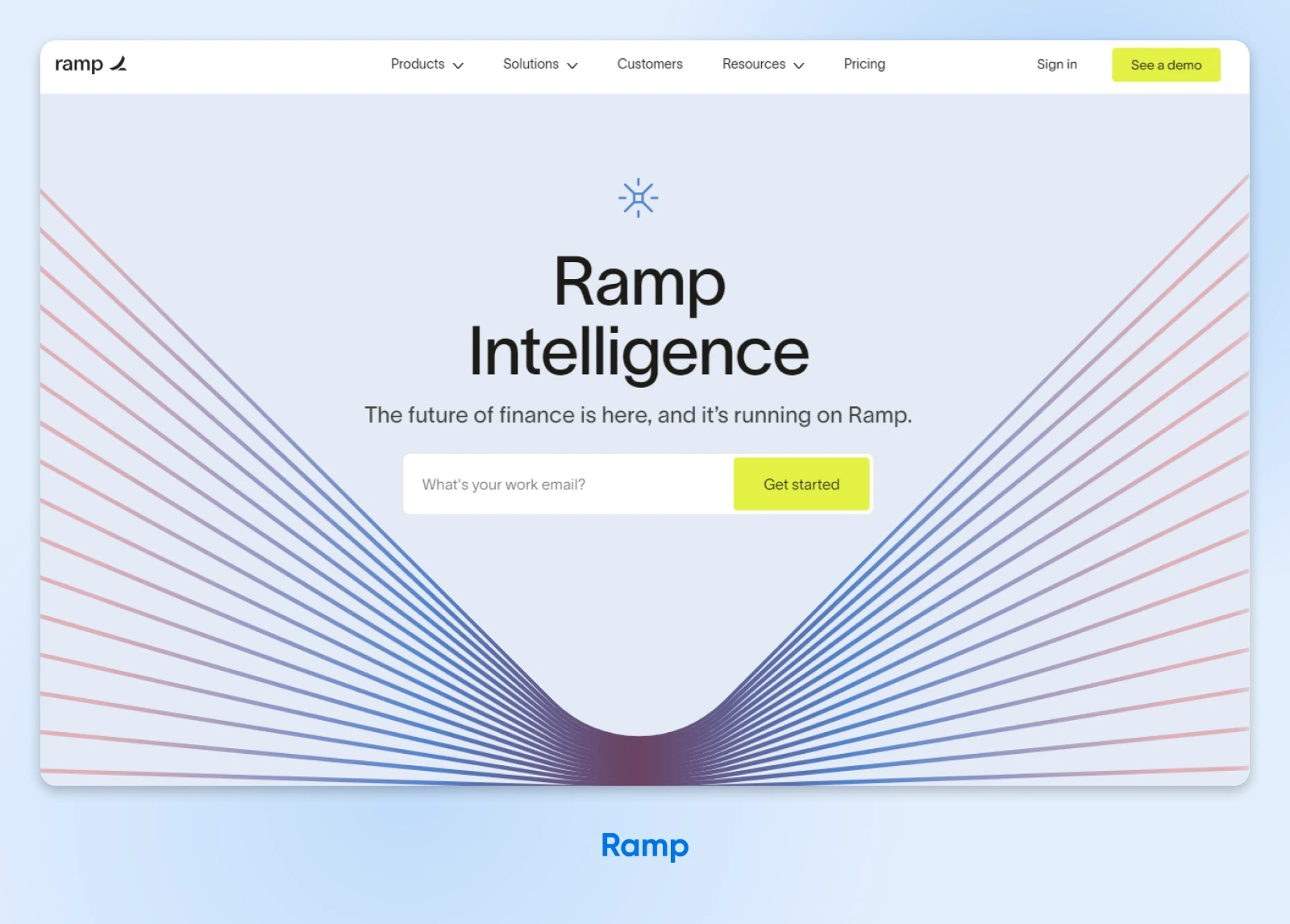
1. Begin by setting up the Ramp app on your device: You can hook it up with your accounting software to sync payments.
2. Capture receipts using the camera on your phone and upload the photo: Ramp uses OCR technology to “read” the details. It will then categorize each expense based on predefined settings, and input the details to your accounting system.
3. The next step is verification: Ramp reviews each entry for compliance with your financial policies, and flags any discrepancies for manual review. It can even match receipts with outgoing payments.
Pro Tip: You can adjust Ramp’s settings to match your specific accounting requirements and policies. If staff spend money without authorization, the app will let you know.
13. Draft business plans, proposals, and job postings
AI is just as useful for back-office paperwork as it is for marketing. Business plans, client proposals, job postings, onboarding checklists: these are structured documents, and structured documents are exactly what AI assistants draft well.
Any of the general-purpose tools can handle this. Here’s the approach:
1. Gather your raw material: Rough notes on your product, pricing, target customers, and goals. The more real detail you provide, the less generic the draft.
2. Ask for a structured draft: For example:
“Draft a one-page business plan for a mobile dog-grooming service. Include target market, pricing strategy, startup costs to research, and a 90-day marketing plan.”
3. Iterate section by section: Ask the AI to expand, tighten, or challenge each part. A useful follow-up: “What are the three weakest assumptions in this plan?”
4. Reuse the pattern for HR documents: The same workflow produces job postings and onboarding or training checklists for new hires. Just swap the prompt: “Write a job posting for a part-time barista. Friendly tone. Include responsibilities and required availability.”
Pro Tip: DreamHost’s Business Advisor includes one-click starter prompts built for exactly this kind of work, from actionable business plans to social media campaigns.
14. Automate multi-step workflows with AI agents
What’s an AI agent? In plain terms, it’s an AI assistant that goes beyond answering questions to do actual work on your behalf, taking actions across your apps to finish a multi-step job, like reading a form submission, updating your spreadsheet, and drafting the follow-up email.
Zapier Agents is a beginner-friendly place to start, since it connects to the apps many small businesses already use. Here’s how to build your first agent, per Zapier’s own documentation:
1. Pick one repetitive workflow: Something low-stakes and internal, like logging new leads in a spreadsheet and drafting an intro email.
2. Create the agent: At agents.zapier.com, click + New agent, then describe the job in plain language: what should trigger the agent, what tasks it should do, and which apps it should use. (Templates are available for common use cases.)
3. Connect your apps: The agent identifies the apps from your instructions, and you approve each connection.
4. Test, then publish: Run the agent from its Configure screen, check its output, and only hit Publish once you trust the results.
Pro Tip: Keep a human in the loop at first. Let the agent draft and organize, and reserve anything customer-facing (or anything that spends money) for your own review.
The pros & cons of using AI
AI tools can already make a significant dent in your task list. And the technology is improving rapidly.
But let’s be real: it’s not perfect.
AI might be smart, but it still makes mistakes. On occasion, current models will even make up answers that are completely false.
These glitches are known as hallucinations, and they can be difficult to identify. Even AI developers struggle to control these strange outputs.
Cost is another challenge. AI can be tricky to implement, and the price of multiple subscriptions can quickly add up for small businesses.
Then there are the risks that belong on your checklist before AI touches daily operations. The U.S. Small Business Administration’s AI guide flags several worth taking seriously:
- Data privacy: Don’t paste sensitive customer or proprietary business data into public AI tools unless you know how the provider stores and uses it.
- Intellectual property: AI sources content from the web, so make sure anything you publish doesn’t infringe on someone else’s copyrights or trademarks. If your business has an attorney, a quick consultation is worth it.
- Customer trust: People can often spot AI-generated outreach, and sloppy automated content erodes trust faster than it saves time. Have a person review AI output before it represents your business.
- Disclosure: Being transparent about when customers are interacting with AI is an emerging best practice, and it protects the trust you’ve built.
There is also the human factor to consider. Even if your chatbot is really clever, people still tend to prefer interacting with a real person.
And for tasks that involve creativity or creative thinking, AI can only provide assistance. It can’t replace human ingenuity (yet).
When to use AI in your workflow
Luckily, you can mitigate most of these issues by using AI wisely.
That means:
- Starting small. Introduce one or two tools for specific tasks before expanding your horizons.
- Using AI tools that fit with your existing workflow. Don’t attempt to shoehorn AI technology into your current processes; it will only slow you down.
- Tracking the impact of automations. AI isn’t a catch-all solution. Keep an eye on operational metrics to ensure the new tech is having a positive impact.
- Maintaining some level of human oversight. Current AI tools are not perfect, so it’s important to have some quality control.
We would also recommend reading up on AI.
It’s a big topic, and new trends are emerging all the time. If you want structured training for yourself or your staff, Grow with Google offers free AI courses and tutorials for small businesses. And here’s a reading list, prepared by our very own team of experts:
FAQs about using AI in your small business
How do I start using AI in my small business?
Start with one tool and one task. Pick a repetitive job (meeting notes or email replies, for example), try it on the free tier of ChatGPT or Claude, and measure the time saved before adding more tools.
Can I use AI to start a business?
Yes. AI can brainstorm business names, draft your business plan, generate a website, and write early marketing copy. Treat everything as a first draft: check that names and domains are actually available, and have a human review anything legal or financial.
How much does AI cost for a small business?
Often nothing to start. ChatGPT, Claude, Gemini, and Perplexity all offer free tiers. Paid plans typically run about $20/month per tool (Perplexity Pro, for example, is $20/month as of 2026), so add subscriptions one at a time as they prove their value.
What’s the best AI tool for small business owners?
ChatGPT or Claude for most owners: both handle writing, analysis, and brainstorming in one place. Add Perplexity for research, and specialized tools (Otter.ai for meeting notes, GitHub Copilot for code) once you outgrow the generalists.
Do I need technical skills to use AI?
No. Modern AI tools take plain-English prompts, and the walkthroughs above require nothing more than typing a description of what you want. The one skill worth practicing is prompting: specific, detailed requests get noticeably better results.
Explore AI today!
Right now is an exciting time to be experimenting with AI. Adoption is still early: per JPMorganChase Institute research (April 2026), only 26.1% of employer small businesses — and 15.3% of nonemployers — were paying for AI services as of December 2025. That leaves plenty of room to experiment before AI subscriptions become standard operating expenses for small businesses.
The best part is you don’t have to spend money to try most of these tools. Plus, DreamHost customers get free access to Business Advisor, DreamHost’s built-in AI business advisor.
Play around with a few models and see what you can achieve.
AI isn’t the only area where DreamHost can help. Our hosting can provide the backbone for your online presence, with a 100% uptime guarantee.
Sign up today to try it on for size!
Did you enjoy this article?

