
HTTP 405 Method Not Allowed Error: What It Means And How To Fix It

HTTP error codes are useful and frustrating in equal measure. An error page makes it very clear that something went wrong, but most of us haven’t got the faintest clue what “405 Method Not Allowed” actually means, let alone how to fix it.
Here’s the short version: the page you asked for exists, but the server refused the way it was asked for. And the fix is usually within reach — whether you’re a visitor who just wants the page to load or a site owner whose visitors keep reporting the error.
In this guide, we’ll explain what the 405 error means, what causes it, how to diagnose it, and how to fix it for good.
What Does HTTP 405 Method Not Allowed Mean?
HTTP 405 Method Not Allowed is a client-error status code meaning the server recognized your request method — like GET or POST — but the URL you asked for doesn’t support it. Unlike a 404, the page exists; it just can’t be accessed the way it was requested.
Every time your browser talks to a web server, it uses an HTTP method (sometimes called a verb) to say what it wants: GET to fetch a page, POST to submit form data, PUT or DELETE to change things via an API, and so on. Per the current HTTP specification (RFC 9110), a server answering with 405 must also send an Allow header listing the methods that URL does support. Not every server complies — nginx often omits it on its static-file 405s — but when the header is there, it makes this error unusually easy to diagnose, as we’ll see below.
Server
A server is a computer that stores data. A web server is a type of server that stores and delivers web pages to users. Web servers are connected to the internet and use HTTP to send web pages to users who request them.
Read More
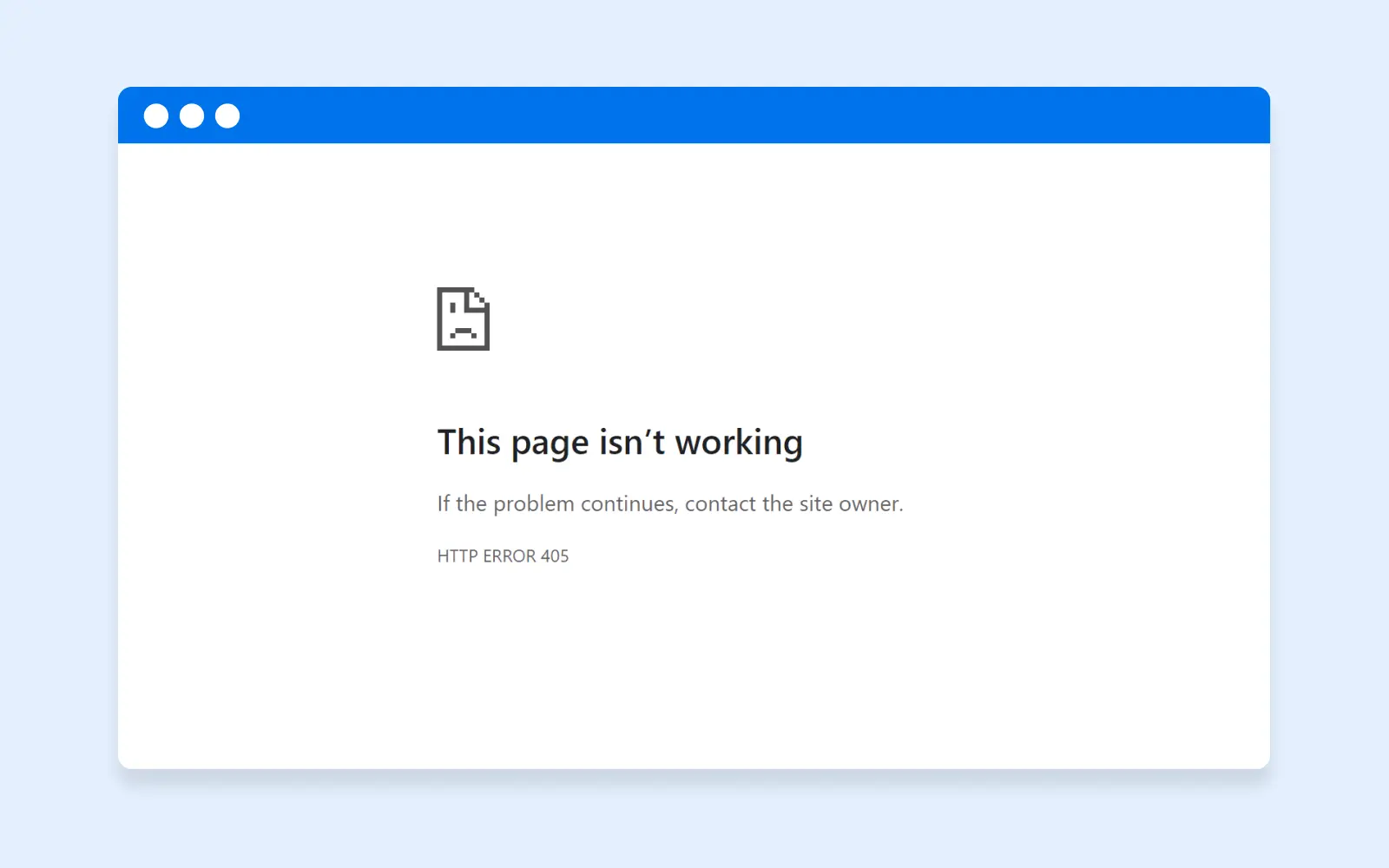
A persistent 405 status code is a problem for anyone running a website: until you fix it, visitors can’t reach the affected page or complete the affected action. Depending on the server software, the error may appear as:
- 405 Method Not Allowed
- 405 Not Allowed (nginx’s wording)
- Method Not Allowed
- HTTP 405 Error / HTTP ERROR 405 (Chrome’s “This page isn’t working” screen)
- HTTP Error 405 – Method Not Allowed
- 405 – HTTP verb used to access this page is not allowed (Microsoft IIS servers)
Different costumes, same error: the server knows the method, and the resource won’t take it.
What Causes the 405 Error?
Whenever you visit a web page, your browser sends the hosting server a request, and this whole conversation is regulated by HTTP — Hypertext Transfer Protocol — which uses status codes to report progress and problems. Codes in the 400s report client errors: something about the request itself that the server wouldn’t accept.
A 405 specifically means the request’s method was the problem. In practice, that traces back to a handful of causes:
- A form or script sending the wrong method: The classic case is a form that POSTs to a page that only accepts GET — for example, a contact form pointed at a static page instead of its form handler. nginx, for one, rejects a POST sent to a static file with its “405 Not Allowed” page.
- A redirect quietly changing the method: When a POST hits a 301 or 302 redirect (say, from http to https, or non-www to www), browsers typically replay it as a plain GET — and the destination may not accept that. The method-preserving redirect codes are 307 and 308. This one bites a lot of forms that submit to a URL one redirect away from the final address.
- Server configuration blocking methods: Rules in Apache’s .htaccess or the nginx config can restrict which methods a URL accepts — deliberately (for security) or accidentally (a misconfigured rewrite).
- Recent updates or new plugins, themes, and modules: A CMS, theme, or plugin change can alter routes and endpoints, or leave behind database changes that break request handling.
- API method mismatches: Calling an API endpoint with a method it doesn’t support (a PUT where only POST is defined, or an OPTIONS preflight the server rejects) returns a 405 straight from the API server.
- Misdirected DNS: If your domain’s records point at the wrong server — one configured for different rules than your website expects — requests can land where their methods aren’t allowed.
What Is the Difference Between 404 and 405 Errors?
Both 404 and 405 errors prevent users from accessing content on your website, but they report different problems.
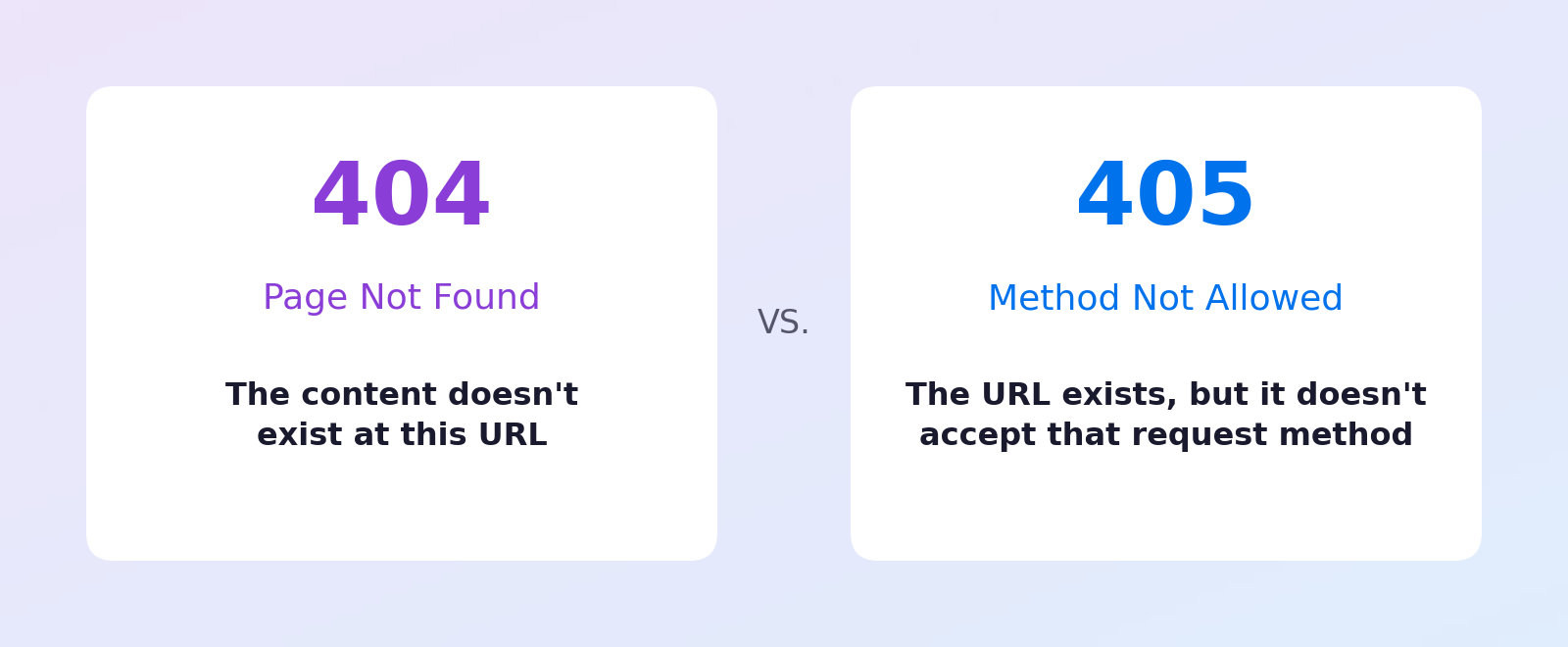
The 404 error code shows up when no content exists at the URL — pages get removed, domains change, links rot. In contrast, a 405 means the content is there, but the request used a method that URL doesn’t accept.
One more sibling worth knowing: a 403 Forbidden means the server refuses to authorize the request, no matter the method.
How To Diagnose a 405 Error
Before changing anything, spend two minutes finding out which request is being refused and what the URL actually allows. A 405 gives you more clues than most errors:
1. Read the error page’s wording. The exact phrasing narrows down the server software: “405 Not Allowed” is nginx, “405 – HTTP verb used to access this page is not allowed” is Microsoft IIS, and Chrome’s generic “This page isn’t working / HTTP ERROR 405” screen means the server sent no error page of its own.
2. Ask the server which methods the URL accepts. If you’re comfortable with a terminal, send a test request with curl and read the response headers:
HTTP/1.1 405 Method Not Allowed
Allow: GET, HEAD
When the Allow header is present, that’s the server telling you, in writing, which methods the URL supports (nginx’s static-file 405s often leave it out). If it lists GET but your form sends POST, you’ve found your mismatch.
3. Check what your browser actually sent. Open your browser’s developer tools (F12 in Chrome), select the Network tab, and repeat the action that fails. Click the red failing request and look at its method, and whether it followed a redirect first. A POST that turns into a GET after a redirect is the fingerprint of the redirect cause described above.
How To Fix the 405 Method Not Allowed Error
Just visiting a site that’s throwing this error? Try reloading the page from the address bar (typing the URL and pressing Enter sends a fresh GET), or navigate to the page again from the site’s homepage. If the error only happens when you submit a form, the problem is almost certainly on the site’s end — the fixes below are for its owner.
Running the site yourself? The status code doesn’t say exactly what’s wrong, so work through this checklist. It’s ordered from the quickest, safest checks down to the last-resort restores.
1) Check Your Links and Form Actions
For security reasons, web servers accept only specific types of requests on each URL. If visitors consistently hit 405 errors, they may be following a bad link — or submitting a form whose action attribute points at the wrong address (a static page, an old URL, or an address that redirects before it lands).
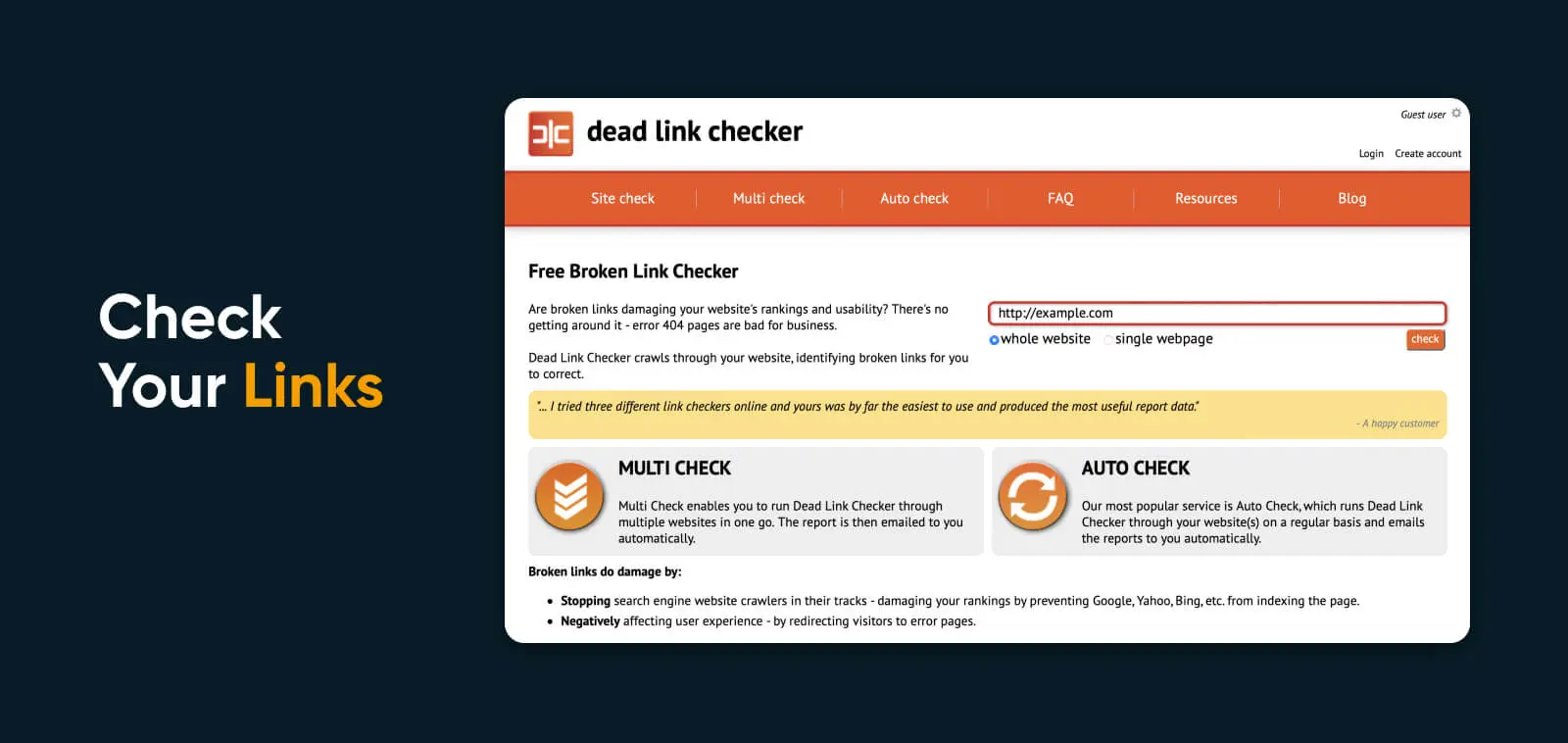
Crawl your site with the Dead Link Checker or a similar free tool, and make sure your social links and landing pages don’t point toward private or retired pages. Then check every form: its action URL should be the final address, with no redirect between the visitor and the handler.
2) Check Your Redirects and Rewrite Rules
As we covered above, servers reject requests by design — if they didn’t block certain methods, your site could easily be overwhelmed by unwanted attention. But like an over-aggressive club doorman, a misconfigured server sometimes blocks the wrong requests.
Two things to inspect in your server configuration:
Redirects that swallow POSTs. Point forms and API calls at the final URL (right protocol, right hostname), and reach for the method-preserving 307/308 codes anywhere a redirect is unavoidable — the causes section above explains how a 301 or 302 quietly converts a POST. Our guide to redirects covers the differences.
Rewrite rules that return 405 directly. We use Apache by default at DreamHost, so you’re looking for the .htaccess file in your site’s root directory (on VPS plans you can switch to nginx, whose rules live in the nginx config instead). Open the file and search for Rewrite directives — they belong to Apache’s mod_rewrite module. A rule like this deliberately answers a matching request with a 405:
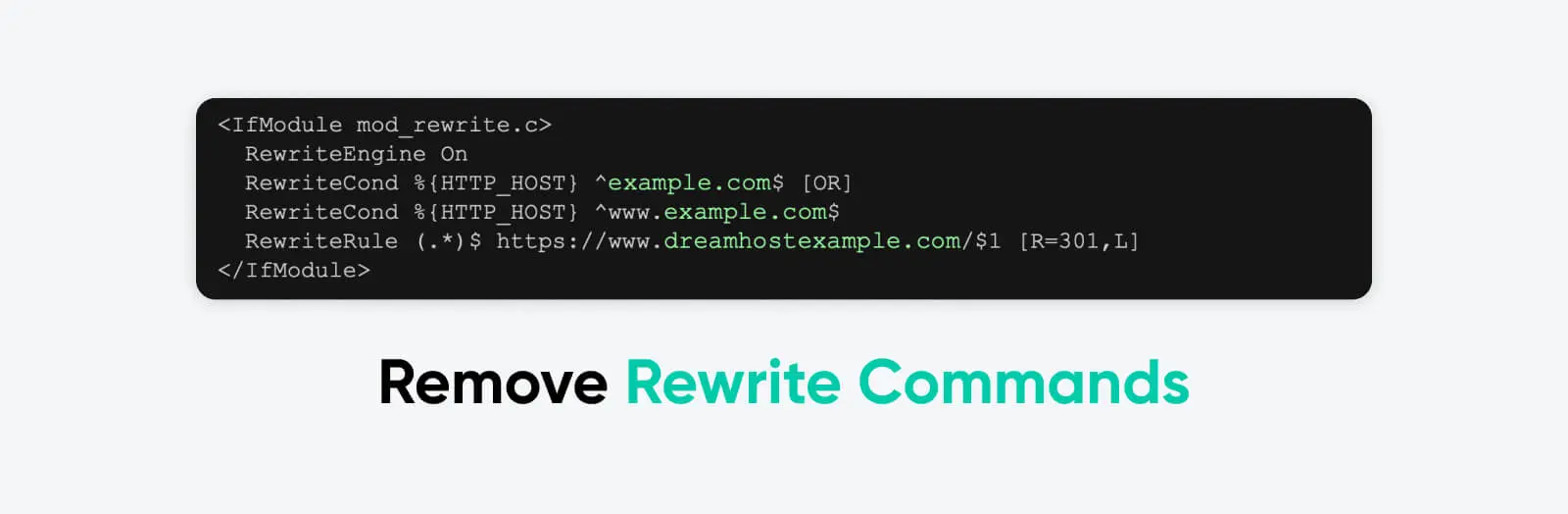
If a rule like that is catching more traffic than intended, comment it out by adding # at the start of the line, save, and retest. Change one rule at a time so you know exactly which line was the problem — and resist the temptation to switch off the whole rewrite engine, since WordPress permalinks depend on it.
3) Read Your Server-Side Logs
Your server-side logs record every request — including the failing one, with its method and status code.
The files you’re looking for are error.log and access.log. With DreamHost, you can view them via SFTP (Secure File Transfer Protocol): in your FTP client, open the /logs directory in your user folder, pick the site you want to check, open the most recent directory starting with http, and read the log file inside with any text editor.
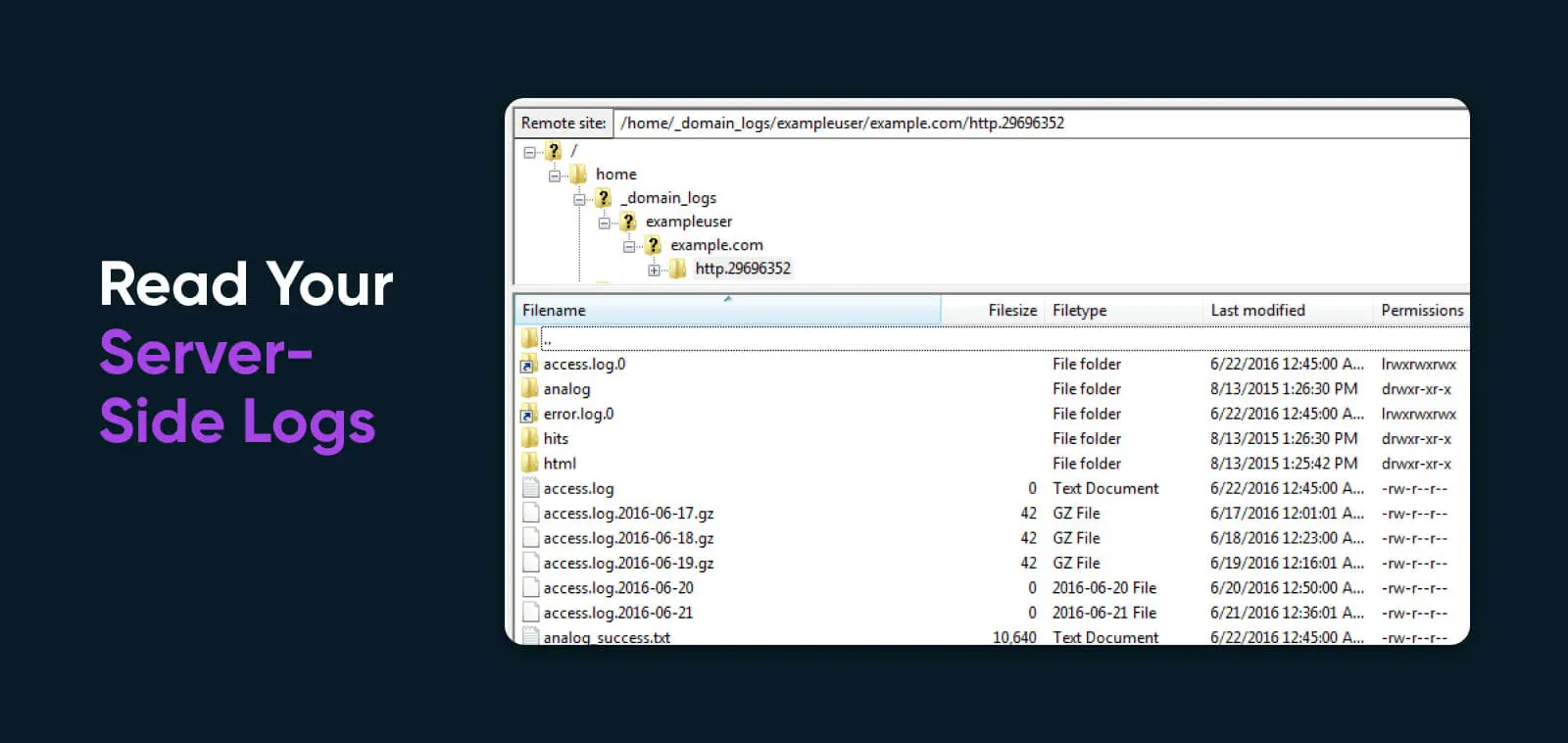
In access.log, find the requests that returned 405 and note the method and URL on each; that pairing tells you exactly which rule or endpoint to inspect next.
4) Check Your Updates
Have you updated your content management system, your theme, or a plugin recently? That might be why you’re suddenly seeing 405 Method Not Allowed messages.
Updates are essential for maintaining good website security, fixing bugs, and unlocking new features. But occasionally, a fresh update introduces new gremlins.
If you’re unsure whether something updated recently, log in to your WordPress admin and open Dashboard > Updates. You’ll see when WordPress last checked for updates, and you can check manually if needed.
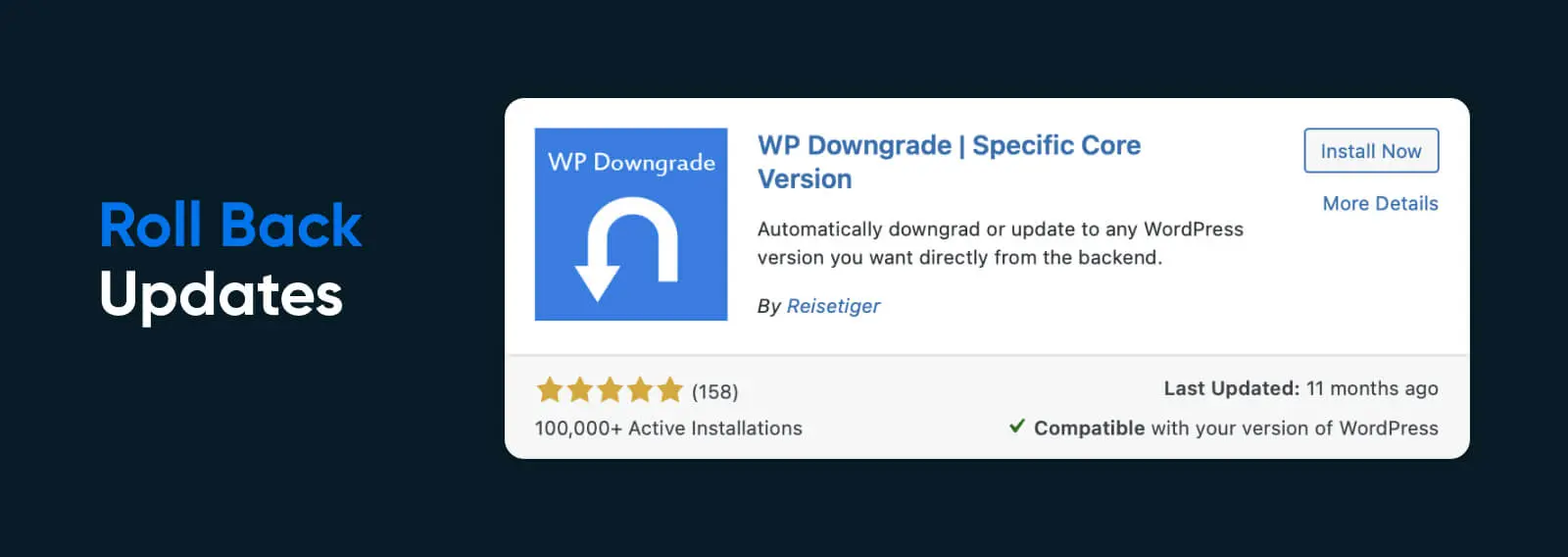
If an update did break your site, roll back to the previous version of the system, theme, or plugin that’s causing problems. WordPress users can revert core with the community-maintained WP Downgrade plugin — its own updates have been sparse, so confirm it’s compatible with your WordPress version before relying on it.
How To Downgrade WordPress Plugins and Themes
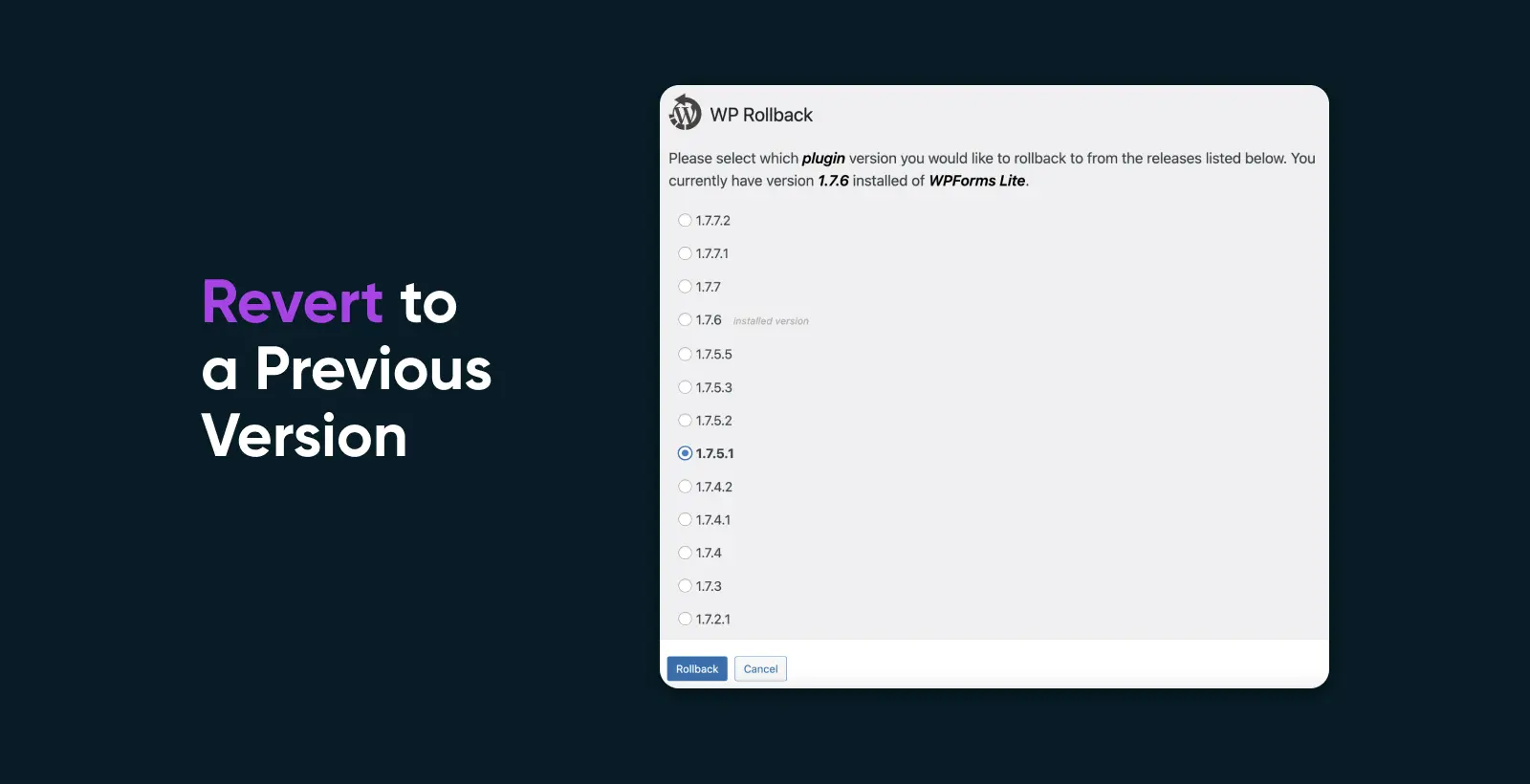
If you believe a specific theme or plugin is the culprit, we recommend the WP Rollback plugin. Once activated, it lets you downgrade any plugin or theme installed from the WordPress.org directory.
Open Plugins > Installed Plugins or Appearance > Themes in your WordPress admin, and you’ll see a “Rollback” option for each. Click it, choose the version you want to restore, and once the downgrade completes, make sure the plugin or theme is activated again.
5) Uninstall New Plugins, Modules, and Themes
Just as updates to existing plugins and themes can mess things up, so can brand-new additions — especially anything that touches requests, like a security, firewall, caching, or redirect plugin.
If the 405s started right after you installed something new, deactivate it. In WordPress, go to Plugins or Appearance > Themes in the admin area and hit Deactivate on the newcomer.
Not sure which plugin is causing the problem? You can disable all of them at once via FTP or SSH:
This immediately deactivates every plugin. To reverse it, rename the folder back to plugins, then reactivate plugins one by one until the error returns — the last one you switched on is your culprit.
To remove a theme via FTP/SSH, open wp-content/themes and delete (or rename) the theme’s folder — but keep a backup copy, just in case the theme isn’t to blame.
6) Fix File Permissions
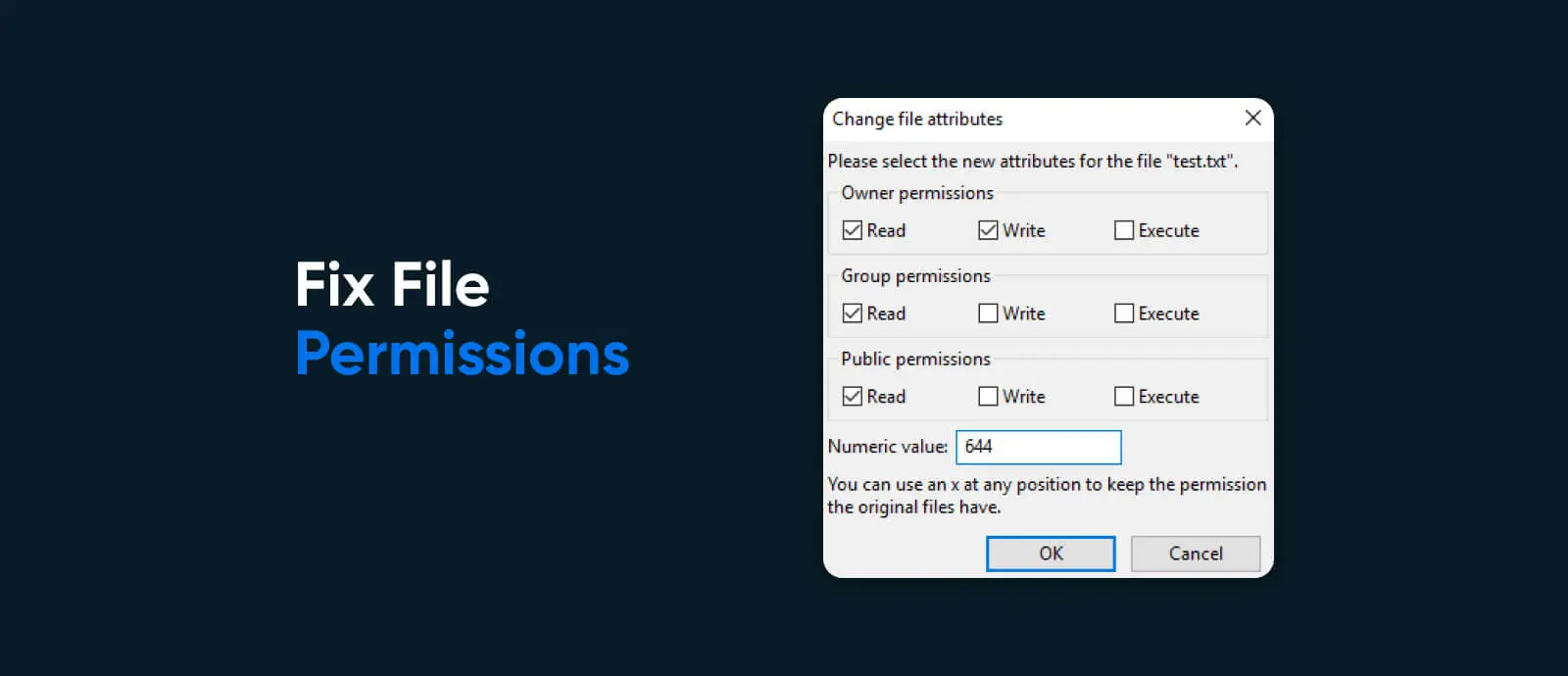
Another reason a server might reject requests is misconfigured site permissions — for instance, a file that an admin can reach but a general visitor’s request can’t.
The fastest way to check is through your host’s file manager or your FTP client: right-click a file and open its permissions (often labeled CHMOD or “file attributes”). You may discover that an important file lost its public read access.
If you’re running your own private server or VPS, also check the server’s own settings — it might be configured to accept only certain HTTP methods for specific file types.
7) Debug Your Code
Ultimately, the cause of your 405 errors might live in the code of your website or web app — a route that declares the wrong method, a webhook handler that never registered, an AJAX call POSTing to the wrong endpoint.
To diagnose problems like these, follow a full debugging process: create a complete local copy of your website (or use a staging environment), recreate the error, and trace the failing request. The exact process depends on your CMS, scripts, and languages. If your site runs on WordPress and you’re confident in the command line, WP-CLI is a great tool for the job.
8) Restore Your Database
Plugins and themes usually need at least some access to your database to do their jobs. Sometimes they get a little unruly and change parts of the database that are none of their business — and those changes survive even after you remove the offending plugin or theme.
Database
A database is a collection of information accessible to computers. Databases are used to store information such as customer records, product catalogs, and financial transactions.
Read More
There are two ways out: dig through your database logs for the problematic change (you’re looking for INSERT, UPDATE, or DELETE statements around the time the errors started — a job for someone comfortable reading SQL), or simply restore your database to a version from before the trouble began.
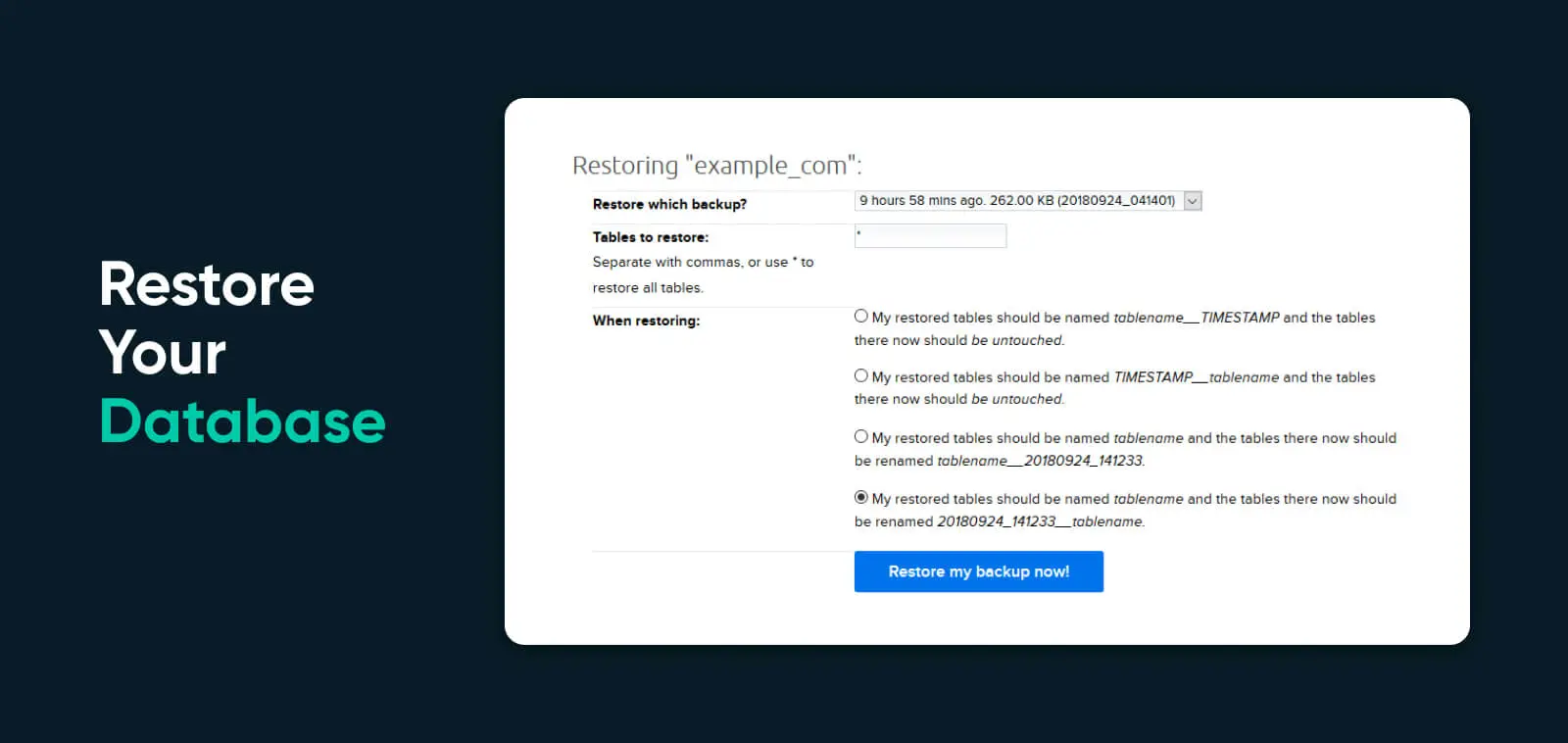
DreamHost automatically backs up your database daily; the restore guide walks through recovering one from the panel. If you’re not sure what you’re looking at in the logs, avoid making modifications and consult a professional.
9) Double-Check Your A Records
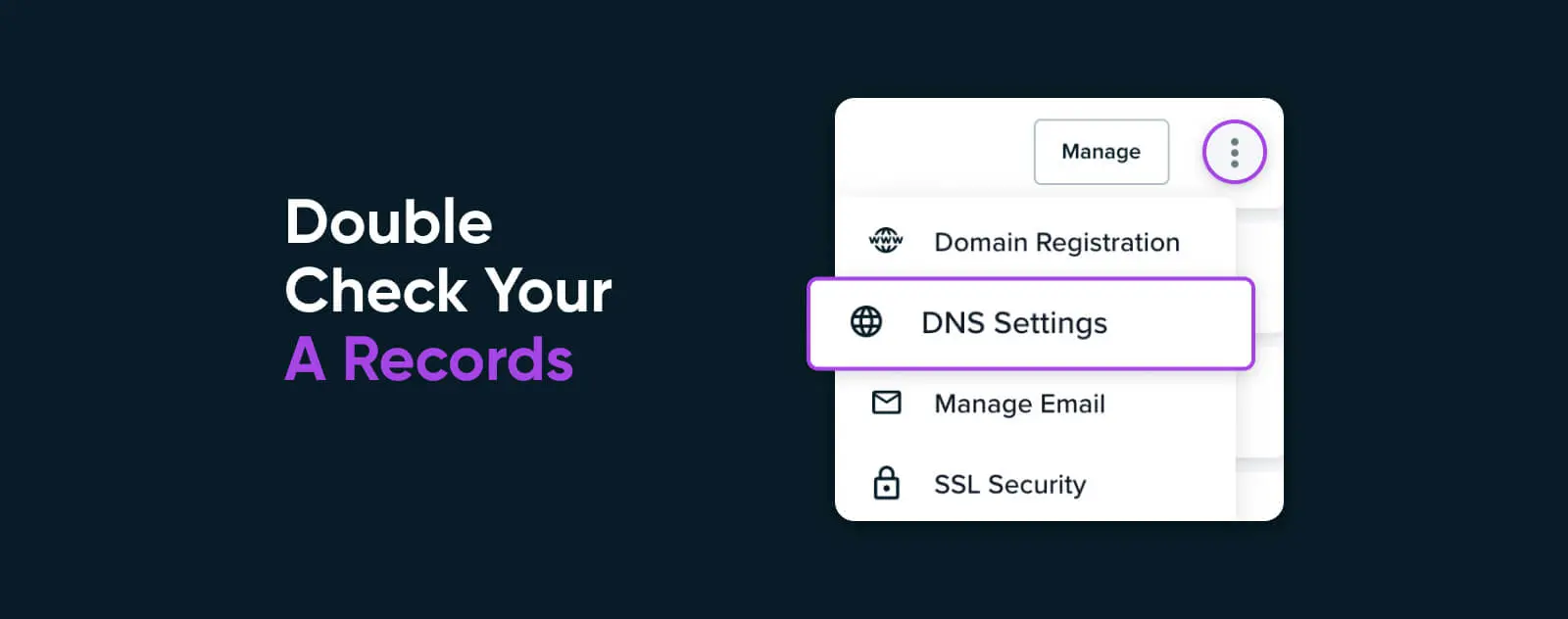
Almost there: make sure the A records for your domain are configured correctly.
In some cases, you may see 405 errors if your A records point at the wrong server. For instance, a server set up to host your website may have different method rules than one set up to host an API (Application Programming Interface). Check your DNS records wherever you manage your domain, and confirm each A record points at the server you expect.
10) Restore Your Whole Website
Sometimes the fastest fix is to stop debugging and roll back.
If you’ve tried the other fixes and nothing works, you might just need to restore your site to how it was before the client errors arrived.
Whoever hosts your website, we always recommend making regular backups and keeping a copy offline. DreamHost also keeps daily automated backups of hosted sites, so you can roll back to yesterday’s version of your site from the panel — the backup and restore guide covers the current flow for both regular hosting and DreamPress.
Cloud Hosting
Traditional web hosting houses a website on a physical server. On the other hand, “cloud hosting” uses multiple virtual (remote) servers for the same task.
Read More
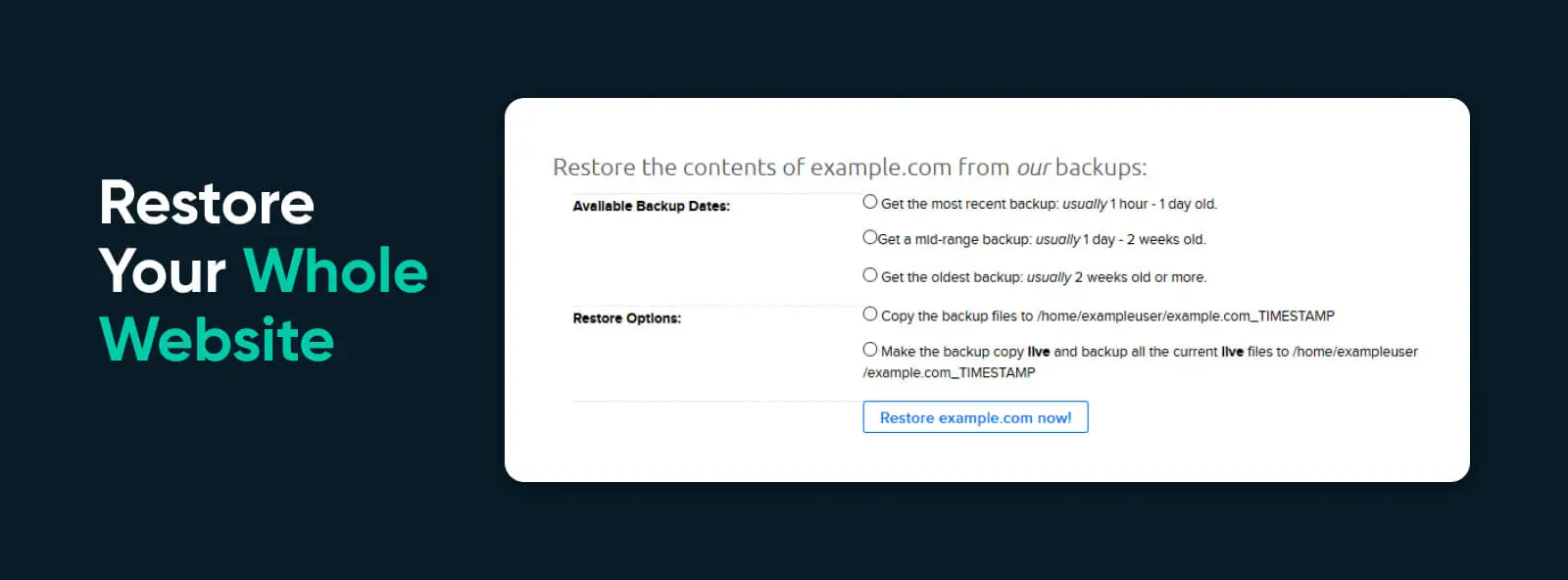
Restoring replaces your current live site with the chosen backup, so any changes made after that backup date will need to be redone — worth it if it makes a stubborn 405 disappear.
Bonus: Stop 405 Errors on Your API Calls
If your site relies on a connection with an external API, a 405 usually means the API server refused your request’s method. Three things to check:
- The method itself: Check the API’s documentation for the endpoint — a PUT sent where only POST is defined earns a 405, and the response’s Allow header (when the server includes one) tells you what the endpoint actually accepts.
- Your headers: Mismatched headers surface as neighboring errors rather than 405s — a Content-Type the endpoint can’t parse returns a 415, an unsatisfiable Accept returns a 406. Keeping them tidy (application/json for JSON payloads, application/x-www-form-urlencoded for classic form posts, plus an Accept header for the format you expect back) rules those look-alikes out quickly.
- Preflight requests: Browser-based API calls often send an OPTIONS request first (a CORS preflight). If the server doesn’t accept OPTIONS, the real request never gets sent — so make sure the endpoint answers OPTIONS too.
Your site or application logs may also reveal the underlying problem here.
How To Stop the 405 Error From Returning
Working through all of the steps above is no small task. But if you’re willing to put in the effort, you should be able to banish the 405 errors showing up on your website or app. To avoid going through the whole thing again:
- Test your site after every change – Whenever you install new plugins or themes or touch your redirect rules, submit your forms and hit your key pages. If a change is going to cause 405 errors, it’s good to know early!
- Keep redirects method-safe – Point forms and API calls at final URLs, and reach for 307/308 instead of 301/302 anywhere a POST might cross a redirect.
- Help your users troubleshoot – If a 405 does slip through, a custom error page that says what to try (reload from the address bar, return to the homepage) turns a dead end into a detour.
HTTP 405 Error: Frequently Asked Questions
What does HTTP 405 Method Not Allowed mean?
It means the server recognized your request method (GET, POST, PUT, and so on) but the URL you requested doesn’t support it. The page exists — the request just needs to arrive as a method that URL accepts.
Is a 405 error my fault as a visitor?
Almost never. The mismatch lives in the site’s links, forms, redirects, or server rules. As a visitor, you can retype the URL in the address bar (which sends a fresh GET) or navigate from the homepage. If the error persists, only the site’s owner can fix it.
What’s the difference between 404, 403, and 405 errors?
A 404 means the content doesn’t exist at that URL. A 403 means the server refuses to authorize the request, whatever the method. A 405 means the content exists and the method, not your permissions, is the problem: the request used an HTTP verb that URL doesn’t support.
Why does nginx show “405 Not Allowed”?
“405 Not Allowed” is nginx’s wording for this error, and the classic trigger is a POST sent to a static file — nginx won’t accept form submissions to plain HTML pages. Point the form’s action at a real handler (a script or form endpoint) instead of a static page.
How do I fix a 405 error on a form submission?
Check the form’s action URL: it should point at the exact, final address of the handler, with the right protocol (https) and hostname (www or not), so no redirect converts the POST into a GET along the way. Then confirm the handler actually accepts POST.
HTTP 405 Error: Wrapping Up
The 405 Method Not Allowed error looks cryptic, but it’s one of the more honest status codes: the page exists, the method doesn’t match, and when the server includes an Allow header, the response even tells you what the URL accepts. Check your links and forms, review your redirect and rewrite rules, and read the logs — that combination resolves the vast majority of cases.
And if you’d rather not debug server mysteries alone, that’s exactly what a good host’s support team is for.

Hosting That Has Your Back
Every DreamHost web hosting plan includes daily automated backups, unmetered bandwidth, and 24/7 support — so the next server mystery is ours to solve, not yours.
Explore Web Hosting Plans
Did you enjoy this article?
