
Fix ERR_INTERNET_DISCONNECTED On Any Device

It’s 11:53 PM.
You just completed a critical update that needed to go live before midnight. You’re amazing, brilliant, you did it!
You hit Publish with relief.
And then…disaster strikes.
Your browser serves up the Chrome dinosaur game — and suddenly that midnight deadline feels very, very close.
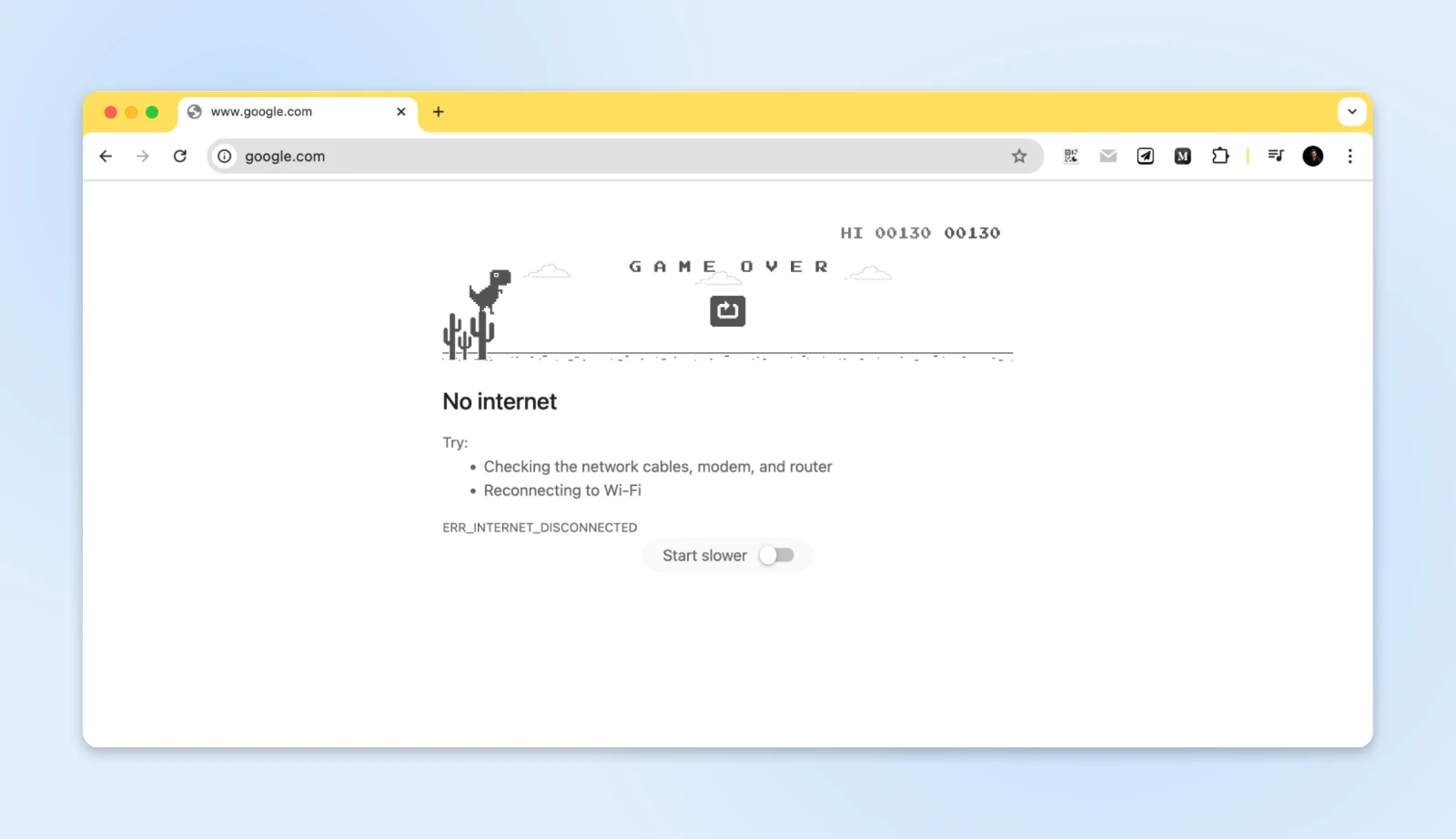
While jumping over internet cacti can be fun, the ERR_INTERNET_DISCONNECTED error when you need internet access feels like getting betrayed by a constant presence in your life: your internet connection.
Don’t worry though; you’re not alone.
Almost everyone has had these moments, and the good news is that this is easily fixable.
Let’s get you back online!
Try These Quick Fixes First
ERR_INTERNET_DISCONNECTED means your device has no working connection to the internet. Most of the time, one of these fixes gets you back online quickly:
Still offline? The rest of this guide walks through the full diagnosis, including fixes specific to Chrome, Windows, Mac, Android, and iPhone.
So, What Is ERR_INTERNET_DISCONNECTED?
Already tried the quick fixes? Jump ahead to the step-by-step diagnosis in “How do you get back online?”
When browsers display the ERR_INTERNET_DISCONNECTED message, they’re telling us that our device has lost its connection to the internet.
You can think of it as a delivery truck attempting to transport packages, only to find that all the roads out are blocked.
The truck (your browser) wants to move data, but the roads (internet connection) are inaccessible. Different browsers handle the internet disconnected error differently, too.
Chrome introduces its famous dinosaur game, a playful nod to times before internet connectivity.
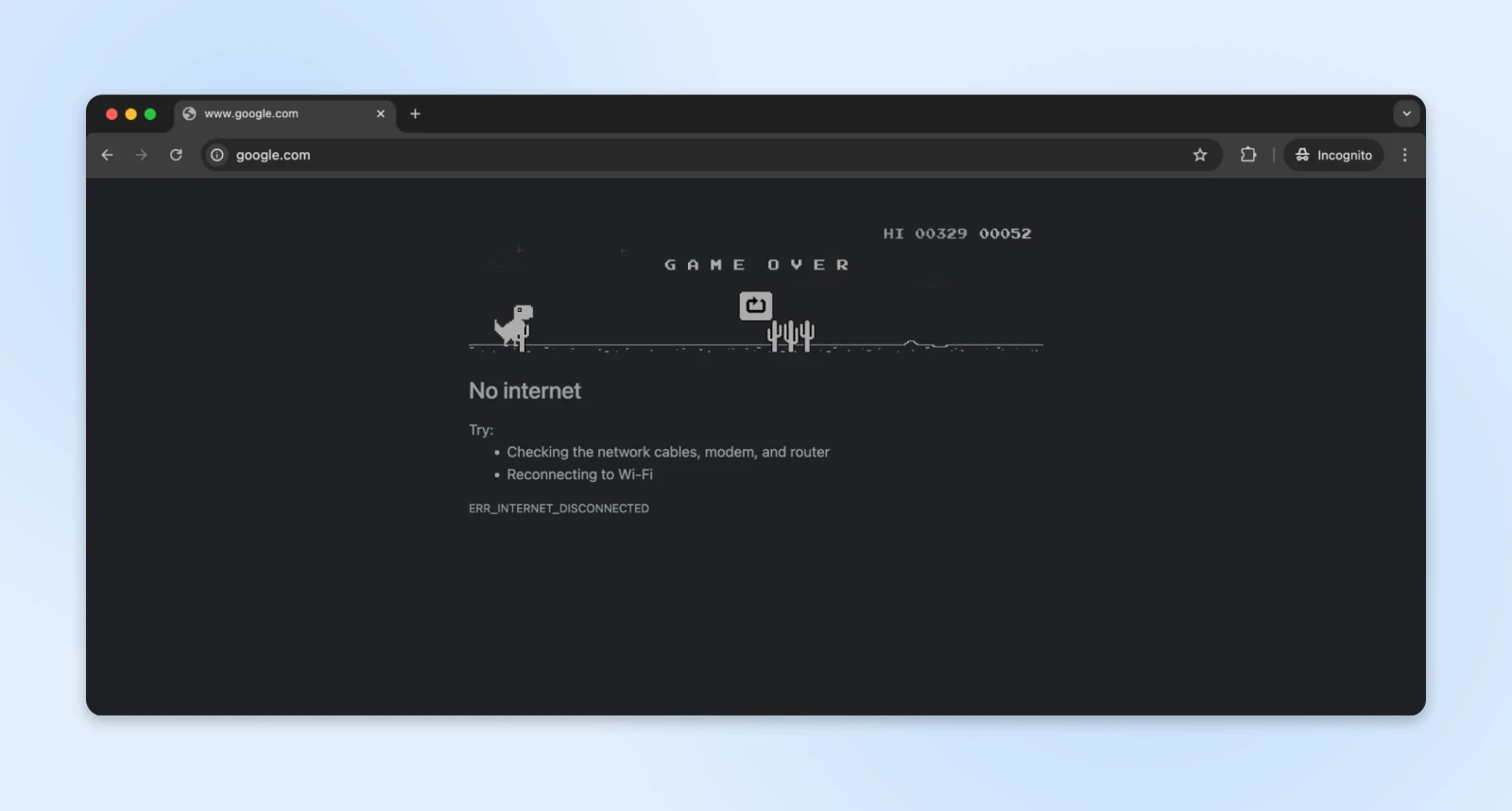
Microsoft Edge has a fun surfing game.

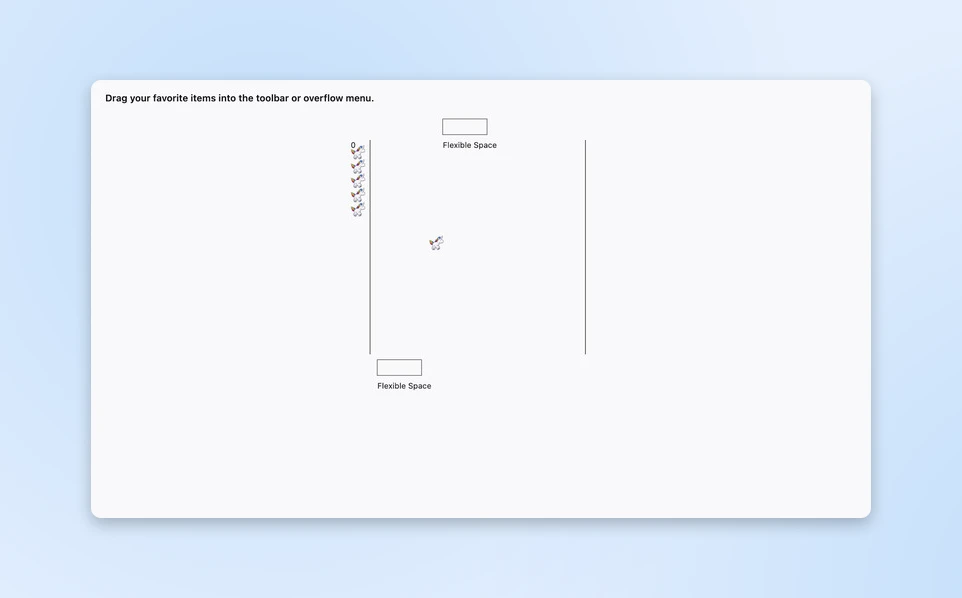
Firefox keeps its error page plain — though it does hide a unicorn Pong easter egg in its Customize Toolbar screen, which is what you’re seeing below.
Safari maintains its minimalist aesthetic with a simple alert.
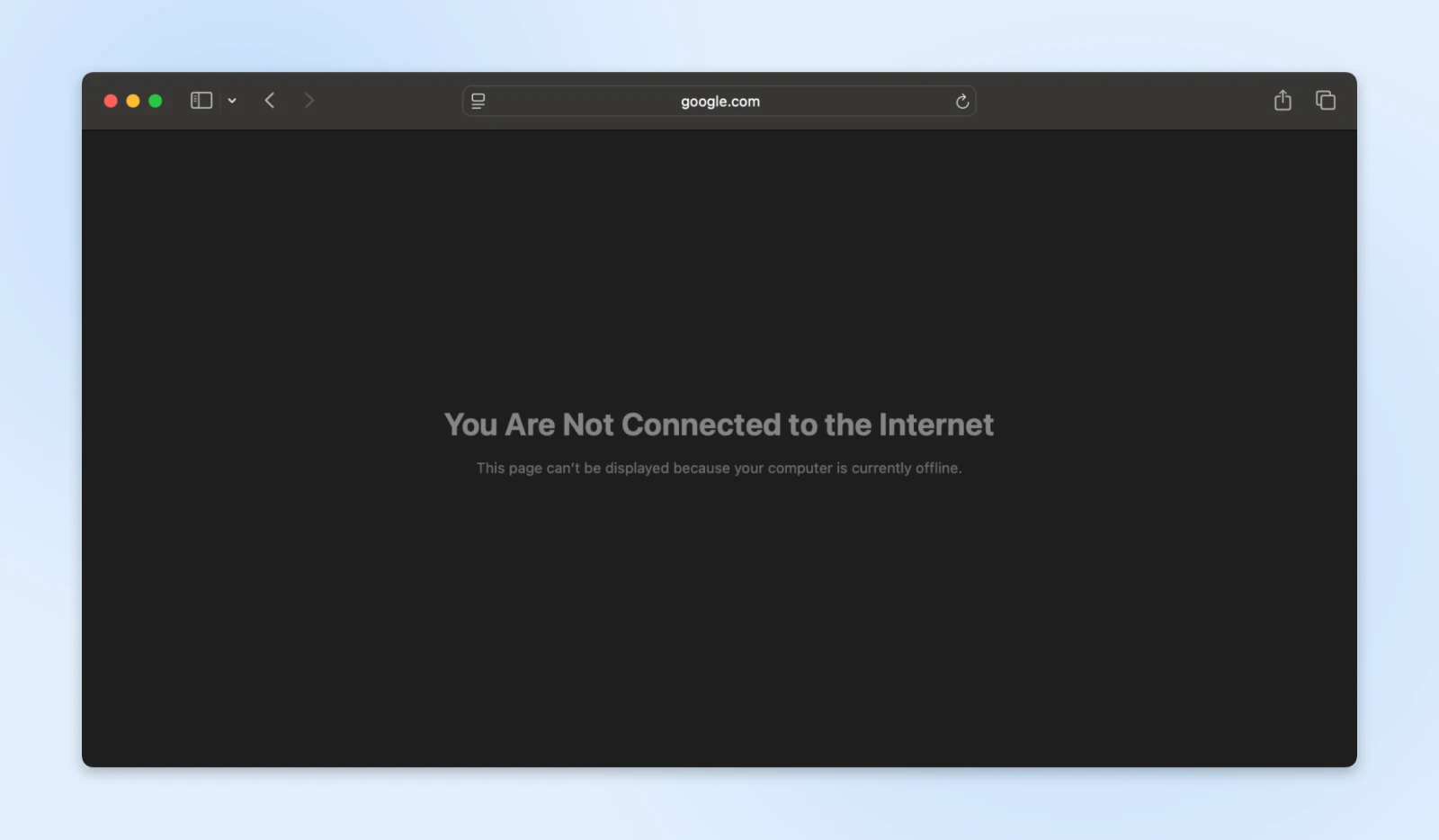
Despite their different presentations, each browser communicates the same fundamental problem — your device can no longer reach the internet.
Why Did You Get Disconnected?
Network connections operate through a complex chain of components working together.
If these get disrupted, the ERR_INTERNET_DISCONNECTED error shows up on your browser window.
Here’s a typical home network setup.
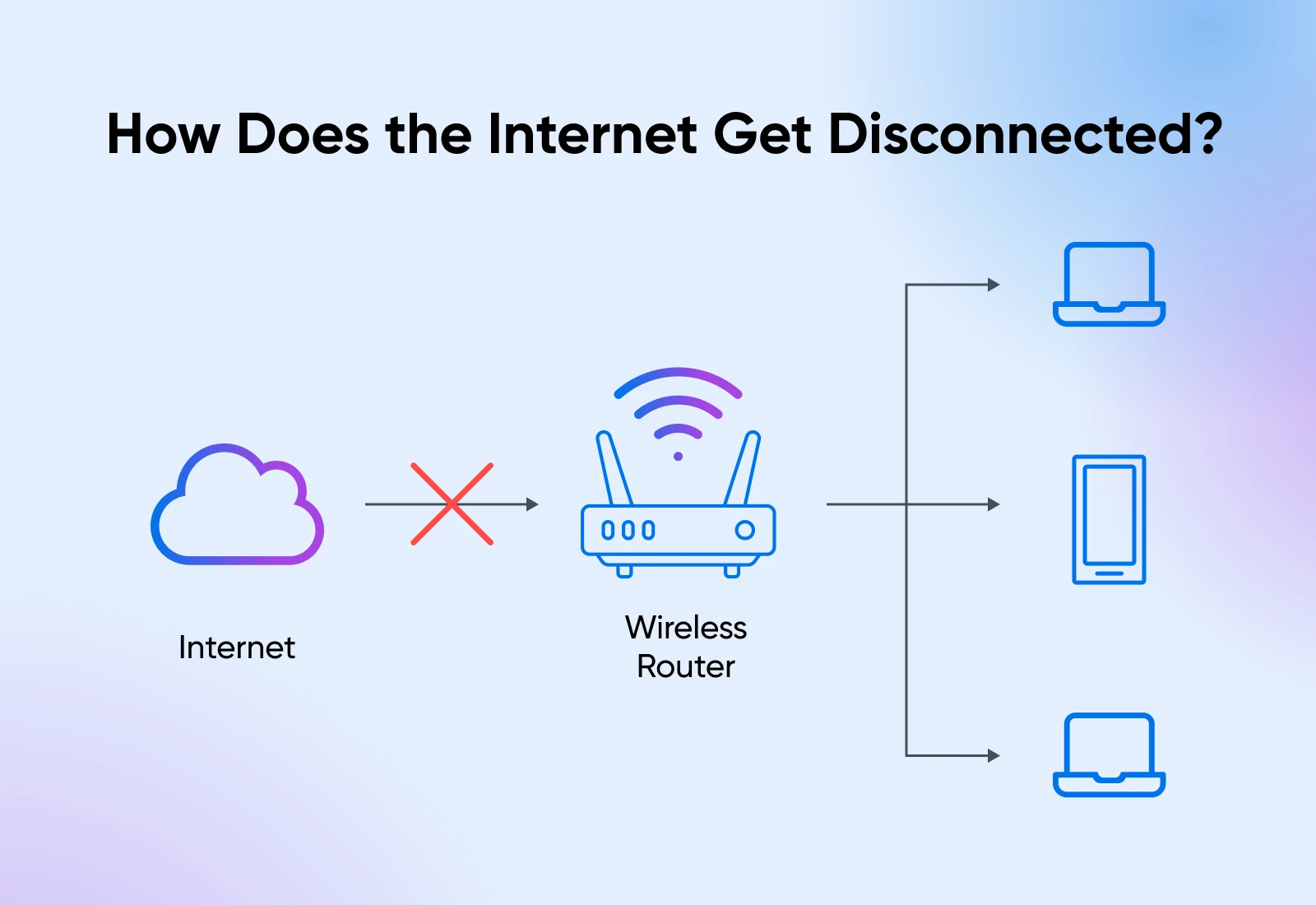
You have the Wi-Fi router connected to the internet, and every device in your house connects to the Wi-Fi router.
BTW, your office network is quite similar. There just are more devices and more routers working together to connect to the internet in an office setup.
There are generally two reasons why you’d get disconnected from the internet:
- Your connection to the router is broken; Wi-Fi disconnects or the wire comes loose.
- The router’s connection to the internet (the cloud) is broken. This is generally out of your control.
Physical connection issues are often the first things you want to check. A cable might have worked itself loose during office cleaning, or for WFH folks, perhaps a pet pulled it loose.
Here’s what you need to do to get back online.
How Do You Get Back Online?
Tried the quick fixes up top and you’re still offline? Time to stop guessing and start investigating.
From here on, we’ll think of it as a detective story.
Every lost connection has clues pointing to its cause, and like any good detective, we’ll examine each piece of evidence systematically.
Let’s walk through the investigation process step by step, checking each potential trouble spot until we uncover the culprit behind your disconnection.
Step 1: Check Your Cables and Connections
You know that moment when your phone isn’t charging and someone asks, “Is it plugged in?”
It might seem obvious, but even the professionals sometimes overlook the simple stuff.
Walk over to your setup and follow the cables from your computer to your router. Give each cable a gentle wiggle. Sometimes they look connected but aren’t clicked in all the way.
Keep an eye on your network indicator while you do this because it might spring back to life right as you adjust the right cable!
Check the power cables next.
They tend to loosen over time, especially if your desk gets bumped occasionally. Take a quick look at each power cable for any loose connections or wear and tear (especially if you have cats– check for bite marks. I speak from experience.)
Watch for any power cables showing wear marks or unusual bending — these indicate potential points of failure requiring replacement.
Quick Fix:
Found something loose or worn?
Still offline? Let’s move to Step 2.
Step 2: Read Your Router’s Lights
Your router uses lights to tell you what’s wrong, kind of like a car’s dashboard.
The power light is your first clue: solid green means good, blinking usually means it’s booting up or updating firmware (give it a few minutes), and no light means it’s not getting power at all.
The internet light (or WAN–Wide Area Network) is your connection indicator.
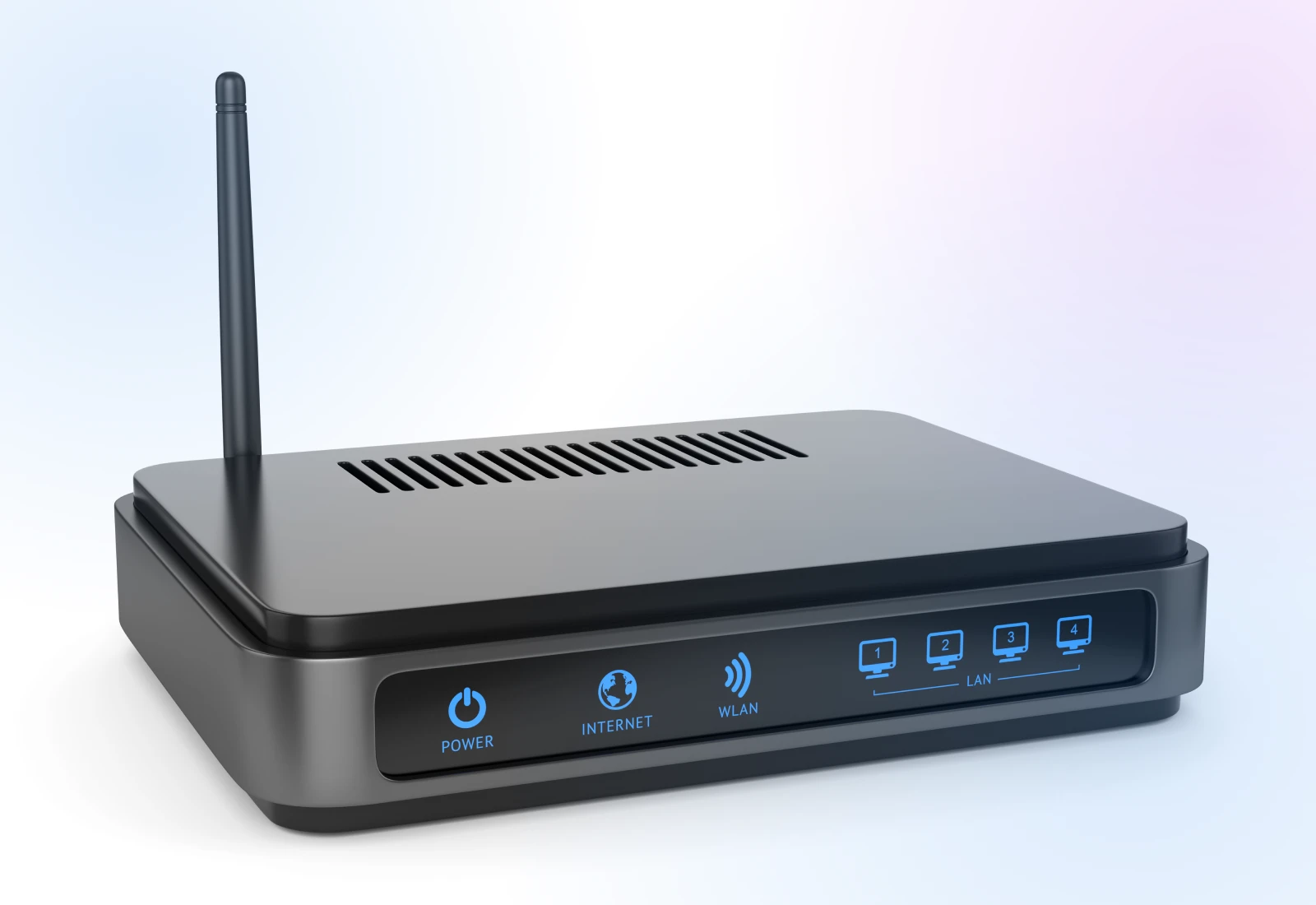
- Solid green or white = connected. That’s what you want.
- Blinking = passing traffic, or still negotiating a connection.
- Red, amber, or no light = lost connection.
Some routers have different blinking styles and light colors, which will be specified in the manual.
Quick Fixes:
Step 3: Restart Your Modem and Router (the Right Way)
If the quick restart from the top of this guide didn’t stick, here’s the thorough version: full power-down, cache cleared, correct boot order.
This is pretty much a reboot but gives the router time to completely power down, delete all cached data from memory, and start fresh.
Here’s how:
If you’re still stuck with no internet connectivity, move on to step 4.
Step 4: Verify Connection
After completing the power cycle, systematically verify each connection layer.
Open your device’s network panel and look for your network name. If it’s missing or showing weak signal bars, try getting closer to your router.
Quick Tests:
Here’s how you can check if your computer has connected to the network or not:
Open your device’s network settings panel. Your network should appear in the available connections list. Here’s what it looks like when my laptop is connected to Wi-Fi, but everything else is disconnected.
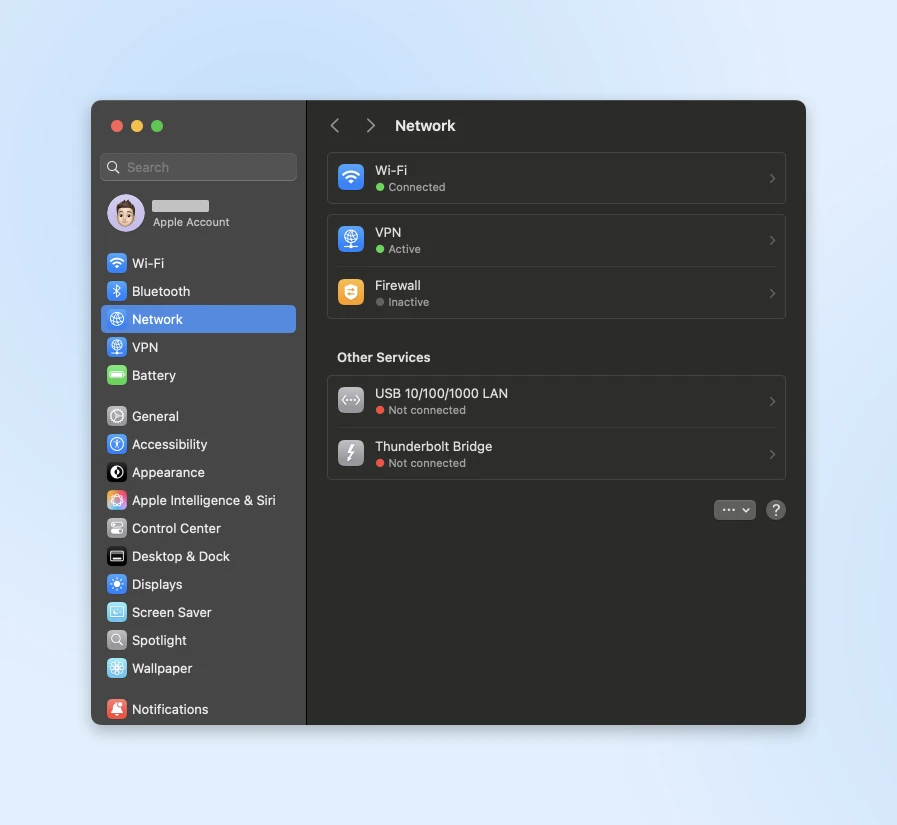
If your device isn’t picking up any networks, your router might not be broadcasting properly.
If your laptop supports it, try connecting to the internet with a wired ethernet connection. This helps rule out any wireless issues.
Also, check the Wi-Fi signal strength with the WiFi Analyzer app; if it’s weak, you might need to reposition your router or check for interference.
You can also perform the Wi-Fi signal strength check on your laptop with:
- Windows – WiFi analyzer
- Mac – no app needed: Option-click the Wi-Fi icon in the menu bar to see your signal strength (RSSI).
If you can connect with ethernet but not wireless, then you know the problem is with your wireless setup. Try connecting wirelessly from different spots and see if the signal strength changes.
Still no luck? Let’s move on to Step 5.
Step 5: Run Deeper Diagnostics
If nothing has worked so far, we need to dig a bit deeper. We’ll use some built-in tools to see exactly where the connection’s breaking down.
Quick Fixes:
Open Command Prompt (Windows) or Terminal (Mac) and type ping 8.8.8.8 to test the internet connection:
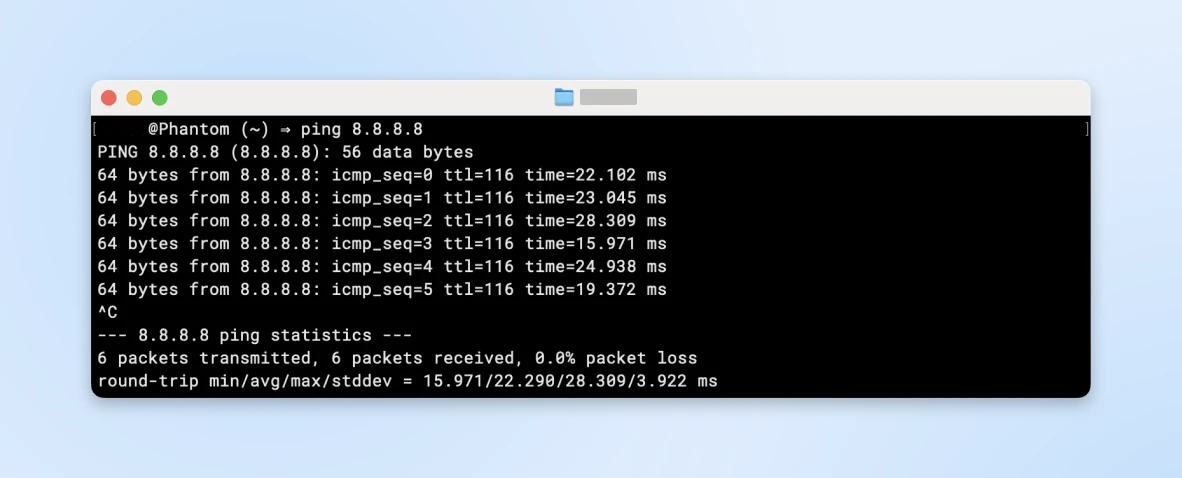
If that fails, ping your router’s own address first (often 192.168.1.1). If the router replies but 8.8.8.8 doesn’t, the problem is between your router and your provider, and it’s time to call them.
If it works but websites don’t, try changing your DNS to 8.8.8.8 (Google) or 1.1.1.1 (Cloudflare).
Remember: Every internet problem has a solution. If you’ve tried all the steps and still need help, don’t hesitate to call your IT support or internet provider.
They’ll appreciate knowing you’ve already tried these steps, and it will help them solve your problem faster!
Fixes By Device: Chrome, Windows, Mac, Android & iPhone
If the basics haven’t worked, the fix is often specific to your device or browser. Find yours below.
Chrome-Specific Fixes
Windows Fixes
Mac Fixes
Android & iPhone Fixes
Seeing the dinosaur on your phone? The error text usually suggests turning off airplane mode and turning on mobile data or Wi-Fi, and that advice is right more often than not. If it isn’t enough:
Preventing Internet Disconnected Error
Two things prevent most repeat disconnects: putting your router in the right spot, and a few low-effort habits.
Smart Router Placement
Router placement often becomes an afterthought in busy offices.
The device gets hidden behind plants or stuffed under desks for aesthetic reasons. However, router location directly impacts video call quality, cloud file access speeds, and overall team productivity.
Remember the Wi-Fi analyzers we talked about before? Any of those can reveal where you’re receiving the maximum network and where the Wi-Fi strength gets weak enough to be disconnected.
You can also create a heat map of your Wi-Fi signal.
For office setups (and even large homes), heatmaps tell you where your signal strength starts dropping so you can add Wi-Fi repeaters, extenders, or signal boosters until you see full coverage across the area of your office.
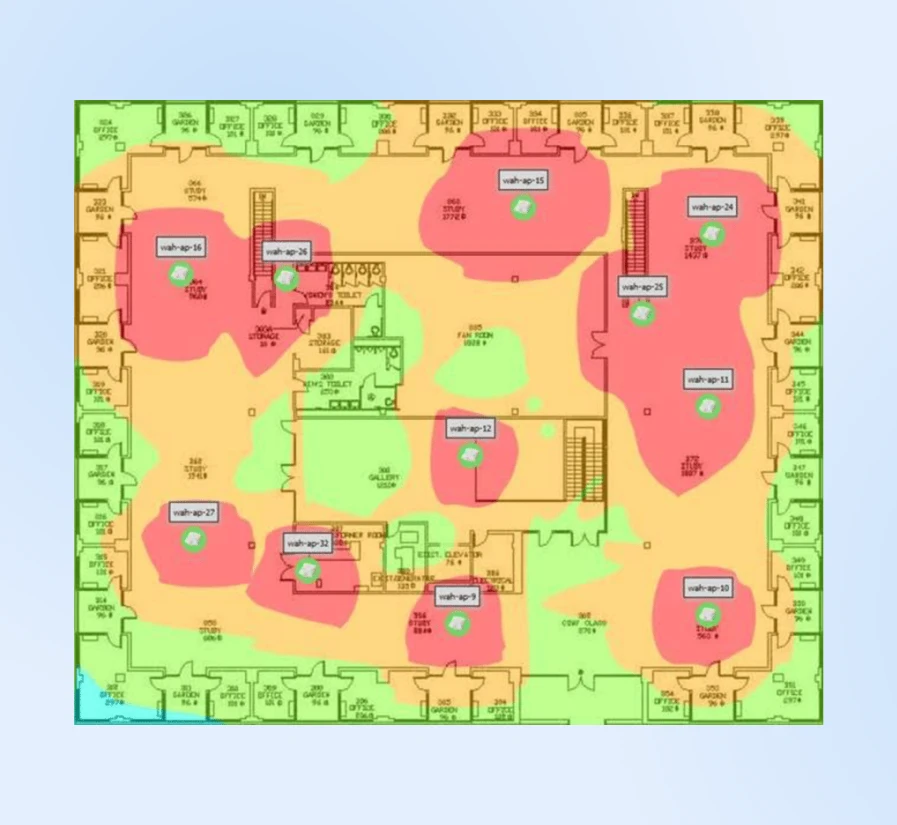
Often, simply raising your router can dramatically improve coverage. The most effective position tends to be mounted about 6 feet up on a central wall, which keeps the signal above furniture and other obstructions.
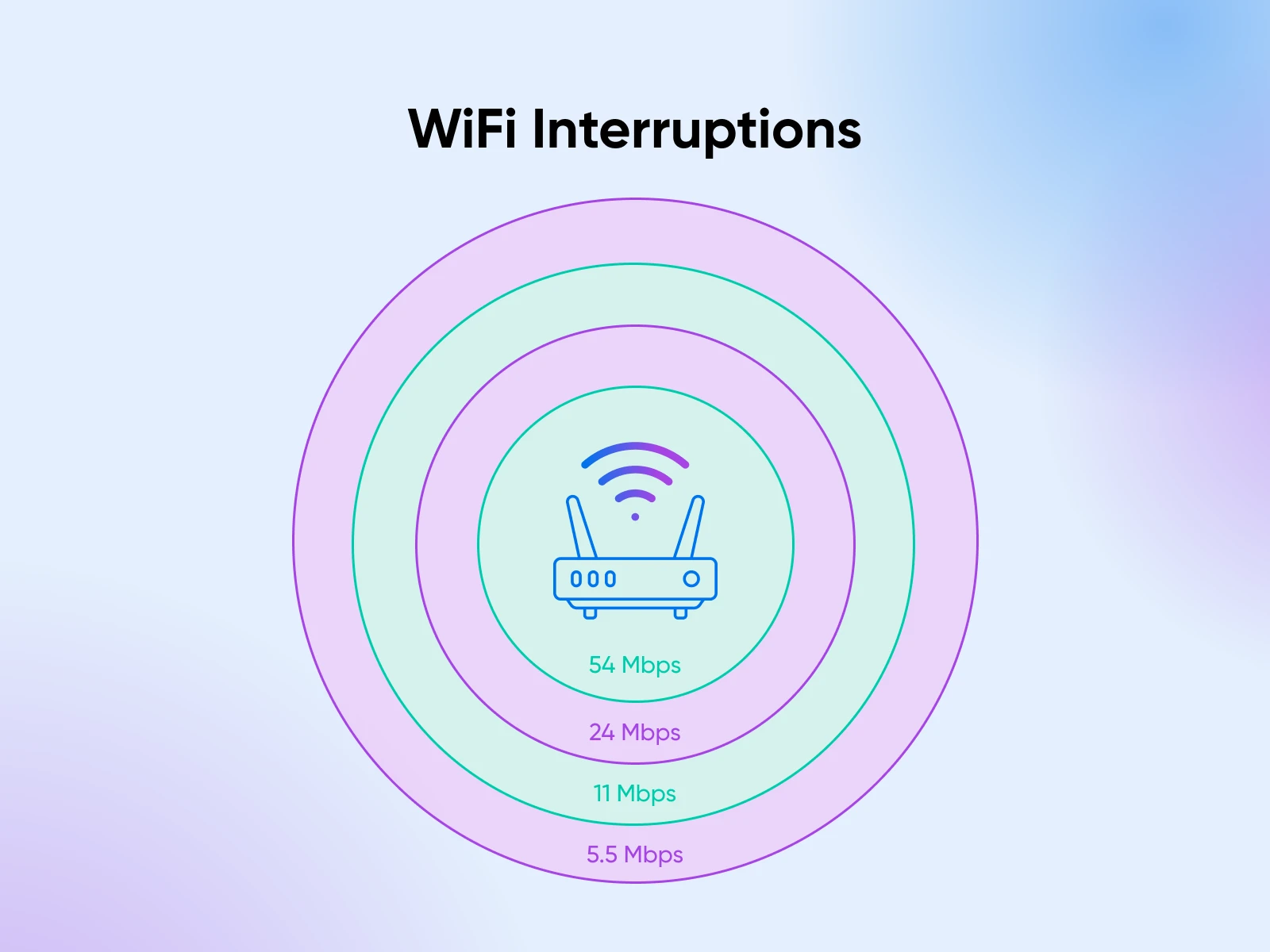
But it’s less common for the router to have a consistent signal throughout its range. Common office items can disrupt Wi-Fi signals in surprising ways:
- Microwave ovens can disrupt 2.4GHz signals.
- Cordless phones may share frequency bands.
- Metal filing cabinets create signal shadows.
- Neighboring networks compete for bandwidth.
Move the router away from these interference sources, or switch to the 5GHz band, which is less crowded.
Simple Habits That Prevent Disconnects
- Restart your router monthly. A quick power cycle clears memory buildup before it causes drops.
- Keep router firmware updated. Most modern routers update from their app or admin page in a couple of clicks.
- Dust the hardware and check cables every few months; connectors loosen and vents clog over time.
- Have a backup ready. Know how to turn on your phone’s hotspot before you need it. For a business, a second connection from a different provider is cheap insurance against downtime.
- Save your provider’s support number offline, plus a note of your account number. Future-you will be grateful.
ERR_INTERNET_DISCONNECTED FAQ
What does ERR_INTERNET_DISCONNECTED mean?
Your browser can’t reach the internet at all. It’s a connection problem on your side (device, Wi-Fi, router, or provider), not a problem with the website you were trying to visit.
Why does it keep happening?
Recurring disconnects usually point to weak Wi-Fi signal, an overheating or aging router, a flaky VPN, or an unstable line from your internet provider. Restarting the router monthly and checking your signal strength usually reveals which one.
What’s the dinosaur on the error page?
Chrome’s built-in offline game. Press the spacebar (or tap the dino on a phone) and it starts running. Fun fact: it works even when you’re online, at chrome://dino.
More Than Just Connection Problems
While we’ve focused on internet disconnection errors, you might run into several other errors that prevent access to websites.
Sometimes your browser and server just aren’t speaking the same language.
Each of these guides walks you through fixing the problem step by step. Bookmark them for those moments when things aren’t working quite right — they’ll help you get back on track quickly!
- The 400 Bad Request Error pops up when something’s wrong with how your browser asks for information — maybe a mistyped URL or some cookie problems.
- You might also see ERR_CONNECTION_RESET when your connection drops mid-conversation with the server. These connection hiccups can be particularly frustrating when you’re in the middle of important work.
- Form submissions can be especially tricky. Ever filled out a long form only to lose everything when you hit submit? That’s often related to ERR_CACHE_MISS Errors. They’re particularly annoying when trying to save important information or make a purchase.
- WordPress users face their own set of challenges. The “Maximum Execution Time Exceeded” message might appear when trying to install a new plugin, or you could run into WordPress image upload issues while updating your site’s media library.
- Sometimes the problem lies within the server itself. A 504 Gateway Timeout means the server’s taking too long to respond, while a 503 Service Unavailable error suggests it’s too busy or down for maintenance. These server issues usually resolve themselves, but our guides can help you understand what’s happening and what you can do about it.
Ready for Any Internet Adventure
Network problems never arrive at convenient times. That dinosaur game might be fun, but not when you’re facing a critical deadline or in the middle of an important task.
The key isn’t avoiding every possible problem but knowing what to do when they occur.
Keep this guide handy, save your ISP’s number somewhere offline, and know that every connection issue has a solution.
And when in doubt, explore our guides on common website errors and management tips.
Sign up for our newsletter to be notified about new tutorials when they’re published. We can’t prevent every internet hiccup, but we can sure help you handle them like a pro.
Did you enjoy this article?

