
Which Linux Distribution Should You Choose in 2026?

You probably don’t wake up excited about operating systems. You just want to browse the web, write some code, and get work done.
However, Windows often has errors, and macOS is sold with overpriced hardware.
That’s why we’re having a Linux conversation.
Linux distributions are different tools, built for different jobs. The right choice depends on what your technical skill level is, what hardware you’re running, and what you actually need to accomplish.
Usability-wise, Ubuntu, Arch, and Kali Linux have about as much in common as a screwdriver, a power drill, and a laser cutter. They’re all tools. That’s where the similarity ends.
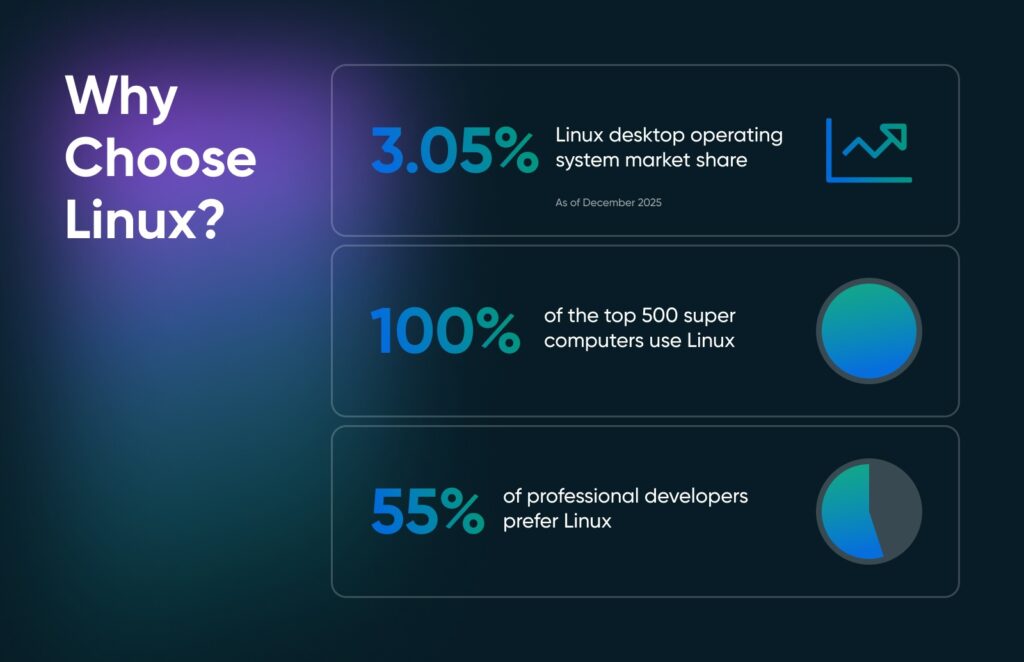
Now, Linux has a 3.05% desktop market share as of December 2025, which means most people don’t use it as a daily driver.
However, over 55% of professional developers prefer Linux for the development workloads because of how easy it is to customize operating systems built around it. Also, all of the world’s 500 most powerful supercomputers run Linux, a complete dominance that started in November 2017.
If you, too, want to explore this stable customizability power users talk about, this article will help you pick the right Linux distribution.
What you’ll learn:
- How to match a Linux distribution to your actual needs and skill level
- Which distributions work best for beginners, developers, and specialized tasks
- When your current distribution stops serving you, and it’s time to switch
What Makes Linux Distributions Different From Each Other?
Every Linux distribution packages the Linux kernel with specific desktop environments, package managers, and update philosophies. That’s what makes them different from each other.
- Desktop environments are the user interfaces you see on screen. For example, GNOME is Ubuntu’s default look. It’s modern and polished, but your computer needs at least 4GB of RAM to run it without stuttering. XFCE is more basic but runs smoothly on computers with just 2GB of RAM. Your ten-year-old laptop could run XFCE perfectly fine, while GNOME would make it crawl.
- Package managers handle how you install software. On Windows, you download a .exe file from a website and click through an installer. But on Linux, you use a package manager. Different distributions use different ones such as APT on Ubuntu or DNF on Fedora, and most of them also provide a GUI frontend if that’s what you prefer.
- Update cycles determine how often your system changes. For example, Ubuntu releases major versions every six months, but the Long-Term Support versions give you five years of security updates without forcing a newer version. Meanwhile, Arch updates continuously, sometimes daily, giving you the absolute newest versions of everything, but occasionally breaking things when updates conflict.
Let’s look at a couple of examples. Ubuntu leads with 33.9% of the Linux market share and is considered one of the easiest Linux distributions. You install it and get a clean desktop that looks somewhat like Windows or macOS.
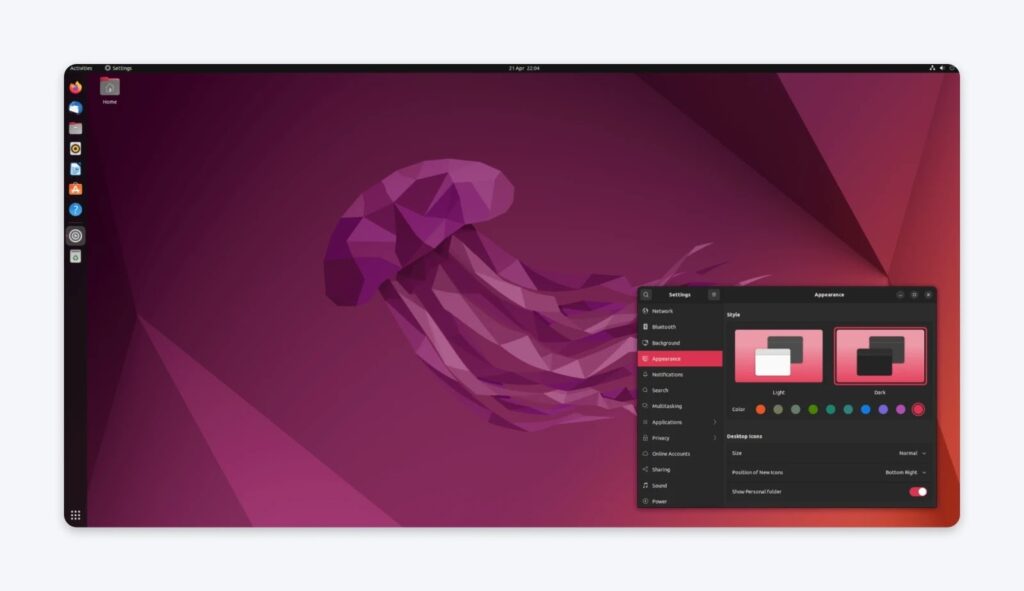
You can click icons to open programs. Point and click to install new software through something called a Software Center (think Apple’s App Store). Ubuntu is also stable, which matters when you’re relying on your computer for work purposes.
Compare that to Arch Linux. Arch doesn’t come with any visual interface. Once installed, you see a black screen with white text prompting you to type Linux commands.
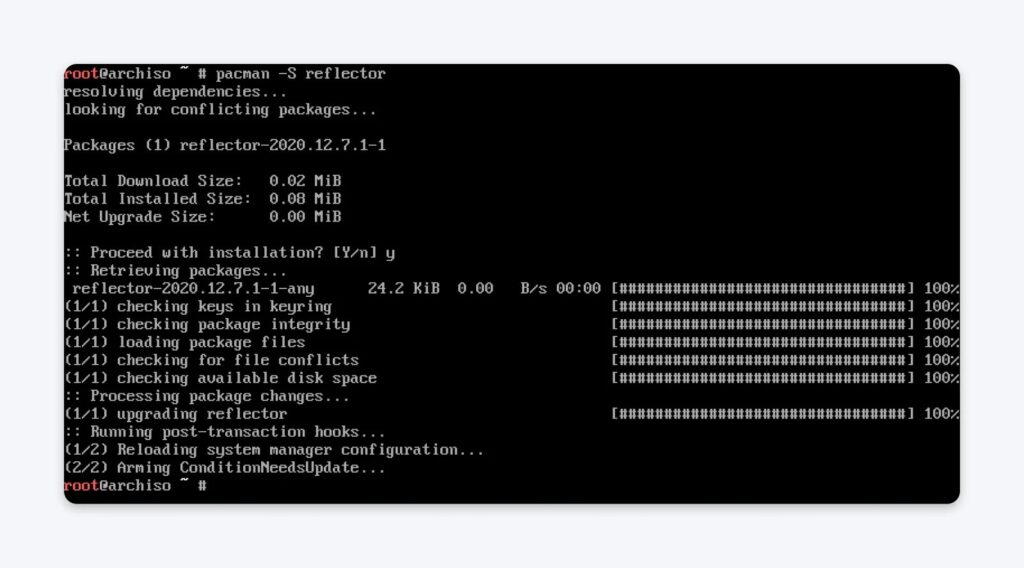
You build everything from scratch, typing commands to install even the user interface, web browser, file manager, etc. That makes Arch extremely difficult for beginners but gives experienced users total control.
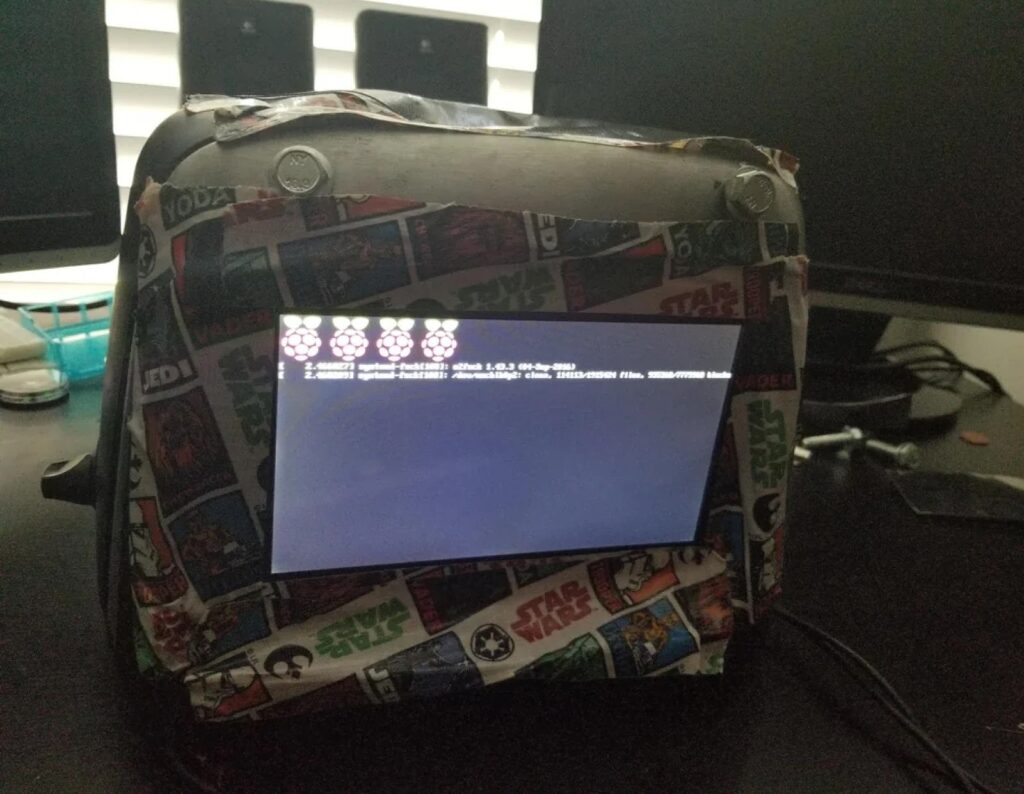
via Reddit
All distributions are built from the same Linux kernel, but with completely different goals. And you just need to figure out what you want to achieve.
How Do You Choose the Right Linux Distribution?
Start by assessing three factors: your technical comfort level, your hardware specifications, and what you need your computer to do. These factors eliminate most options immediately.
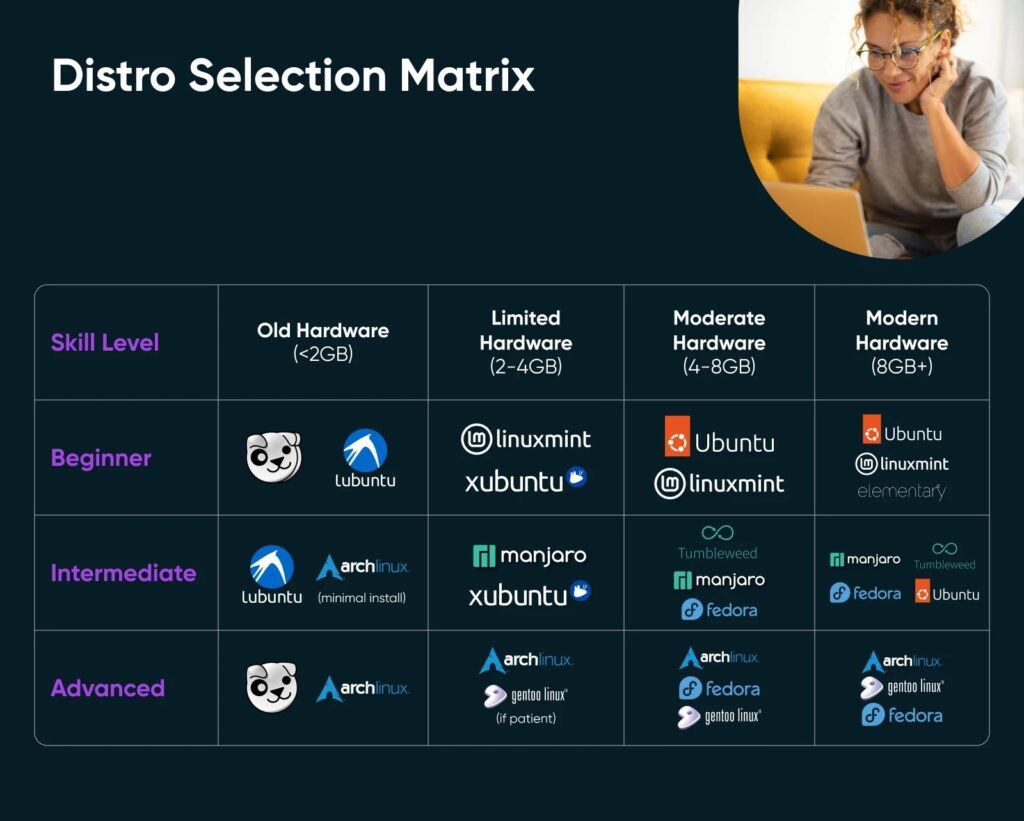
Consider Your Technical Skill Level
If you’re a complete beginner, look for distributions that let you install, reboot, and immediately see a working desktop with programs already there. Make sure the installer asks simple questions and has clear info boxes for clarity. When you inevitably get stuck, you’ll want help fast. Make sure there’s a community of thousands of people online who’ve already solved your exact problem and posted the solution.
Think About Your Hardware
Your hardware specs dictate the Linux distributions you can choose from:
- Modern laptops with 8GB RAM and new processors can run anything comfortably. You choose based on preferences.
- Laptops from 2010 to 2015 with 4GB RAM need lighter options. Ubuntu with GNOME will feel sluggish. Xubuntu or Linux Mint with lighter interfaces runs smoothly.
- Computers older than 2010 with 2GB RAM or less require specialized lightweight distributions. Puppy Linux runs with just 256MB of RAM. Standard Ubuntu requires 4GB minimum.
Test Before Installing
What we like best about Linux is the ability to try an operating system on your computer, without installing it. You have two options:
Live USB Method:
- Download the ISO file (a complete image of the operating system).
- Use Balena Etcher or Rufus to write it to a USB drive.
- Boot from the USB.
Virtual Machine Method:
- Download the ISO file.
- Install VirtualBox on your current operating system.
- Create a new virtual machine and load the ISO.
- Test Linux in an isolated environment without rebooting.
Both methods let you explore the system without changing anything on your hard drive.
Spend 30 minutes checking whether your wireless works, whether videos play, and whether your monitor resolution looks right. Some hardware works perfectly with Linux. And some hardware doesn’t. It’s best if you find that out before you commit.
The live USB method tests real hardware compatibility since it runs directly on your computer, and that’s the method we’d recommend you try. If that’s not possible, you could test with a virtual machine. These are faster to set up but won’t reveal hardware issues like wireless card problems or graphics driver quirks.
What Are the Best Beginner-Friendly Linux Distributions?
Ubuntu, Linux Mint, and Elementary OS install in under 30 minutes. They also look and work like the operating systems you’re used to and have massive communities where people answer questions within hours.
1. Ubuntu: The Standard Starting Point

Ubuntu is the Toyota Camry of Linux distributions. Not the flashiest option, but it starts every morning, parts are available everywhere, and every mechanic in town knows how to fix it.
Built on Debian’s rock-solid foundation and backed by Canonical, it’s become the testing standard for Linux software. When developers create programs for Linux, they test on Ubuntu first. That means compatibility issues you’ll run into elsewhere rarely happen here.
Why It Works:
- Long-term support (LTS) releases provide five years of security updates without forced system upgrades.
- Over 50,000 packages are available through the Software Center, covering virtually every software category.
- Hardware compatibility includes most wireless cards and graphics processors detected automatically during installation.
- Your specific problem has probably been solved on Ask Ubuntu with step-by-step instructions.
The Downsides:
- The snap package format that Ubuntu pushes introduces noticeable startup delays for some applications.
- Default configurations lock down certain system settings to maintain simplicity for beginners.
System Requirements: 4GB RAM minimum, 8GB recommended, 25GB storage, any dual-core processor from the last decade
Right for: Complete beginners, Windows or macOS refugees, anyone prioritizing stability and community support
2. Linux Mint: Designed for People Moving From Windows

Think of Linux Mint as Ubuntu after someone removed all the experimental features and controversial decisions. The project exists specifically because some users felt Ubuntu kept changing things that didn’t need changing.
Mint takes Ubuntu’s technical strength and rebuilds the experience for people who want their computer to work the same way tomorrow as it does today.
Why It Works:
- Cinnamon desktop mimics Windows layout precisely, with the taskbar at the bottom and familiar start menu behavior.
- Pre-installed multimedia codecs play MP3s and videos immediately without license worries or additional downloads.
- Timeshift backup tool creates automatic system snapshots before updates, enabling easy rollback if something breaks.
- Conservative update testing means packages receive extra scrutiny before reaching your system.
The Downsides:
- Follows Ubuntu LTS release schedule, delaying access to the newest software by several months compared to Fedora or Arch.
- Smaller dedicated community than Ubuntu. But since the Mint is based on Ubuntu, solutions to a problem work similarly on both distributions.
System Requirements: 2GB RAM minimum, 4GB recommended, 20GB storage
Right for: Windows users making their first Linux attempt, computers from 2012 to 2018, and anyone uncomfortable with interface changes
3. Elementary OS: The macOS Alternative
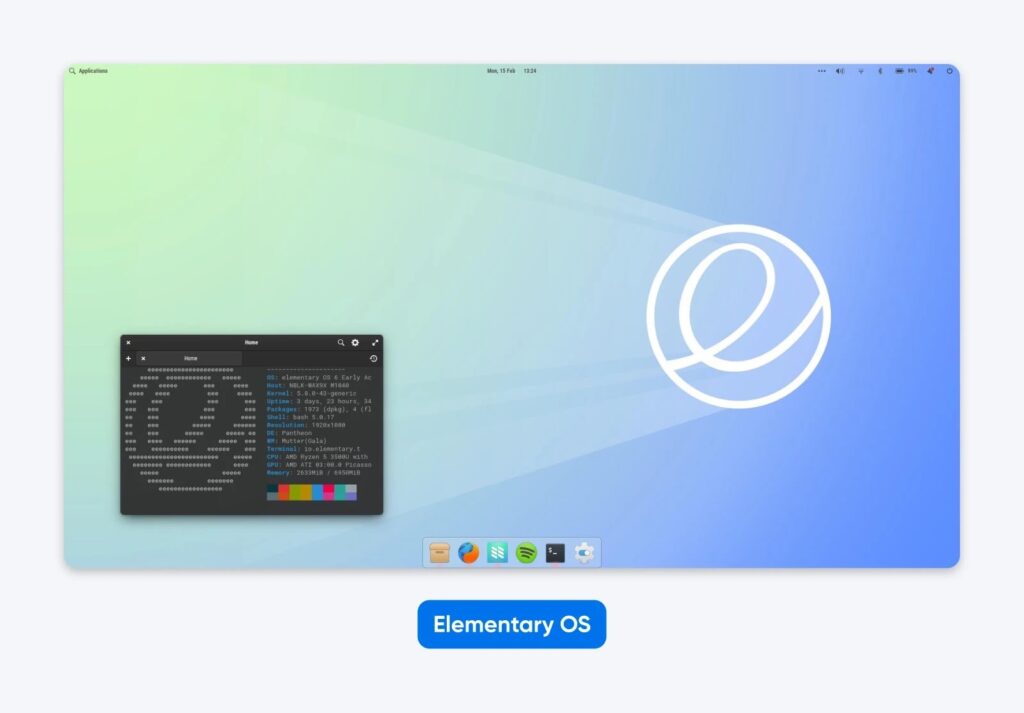
Elementary answers a specific question: what if Linux looked as good as macOS? The team includes actual designers who obsess over typography, spacing, and visual consistency the way Apple does. You’re trading unlimited customization for a system that looks professionally designed instead of assembled by engineers.
Why It Works:
- Pantheon desktop features dock placement and a top panel that macOS users recognize instantly.
- Curated AppCenter includes only applications that match the design language, avoiding visual inconsistency.
- Based on the Ubuntu LTS foundation, it provides access to Ubuntu’s massive software library and stability guarantees.
- Consistent keyboard shortcuts and interface patterns work the same across all system applications.
The Downsides:
- Deliberately limits customization options to preserve the design vision, frustrating users who want granular control.
- Pay-what-you-want model for some AppCenter applications confuses users despite being completely optional.
- Smaller software selection in the curated store compared to Ubuntu’s full 50,000+ package repository.
System Requirements: 4GB RAM minimum, 8GB recommended for creative applications, 32GB storage
Right for: macOS users, designers, and creative professionals, and anyone prioritizing aesthetics over configuration options
What Linux Distribution Should Developers Use?
Fedora, Arch Linux, Manjaro, and openSUSE Tumbleweed give developers the newest software versions weeks or months before other distributions, plus tools that make coding easier.
4. Fedora: Latest Tools Without the Hassle
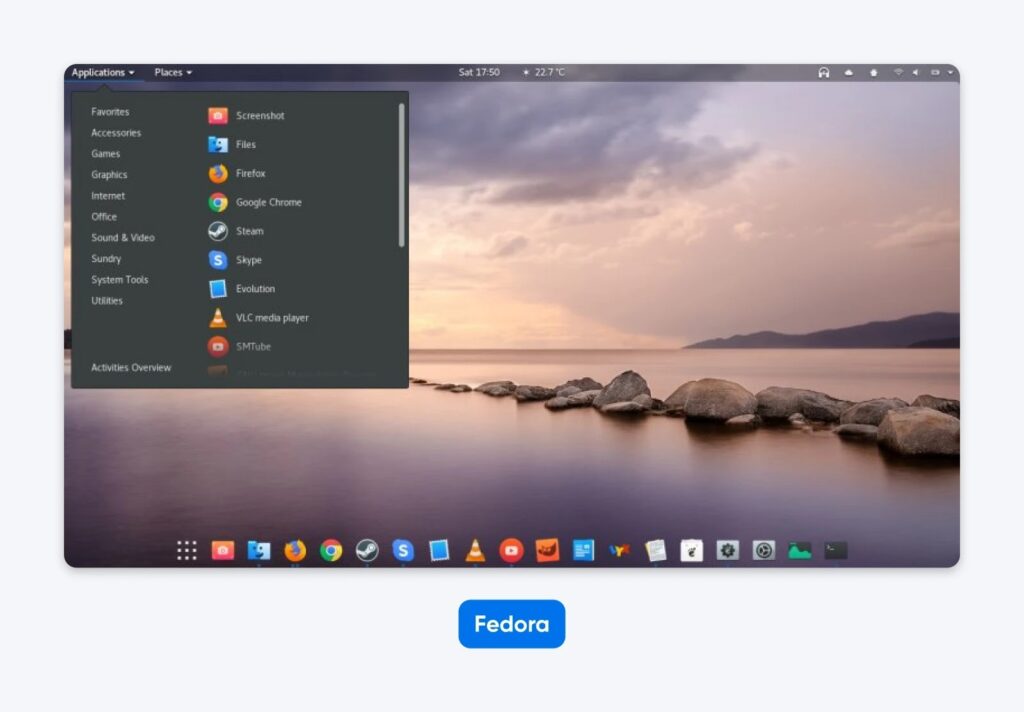
Fedora is where Red Hat tests new technology before it goes into their enterprise products, which means you get tomorrow’s standards six months early. The distribution refuses to include proprietary software even when it would make life easier, sticking to open-source principles that sometimes frustrate users but keep the platform truly free. It’s a developer favorite because cutting-edge tools appear here first.
Why It Works:
- New programming languages, compilers, and frameworks appear 2–4 weeks after official release (faster than most other Linux distributions and operating systems).
- Podman containerization tool comes pre-installed and configured for immediate use.
- SELinux security framework, enabled by default, provides enterprise-grade protection.
- Integration with Red Hat Enterprise Linux makes it ideal for developers targeting corporate server deployments.
The Downsides:
- Six-month release cycle requires major system updates twice yearly, with potential compatibility issues.
- Strict open-source commitment means some proprietary drivers need manual installation from third-party repositories.
- Bleeding-edge packages occasionally contain bugs that stable distributions avoid through longer testing.
System Requirements: 2GB RAM minimum, 8GB recommended for development with containers, 20GB storage, 50GB for multiple virtual machines
Right for: Application developers needing current tools, system administrators learning Red Hat Enterprise Linux (RHEL), and developers comfortable with twice-yearly upgrades
5. Arch Linux: Build Exactly What You Need
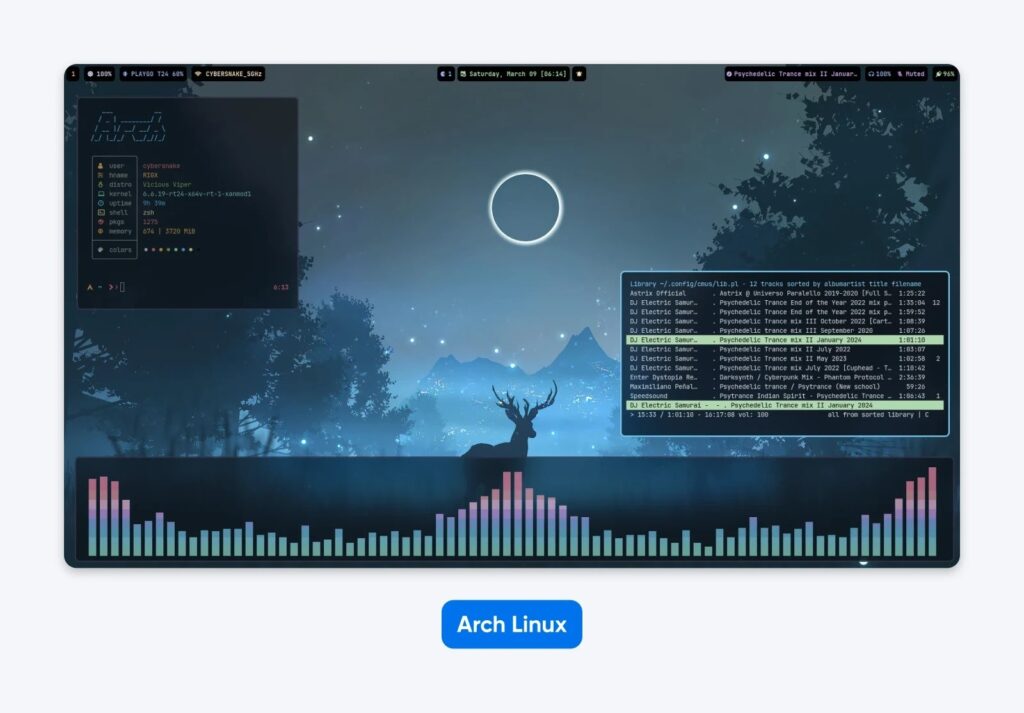
Arch gives you a blank slate. It expects you to read documentation and build your system piece by piece. It takes hours initially, but it teaches you exactly how Linux works under the hood. The distribution appeals to people who’d rather understand their system completely than have it mysteriously “just work.”
Why It Works:
- The rolling release model delivers software updates continuously without waiting for version milestones.
- Pacman package manager resolves dependencies efficiently and updates the entire system with a single command.
- Arch User Repository contains over 102,000 user-contributed packages covering obscure development tools and libraries (as of December 2025).
- Arch Wiki provides comprehensive documentation explaining not just how but why system components work.
The Downsides:
- Command-line installation requires understanding disk partitioning, bootloader configuration, and network setup.
- Zero hand-holding means mistakes during installation can render the system unbootable.
- Rolling updates occasionally introduce breaking changes requiring manual intervention to resolve conflicts.
- Significant time investment needed for initial setup, often 3–6 hours for first-time installers.
System Requirements: 512MB RAM for command-line only, 2GB RAM with graphical desktop, 2GB storage minimum, 20GB typical with development tools
Right for: Experienced Linux users seeking maximum control, developers who customize every aspect of their workflow, and anyone wanting deep Linux knowledge
6. Manjaro: Arch Without the Pain
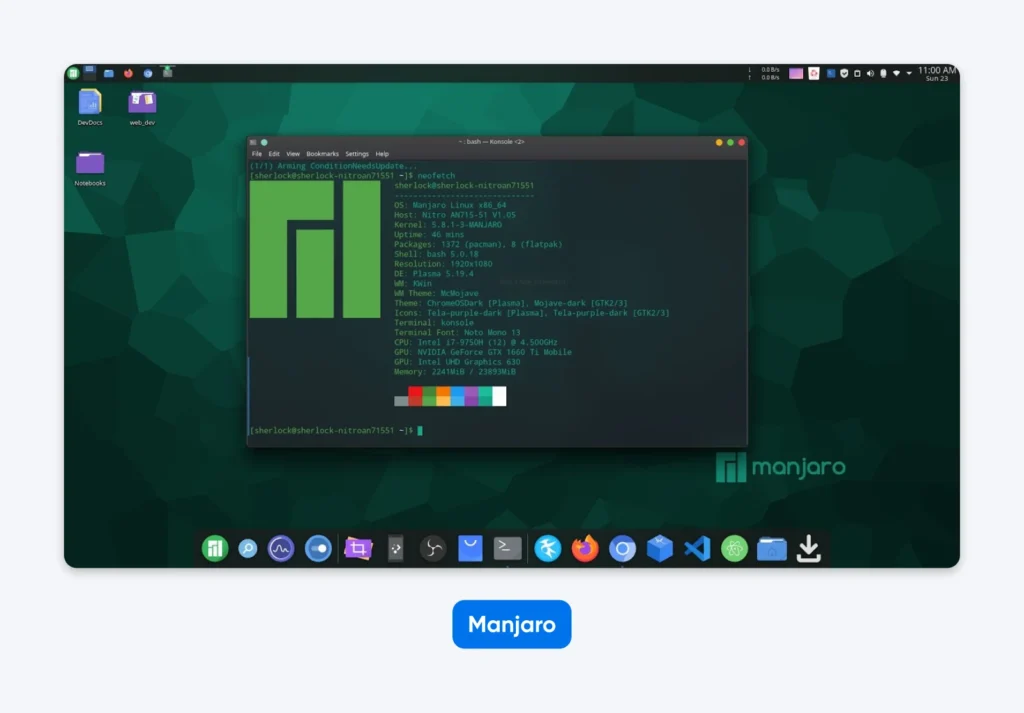
Manjaro solves the problem of wanting Arch’s bleeding-edge software without spending your weekend reading wiki articles. The distribution adds the friendly installer and hardware detection that Arch deliberately omits, plus it tests updates for stability before releasing them. You get 80% of Arch’s benefits with 20% of the effort.
Why It Works:
- Graphical installer with automatic hardware detection completes setup in 15–20 minutes.
- Full access to Arch User Repository’s 85,000+ packages without command-line compilation.
- A one- to two-week testing period catches breaking updates before they reach your system.
- Multiple official desktop environments are available during installation, including KDE, XFCE, and GNOME.
The Downsides:
- Testing delays mean packages arrive 1–2 weeks behind pure Arch, potentially missing critical security updates during that window.
- It requires more Linux knowledge than Ubuntu, despite its user-friendly installer, particularly for troubleshooting issues.
- A smaller community than Ubuntu means fewer solved problems documented online.
System Requirements: 2GB RAM minimum, 8GB recommended, 30GB storage, 50GB for development work with multiple projects
Right for: Developers interested in Arch without installation complexity and intermediate Linux users ready to explore rolling releases
7. openSUSE Tumbleweed: Rolling Release With a Safety Net
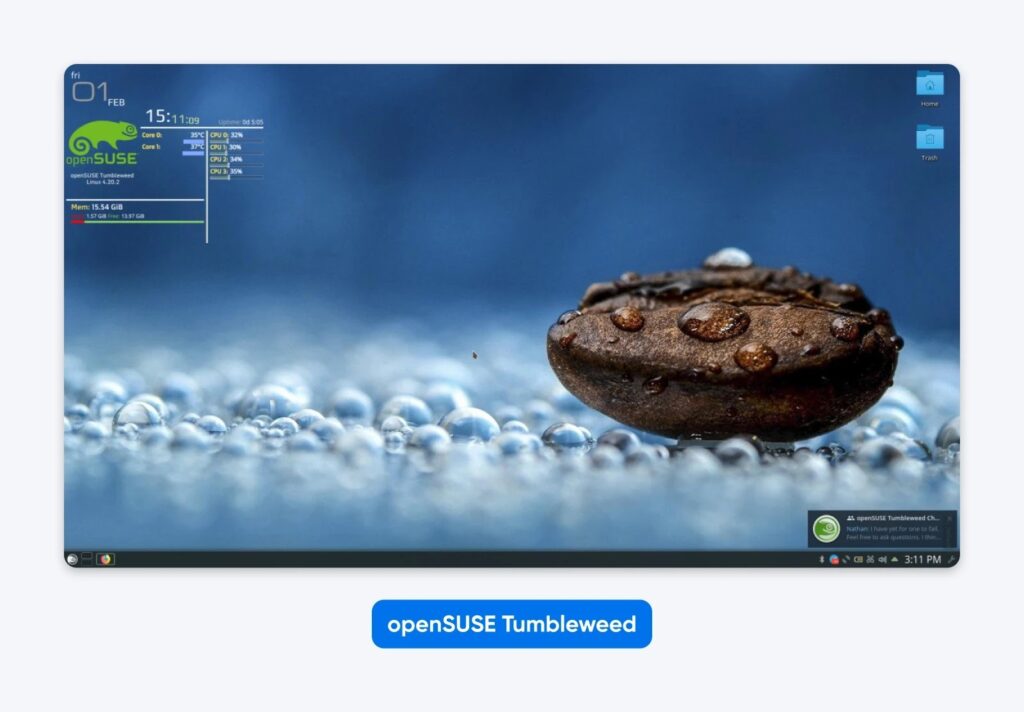
openSUSE Tumbleweed gives you Arch’s rolling release philosophy with enterprise-grade safety features. Every update goes through openQA automated testing before reaching your system, and Btrfs snapshots let you roll back if something breaks. It’s what you choose when you want cutting-edge software but can’t afford downtime.
Why It Works:
- Automated testing through openQA catches breaking changes before updates reach users, preventing the “Oops, my system won’t boot” scenarios common in pure rolling releases.
- Btrfs filesystem with automatic snapshots before updates lets you boot into previous system states from the GRUB menu if updates cause issues.
- YaST configuration tool provides graphical control over system settings that other distributions require command-line editing to change.
- Strong KDE Plasma integration makes it the best distribution for users who prefer KDE’s customization options over GNOME.
The Downsides:
- YaST and Zypper package managers have a steeper learning curve than apt or dnf, with different command syntax.
- Slower update pace than Arch due to testing period, typically 1–3 days behind for most packages.
- Smaller English-language community compared to Ubuntu or Arch, though German-language resources are extensive.
System Requirements: 2GB RAM minimum, 8GB recommended, 40GB storage, 10GB additional for Btrfs snapshots
Right for: Developers wanting rolling release stability, KDE enthusiasts, and users who need cutting-edge software with easy rollback options
Which Linux Distributions Serve Specialized Needs?
Kali Linux, Tails, and Rocky Linux handle specific professional work that general-purpose distributions don’t.
8. Kali Linux: Security Testing
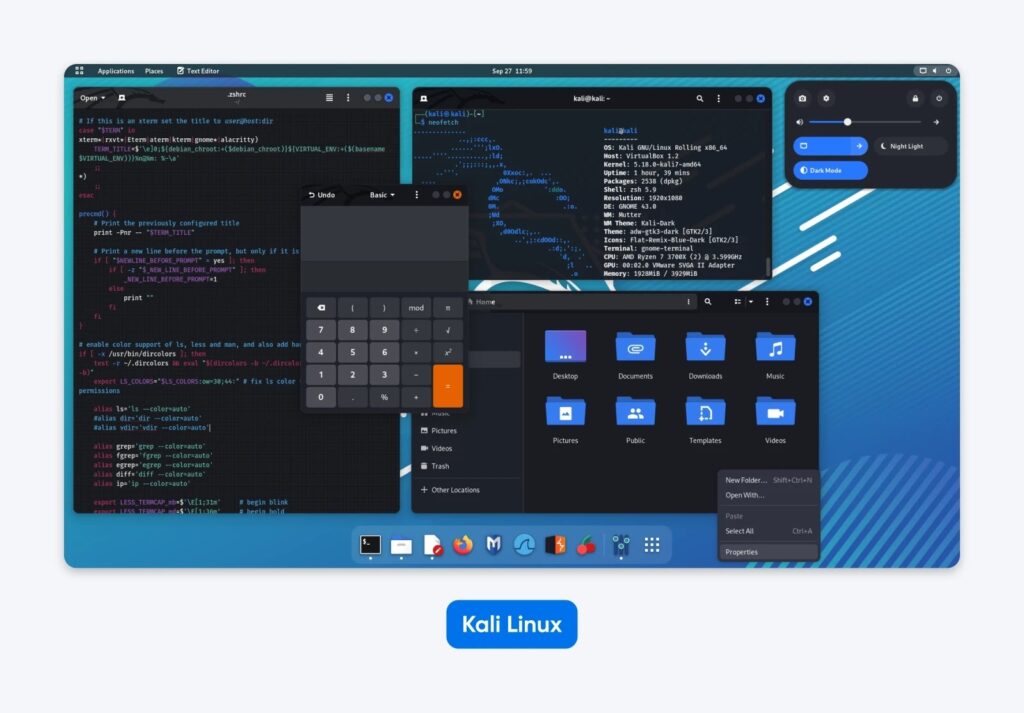
Kali exists for one specific job: security testing and penetration testing work. Offensive Security maintains it for their certification courses, which means the tool selection and default configurations match what professional security testers actually use. Running it as your daily driver misses the point entirely.
Why It Works:
- Over 600 pre-installed tools, including Nmap, Metasploit, Wireshark, and Burp Suite, eliminate the need for individual tool installation.
- Live boot capability from USB enables security assessments without installing on target systems.
- Rolling updates keep security tools current with the latest vulnerability databases and exploit techniques.
- Official training courses through Offensive Security provide structured learning paths for certifications.
The Downsides:
- Tools are complex and assume security knowledge, making them dangerous in inexperienced hands.
- Not optimized as a daily desktop, and frequent toolchain changes can break workflows.
System Requirements: 2GB RAM minimum, 4GB recommended when running multiple tools, 20GB storage
Best for: Penetration testers, security researchers, ethical hackers, and cybersecurity students learning security auditing
9. Tails: Maximum Privacy
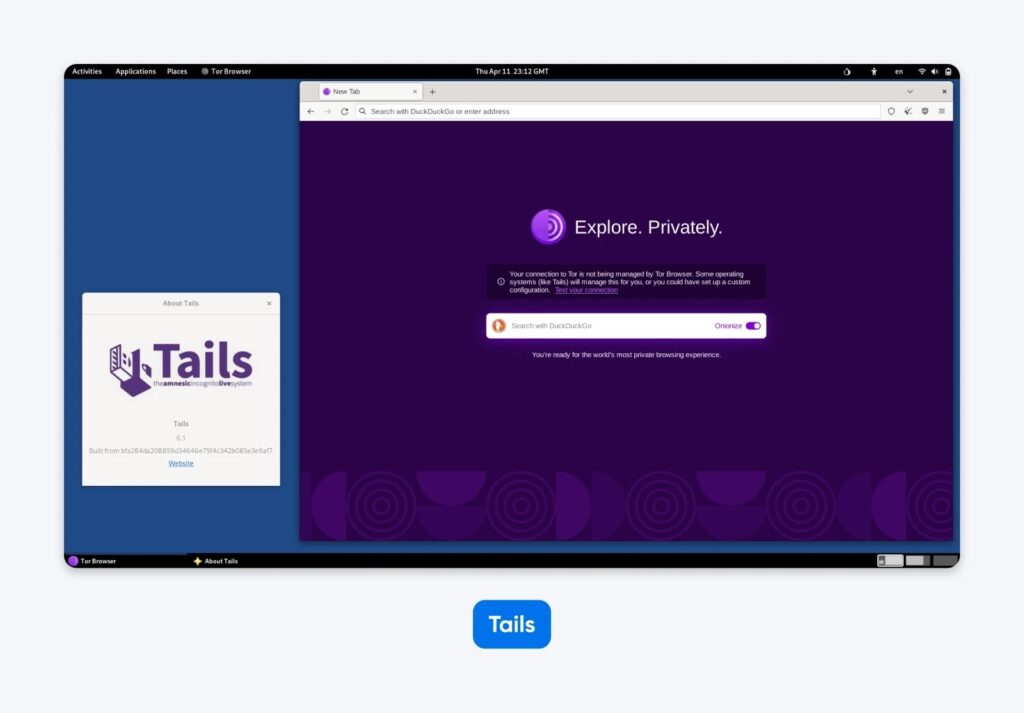
Tails prioritizes your anonymity over everything else, including convenience and speed. The entire system runs in RAM and routes traffic through Tor, making it the choice for people facing actual surveillance threats. It’s not paranoia if journalists in authoritarian countries rely on it.
Why It Works:
- All network connections route through Tor by default, anonymizing internet activity automatically.
- Amnesia functionality erases all session data on shutdown, leaving zero forensic evidence.
- Lets you boot from USB on any computer without touching the hard drive or leaving traces.
- Offers built-in encryption tools for files, emails, and instant messages to protect sensitive communications.
The Downsides:
- Tor routing significantly slows down browsing compared to a normal connection.
- Persistent storage options are limited and complicated to configure securely.
- Many commercial websites block Tor exit nodes, restricting access to services like Netflix or banking.
System Requirements: 2GB RAM minimum, 8GB USB drive, any processor capable of booting from USB
Best for: Journalists in authoritarian countries, whistleblowers handling sensitive documents, and activists requiring anonymity
10. Rocky Linux: The Free RHEL Alternative
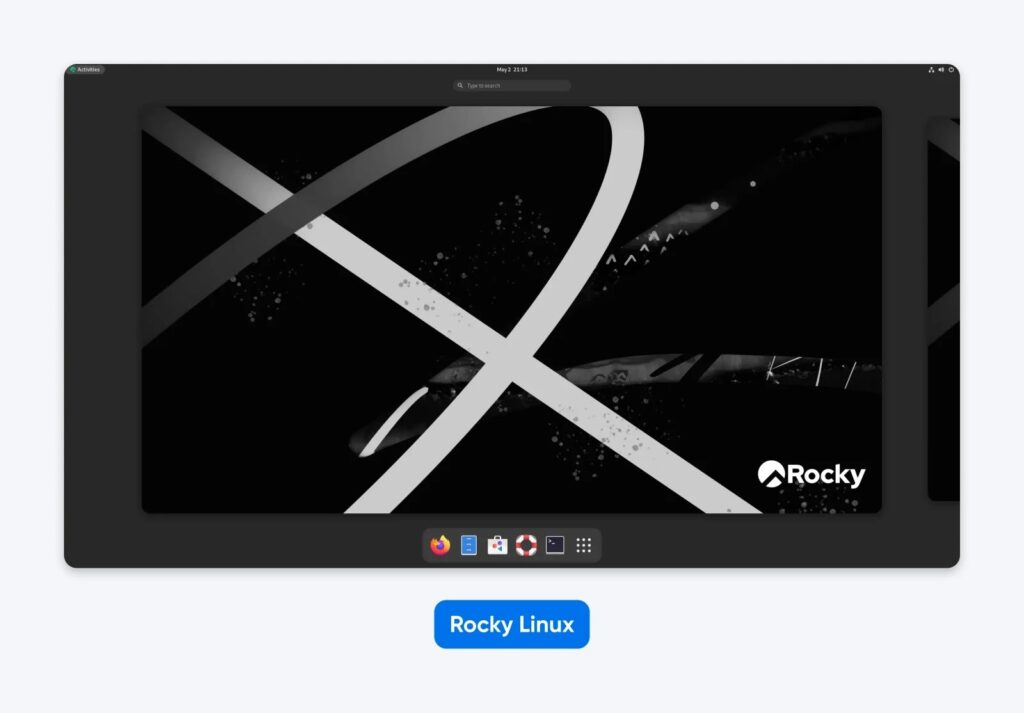
Rocky Linux picks up where the original CentOS left off. When Red Hat discontinued CentOS Linux, Gregory Kurtzer, one of CentOS’s founders, created Rocky Linux to preserve what users actually needed: a stable, production-ready, free alternative to Red Hat Enterprise Linux.
The distribution provides 1:1 binary compatibility with RHEL, meaning software certified for RHEL runs without modification.
Why It Works:
- Binary compatibility with RHEL ensures enterprise Linux software runs without modification or compatibility issues
- Ten-year security support lifecycle provides stability for the infrastructure you’re deploying today and maintaining through 2035.
- Community-driven development through the Rocky Enterprise Software Foundation keeps the project independent and user-focused.
- Migration tools like migrate2rocky simplify switching from CentOS 7, CentOS 8, or other RHEL-based distributions.
- Free and open-source gives you RHEL’s reliability without subscription costs, ideal for budget-conscious deployments.
The Downsides:
- Software packages remain 6–18 months behind current versions, prioritizing stability over features.
- Desktop experience lacks the polish of user-focused distributions, with older GNOME versions and limited themes.
- Primarily designed for server rooms, not workstations, making daily desktop use feel awkward.
System Requirements: 1GB RAM minimum for server, 2GB for desktop, 10GB storage minimum, 20GB recommended
Best for: System administrators managing production servers or even VPS hosting who want to move out of the commercially owned Red Hat umbrella.
What About Old Computers?
Puppy Linux, lightweight Ubuntu variants, and the Raspberry Pi OS resurrect computers from 2005 to 2012 that modern Windows won’t even install on.
11. Puppy Linux
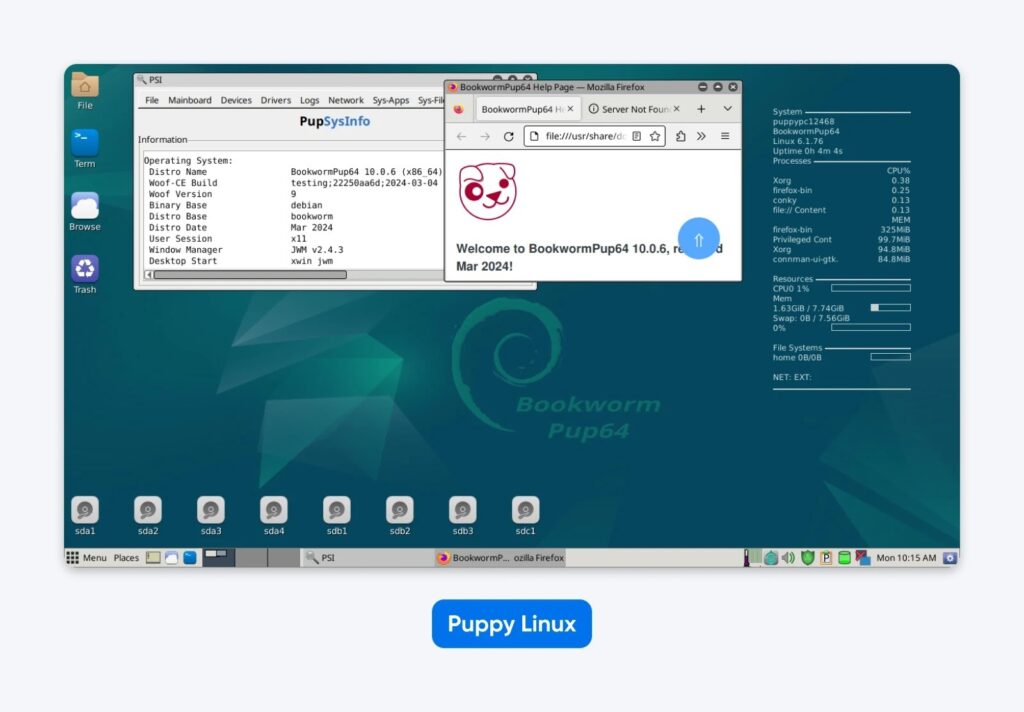
Puppy proves that Linux can run on anything, even on a toaster. The entire system loads into RAM, making ancient computers feel surprisingly responsive once they finish booting. Multiple variants exist because different communities maintain versions based on different parent distributions.
Why It Works:
- Loads completely into RAM, eliminating hard drive access delays during normal operation.
- The complete system occupies only 300MB of storage, leaving maximum space for user documents.
- Boots in under 60 seconds on processors from 2005, faster than modern Windows on current hardware.
- Essential applications are pre-installed, including a lightweight browser, text editor, and media players.
The Downsides:
- Interface design looks dated, with its 1990s-style window decorations and icon sets.
- A smaller software repository than mainstream distributions limits the available applications.
- Community is smaller than major distributions, resulting in fewer online tutorials and support resources.
System Requirements: 256MB RAM minimum (runs but sluggish), 512MB RAM recommended, 512MB storage, 1GHz processor
Best for: Resurrecting laptops from 2005 to 2010, creating ultra-portable USB systems, and extreme hardware constraints
12. Lubuntu & Xubuntu
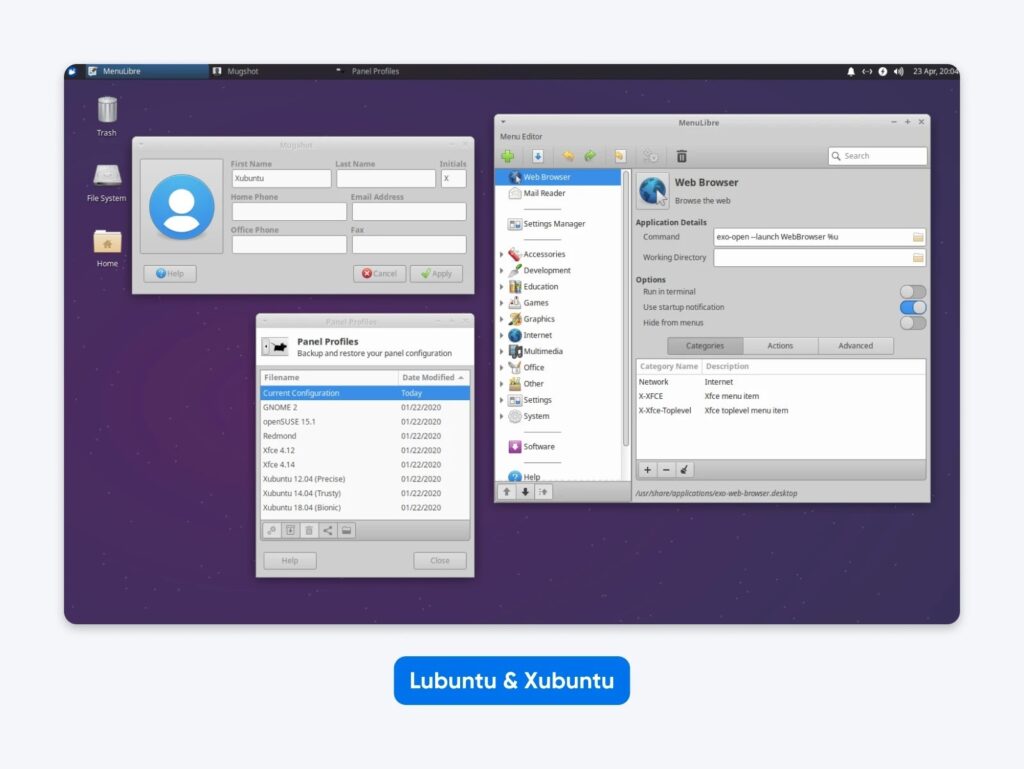
Both distributions solve the same problem: you want Ubuntu’s software library and community support, but your computer chokes on Ubuntu’s default GNOME desktop. Lubuntu uses LXQt while Xubuntu uses XFCE, both consuming significantly less RAM. You’re essentially getting Ubuntu tuned for efficiency instead of visual effects.
Why It Works:
- Full access to Ubuntu’s 50,000+ package repository without hardware compromises.
- Five-year LTS support schedule matches Ubuntu’s, providing long-term stability.
- Desktop environments consume 300–500MB less RAM than GNOME while maintaining a professional appearance.
- Ubuntu’s massive community provides troubleshooting support since the technical foundation is identical.
The Downsides:
- Visual polish lags behind modern Ubuntu’s polished GNOME interface with older-looking themes.
- Some advanced features require manual configuration, which Ubuntu handles automatically.
- Smaller dedicated communities compared to the main Ubuntu project, though Ubuntu resources usually apply.
System Requirements:
- Lubuntu: 1GB RAM minimum, 2GB recommended, 10GB storage
- Xubuntu: 2GB RAM minimum, 4GB recommended, 20GB storage
Best for: Laptops from 2010 to 2015, netbooks with limited RAM, and users wanting Ubuntu without resource overhead
13. Raspberry Pi OS: Built for Pi Hardware

The Raspberry Pi Foundation created Raspberry Pi OS to show what their hardware can do, which means every feature of the Pi works without hunting for drivers. Based on Debian, it comes in three sizes depending on whether you want a desktop computer, a server, or something in between. It’s the default choice because it’s the only distribution the Foundation optimizes specifically for their hardware.
Why It Works:
- Hardware optimization ensures that GPIO pins, camera modules, and HAT accessories function correctly out of the box.
- Three editions serve different needs: Full (4GB with educational tools), Desktop (2GB graphical), and Lite (400MB command-line).
- Massive tutorial ecosystem covers virtually every Raspberry Pi project from retro gaming to home automation.
The Downsides:
- ARM architecture limits software to packages compiled for ARM processors, excluding some x86-only applications.
- Performance is constrained by Raspberry Pi hardware rather than the distribution itself.
- Not suitable as a primary desktop replacement for resource-intensive computing tasks.
System Requirements: Works on all Raspberry Pi models, 8GB SD card minimum for Lite, 32GB recommended for Desktop, 512MB RAM minimum
Best for: All Raspberry Pi owners, education and learning projects, home automation systems, and retro gaming consoles
What Mistakes Do Beginners Make When Picking a Linux Distribution?
The biggest mistake is choosing distributions marketed to advanced users when you’re still learning what a terminal is. You see “ultimate customization” or “bleeding edge” and think that sounds powerful. Then you spend three days troubleshooting why your wireless card doesn’t work.
Here’s what trips up most beginners:
- Starting with Arch or Gentoo: These require command-line wizardry you don’t have yet. You’ll spend days troubleshooting the installation instead of actually using Linux. Start with Ubuntu or Mint.
- Ignoring the terminal completely: Graphical tools handle most tasks, but you’ll eventually need basic commands. Learn five per week: ls, cd, sudo apt update, pwd, mkdir.
- Running everything as root: The root account has unlimited power, including the power to nuke your system with one typo. Use sudo only when commands actually need it.
- Installing five desktop environments: GNOME, KDE, and XFCE each install hundreds of packages. Multiple environments create conflicts and waste RAM. Pick one.
- Copy-pasting commands without reading them: That terminal command from a random forum could delete your files. Search man <command> first.
- Expecting Windows .exe files to work: They won’t. Most software has Linux versions. LibreOffice replaces Office. GIMP handles photos. For Windows-only programs, use Wine or virtual machines.
How Do You Actually Install Linux?
Download Ubuntu or Mint, write it to a USB drive with Balena Etcher, test it, then install. The ISO file is 3-5GB. Etcher writes it to an 8GB USB in minutes. Boot from USB (press F12 during startup on most computers).
Test wireless, audio, and graphics for 30 minutes. Everything work? Double-click Install. Pick your language and timezone. Choose Erase disk (if you’re sure) and install for simplicity. Wait 25 minutes.
After first boot, run sudo apt update && sudo apt upgrade in the terminal. This downloads security updates.. Restart once complete. Done.
The Spirit of Linux
Linux isn’t just another operating system — it’s a philosophy. It gives you choices, teaches you how things work, and rewards curiosity over conformity. Whether you’re a beginner looking for stability or a developer chasing precision, there’s a distro designed with you in mind.
So take the time to experiment.
Boot a few live USBs.
Break things, fix them, and learn along the way.
The more you explore, the more you’ll understand why millions of users swear by Linux — not because it’s easy, but because it’s theirs.

VPS Hosting
When You Expect Performance Get DreamHost VPS
Big or small, website or application – we have a VPS configuration for you.
See More
Frequently Asked Questions
Can I try Linux without installing it?
Yes. Most Linux distributions let you create a live USB drive that boots your computer into Linux without touching your hard drive. Download the ISO file, use Balena Etcher to write it to a USB drive, and boot from USB to explore the system. With this setup, you can test hardware compatibility and try the interface before committing to the full installation.
How difficult is it to switch from Windows to Linux?
The difficulty depends on the distribution you choose. Ubuntu and Linux Mint are designed specifically for Windows users and provide familiar interfaces that work similarly to what you already know. The biggest adjustment is learning that some Windows programs don’t exist on Linux, though most have equivalent alternatives. Expect a learning curve of 1–2 weeks for basic comfort.
Do I need to know the command line to use Linux?
You don’t need to. Modern distributions like Ubuntu and Linux Mint handle most tasks through graphical interfaces, so you can use Linux without touching the terminal. But knowing basic commands can make troubleshooting easier. We have a full guide on Linux commands you can read through.
Which Linux distribution is most similar to Windows?
Linux Mint with the Cinnamon desktop environment mimics Windows layout most closely, with a taskbar at the bottom and familiar start menu behavior. It’s specifically designed for people transitioning from Windows and requires minimal adjustment.
Is Linux more secure than Windows?
Linux’s security advantages come from its architecture and smaller target base for malware. The permission system prevents programs from making system-wide changes without explicit authorization, and the open-source nature allows faster security patch development. However, no operating system is completely immune to security threats, and proper security practices matter more than operating system choice.
Did you enjoy this article?
